> For the complete documentation index, see [llms.txt](https://boza.gitbook.io/docs/llms.txt). Markdown versions of documentation pages are available by appending `.md` to page URLs; this page is available as [Markdown](https://boza.gitbook.io/docs/browser-extension/deployment/google-admin.md).
# Google Admin Console
Use Boza's guided Google Workspace deployment to force-install the Chrome extension for selected groups and configure automatic user identification.
## What the Guided Deployment Changes
For each selected Boza group, the deployment:
1. Resolves the users in that group.
2. Creates a dedicated Google Workspace group for each user.
3. Adds the user to that group.
4. Applies Chrome policy that force-installs and pins the Boza extension.
5. Applies managed extension configuration containing the user's email and the workspace extension secret.
{% hint style="warning" %}
This flow writes groups and Chrome policy in Google Workspace. Use a pilot first, review the requested Google permissions, and confirm that creating dedicated deployment groups is acceptable for your directory.
{% endhint %}
## Prerequisites
* A Boza workspace Admin.
* An active [Google Workspace integration](/docs/integrations/google-workspace.md).
* A Google Workspace administrator who can authorize Chrome policy and directory changes.
* A small Boza group containing the pilot users.
* Supported managed Chrome browsers.
The Boza Chrome extension ID is:
```
lgdogpphmkjofjogicpokolmlmcfilja
```
## Run the Guided Deployment
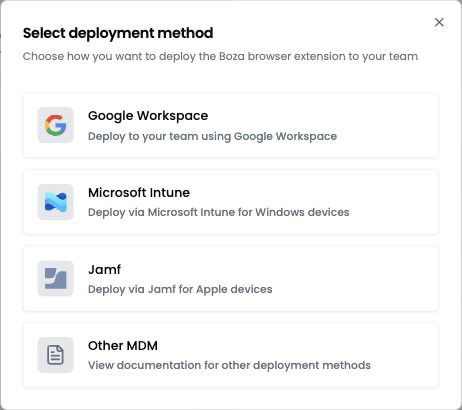
1. Open **Settings → Browser Extension**.
2. Click **Deploy extension**.
3. Select **Google Workspace**.
Choose the management platform that controls the pilot devices.
4. Click **Authorize Google Workspace**.
5. Sign in with the approved Google Workspace administrator account.
6. Review and grant the requested permissions.
7. Return to Boza and wait for authorization to show as complete.
8. Continue to group selection.
9. Select only the pilot group.
10. Review the selection and click **Deploy extension**.
The final step reports whether Boza submitted the deployment successfully. Google Workspace then distributes the policy to devices in scope.
## Validate the Pilot
On a pilot device:
1. Restart Chrome or trigger a managed-policy refresh.
2. Open `chrome://extensions` and confirm Boza is installed.
3. Open `chrome://policy`, reload policies, and confirm that the Boza extension has managed installation and configuration.
4. Open the extension and confirm that the pilot user is identified.
5. In Boza, open **Settings → Browser Extension → Activity Monitoring** and confirm installation and recent activity for the user.
Policy delivery timing depends on Google and device check-in. Do not expand the assignment until installation and identification are both correct.
## Manual Google Admin Alternative
If you cannot authorize the guided flow, you can force-install the extension through Google Admin:
1. Open the Google Admin console.
2. Go to **Devices → Chrome → Apps & extensions → Users & browsers**.
3. Select the pilot organizational unit or group.
4. Add the extension by ID and set its installation policy to **Force install**.
5. Save and validate on a pilot device.
This manual method installs the extension but does not automatically create Boza's per-user managed configuration. Each user can sign in to the extension once with their corporate account. Do not paste one employee's email into a policy shared by multiple people.
## Troubleshooting
### Authorization Fails
Confirm that the account is a Google Workspace administrator for the connected organization and can approve Chrome policy and directory access.
### A User Is Missing from Group Selection
The guided deployment starts from groups already synchronized into Boza. Confirm the user's group membership in Google Workspace, allow synchronization to complete, and reopen the dialog.
### The Extension Is Not Installed
Check the selected group, the user's actual Chrome profile, device enrollment, and policy at `chrome://policy`. Confirm the extension ID exactly.
### The Extension Is Installed but the User Is Not Identified
Reload policy and inspect the managed configuration for the Boza extension. Do not expose the secret in a screenshot or support ticket. Contact **** if the configuration is absent after policy refresh.
## Security and Rollback
* Treat the workspace extension secret as confidential.
* Do not reuse a secret from another Boza workspace.
* Pilot changes before broad deployment.
* To stop rollout, remove or unassign the relevant Chrome policy in Google Admin and coordinate cleanup of dedicated Boza deployment groups.
* If the secret may have been exposed, contact Boza to rotate it and redeploy managed configuration.
---
# Agent Instructions
This documentation is published with GitBook. GitBook is the documentation platform designed so that both humans and AI agents can read, navigate, and reason over technical content effectively. Learn more at gitbook.com.
## Querying This Documentation
If you need additional information that is not directly available in this page, you can query the documentation by asking a question.
Perform an HTTP GET request on the following URL with the `ask` and `goal` query parameters:
```
GET https://boza.gitbook.io/docs/browser-extension/deployment/google-admin.md?ask=&goal=
```
`ask` is the immediate question: it should be specific, self-contained, and written in natural language.
`goal` is what the user is ultimately trying to achieve, the reason they need the answer. Sharing it helps GitBook give you a better, more relevant answer. A goal is most helpful when it describes the outcome the user wants rather than restating the question. For example, with `ask=how do I create an API token`, a goal like `automate deployments from our CI pipeline` lets GitBook tailor the answer to that use case.
The response will contain a direct answer to the question and relevant excerpts and sources from the documentation.
Use this mechanism when the answer is not explicitly present in the current page, you need clarification or additional context, or you want to retrieve related documentation sections.