> For the complete documentation index, see [llms.txt](https://boza.gitbook.io/docs/llms.txt). Markdown versions of documentation pages are available by appending `.md` to page URLs; this page is available as [Markdown](https://boza.gitbook.io/docs/browser-extension/deployment/jamf.md).
# Jamf (macOS)
This guide walks you through deploying the Boza browser extension to your organization's Apple devices using **Jamf Pro**. The deployment covers Chrome, Firefox, and Safari.
## Prerequisites
* Admin access to your **Jamf Pro** instance
* Admin access to your **Boza** workspace
* Your Jamf Pro server URL (e.g., `https://yourcompany.jamfcloud.com`)
* A Jamf **API Client ID** and **Client Secret** (created in Part 1 below)
* User email addresses assigned to devices in Jamf (via LDAP/AD, Apple Business Manager, or the device's User and Location record)
{% hint style="warning" %}
Auto-login will not work if email addresses are not assigned to devices in Jamf. The `$EMAIL` variable is populated from each device's **User and Location** record.
{% endhint %}
## Browser Support Overview
| Browser | Auto-install | Auto-login |
| --------------- | ------------------ | ---------- |
| Google Chrome | Yes | Yes |
| Mozilla Firefox | Yes | Yes |
| Safari | Manual (App Store) | Yes |
{% hint style="info" %}
Chrome and Firefox are fully automatic. Safari auto-login is configured automatically, but the Boza Safari app must be deployed separately from the Mac App Store (see Part 3).
{% endhint %}
***
## Part 1: Connect Jamf to Boza
Before deploying the extension, you need to create a Jamf API role and client, then connect them to Boza.
### Step 1.1 — Create an API Role in Jamf Pro
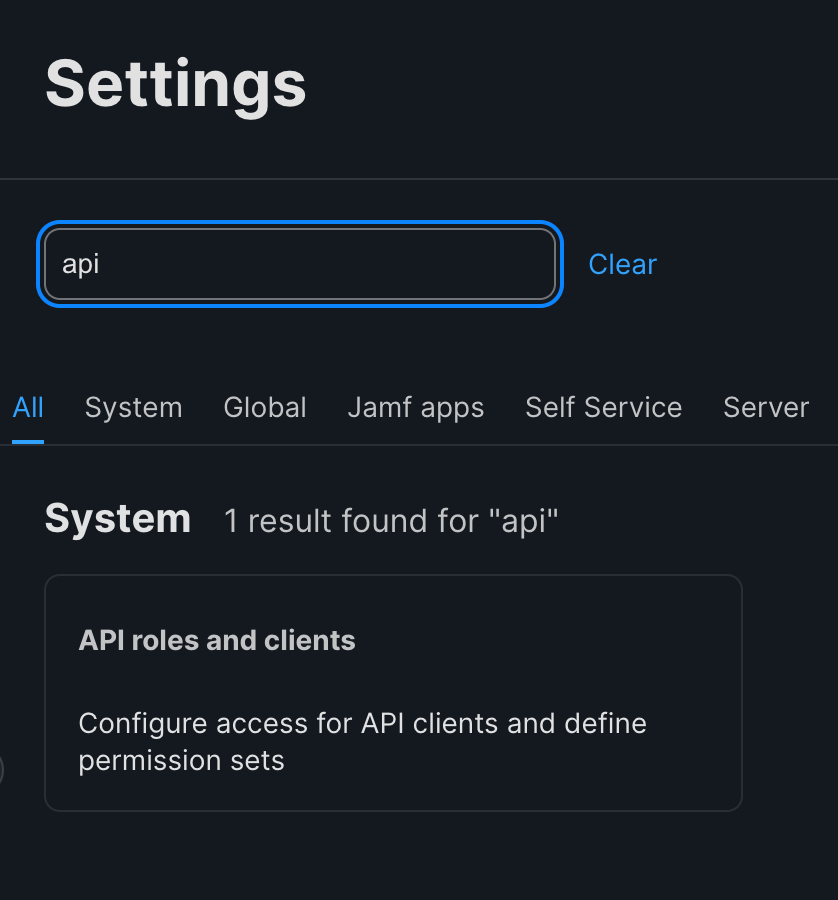
1. In Jamf Pro, navigate to **Settings** and search for **api**, then click **API roles and clients**.
2. On the **API Roles** tab, click **+ New**.
3. Set the **Display name** to `Boza Integration`.
4. Under **Privileges**, enable the following:
| Privilege | Required for |
| ----------------------------------- | ------------------------------------ |
| Read Computers | Look up device user by serial number |
| Read Smart Computer Groups | List groups for deployment targeting |
| Read Static Computer Groups | List groups for deployment targeting |
| Create macOS Configuration Profiles | Push extension profiles to devices |
| Read macOS Configuration Profiles | Check deployment status |
| Update macOS Configuration Profiles | Update existing profiles on redeploy |
5. Click **Save**.

 ### Step 1.2 — Create an API Client
1. On the same page, click the **API Clients** tab, then click **+ New**.
2. Fill in the form:
* **Display Name:** `Boza`
* **API roles:** assign `Boza Integration`
* **Access token lifetime:** leave as default
* **Enable/disable API Client:** click **Enable API client**
3. Click **Save**.
4. Click **Generate Client Secret** — copy both values immediately and store them securely.
{% hint style="warning" %}
The Client Secret is only shown once. If you lose it, you will need to generate a new one.
{% endhint %}
| Value | Where to find it |
| ------------- | ---------------------------------------------------- |
| Client ID | Shown on the API Client detail page |
| Client Secret | Shown once after clicking **Generate Client Secret** |
### Step 1.2 — Create an API Client
1. On the same page, click the **API Clients** tab, then click **+ New**.
2. Fill in the form:
* **Display Name:** `Boza`
* **API roles:** assign `Boza Integration`
* **Access token lifetime:** leave as default
* **Enable/disable API Client:** click **Enable API client**
3. Click **Save**.
4. Click **Generate Client Secret** — copy both values immediately and store them securely.
{% hint style="warning" %}
The Client Secret is only shown once. If you lose it, you will need to generate a new one.
{% endhint %}
| Value | Where to find it |
| ------------- | ---------------------------------------------------- |
| Client ID | Shown on the API Client detail page |
| Client Secret | Shown once after clicking **Generate Client Secret** |

 ### Step 1.3 — Connect Jamf to Boza
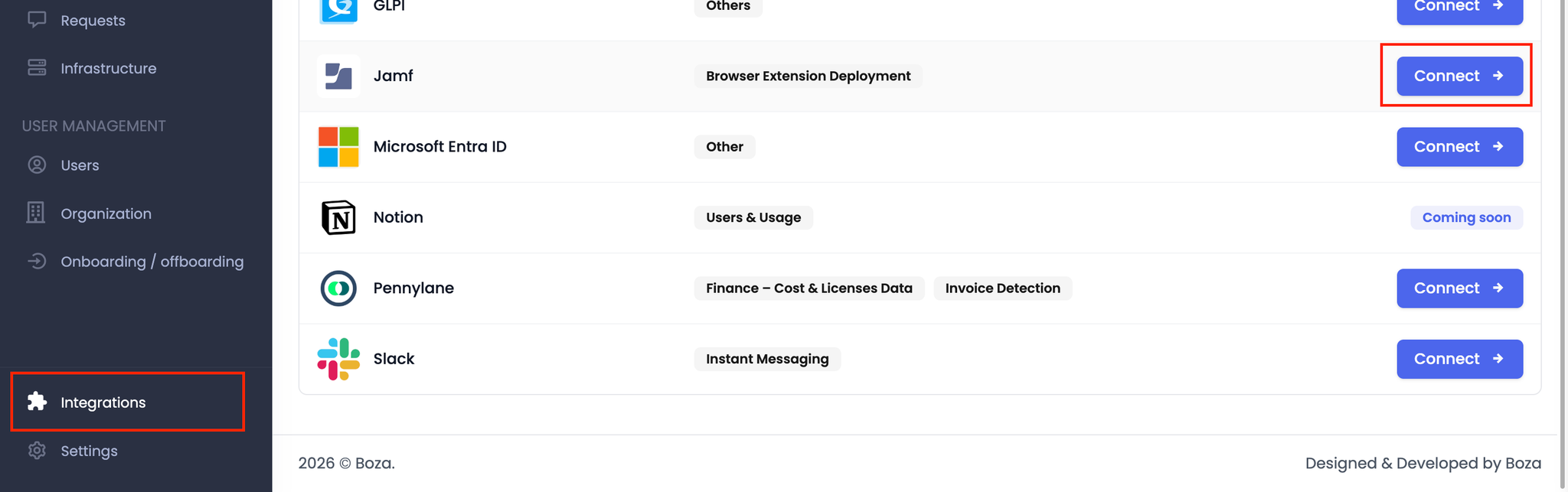
1. In Boza, navigate to **Integrations** and find the **Jamf** integration, then click **Connect**.
2. Enter your credentials:
* **Jamf Pro Server URL:** `https://yourcompany.jamfcloud.com`
* **Client ID:** the Client ID from Step 1.2
* **Client Secret:** the Client Secret from Step 1.2
3. Click **Test Connection** — you should see a success confirmation.
4. Click **Save Configuration**.
### Step 1.3 — Connect Jamf to Boza
1. In Boza, navigate to **Integrations** and find the **Jamf** integration, then click **Connect**.
2. Enter your credentials:
* **Jamf Pro Server URL:** `https://yourcompany.jamfcloud.com`
* **Client ID:** the Client ID from Step 1.2
* **Client Secret:** the Client Secret from Step 1.2
3. Click **Test Connection** — you should see a success confirmation.
4. Click **Save Configuration**.
 ***
## Part 2: Deploy the Extension (Chrome + Firefox)
Once Jamf is connected to Boza, you can deploy the extension in a few clicks. Boza will automatically create the macOS configuration profiles in Jamf and assign them to the selected computer groups.
### Step 1 — Open browser extension settings
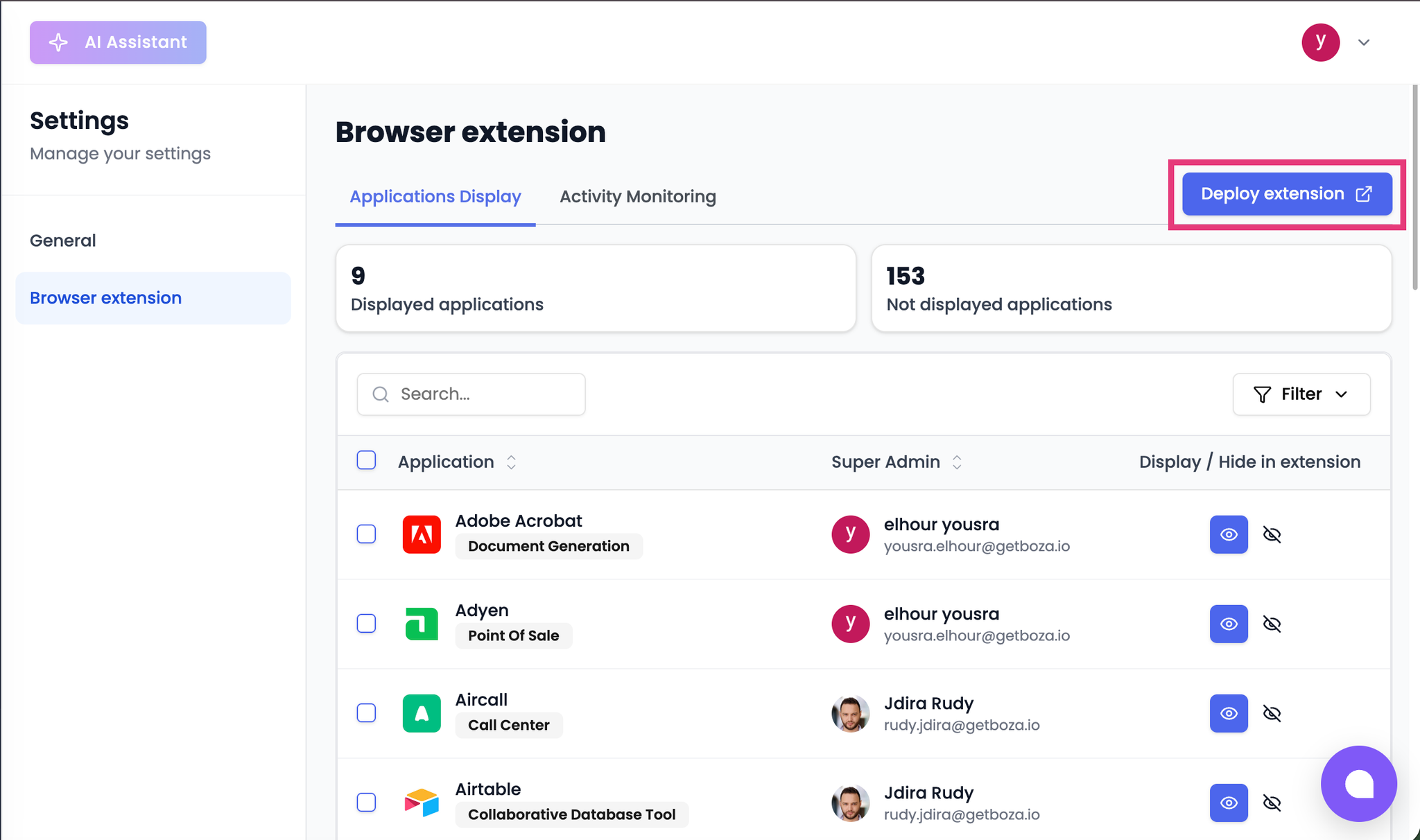
In the Boza admin panel, navigate to **Settings > Browser Extension**. In the top-right corner, click **Deploy extension**.
***
## Part 2: Deploy the Extension (Chrome + Firefox)
Once Jamf is connected to Boza, you can deploy the extension in a few clicks. Boza will automatically create the macOS configuration profiles in Jamf and assign them to the selected computer groups.
### Step 1 — Open browser extension settings
In the Boza admin panel, navigate to **Settings > Browser Extension**. In the top-right corner, click **Deploy extension**.
 ### Step 2 — Select Jamf as the deployment method
A modal will appear. Select **Jamf — Deploy via Jamf for Apple devices**.
### Step 2 — Select Jamf as the deployment method
A modal will appear. Select **Jamf — Deploy via Jamf for Apple devices**.
 ### Step 3 — Review the Jamf connection
Boza verifies your Jamf credentials. If the connection is valid, you will see a confirmation message.
{% hint style="info" %}
A reminder will appear that Safari requires a separate manual step. This is covered in Part 3.
{% endhint %}
Click **Continue with automatic deployment**.
### Step 3 — Review the Jamf connection
Boza verifies your Jamf credentials. If the connection is valid, you will see a confirmation message.
{% hint style="info" %}
A reminder will appear that Safari requires a separate manual step. This is covered in Part 3.
{% endhint %}
Click **Continue with automatic deployment**.
 ### Step 4 — Select computer groups
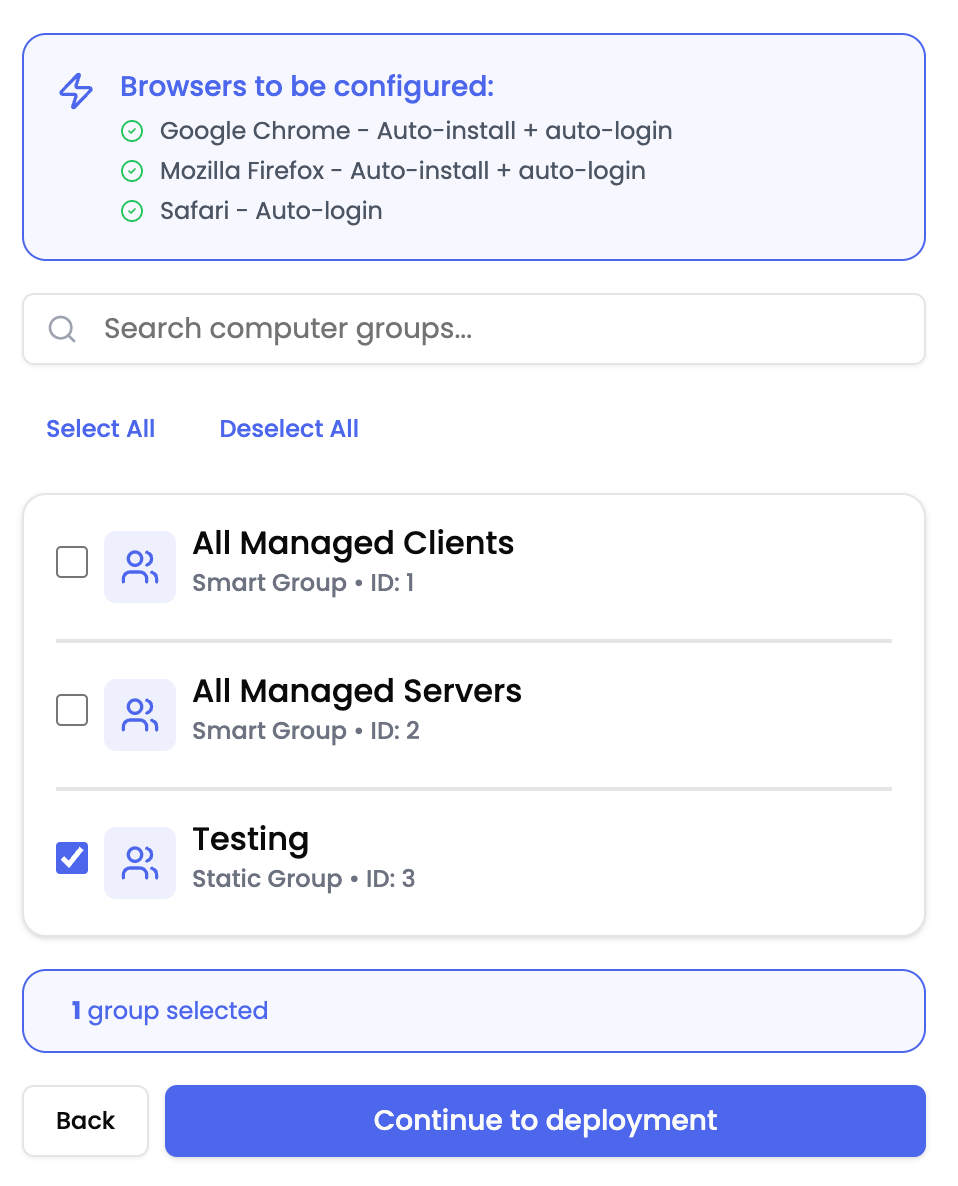
Choose which Jamf computer groups should receive the extension. All smart and static groups are listed automatically.
The deployment configures:
* **Google Chrome** — auto-install + auto-login
* **Mozilla Firefox** — auto-install + auto-login
* **Safari** — auto-login only (the app must be pushed separately)
Select one or more groups, then click **Continue to deployment**.
### Step 4 — Select computer groups
Choose which Jamf computer groups should receive the extension. All smart and static groups are listed automatically.
The deployment configures:
* **Google Chrome** — auto-install + auto-login
* **Mozilla Firefox** — auto-install + auto-login
* **Safari** — auto-login only (the app must be pushed separately)
Select one or more groups, then click **Continue to deployment**.
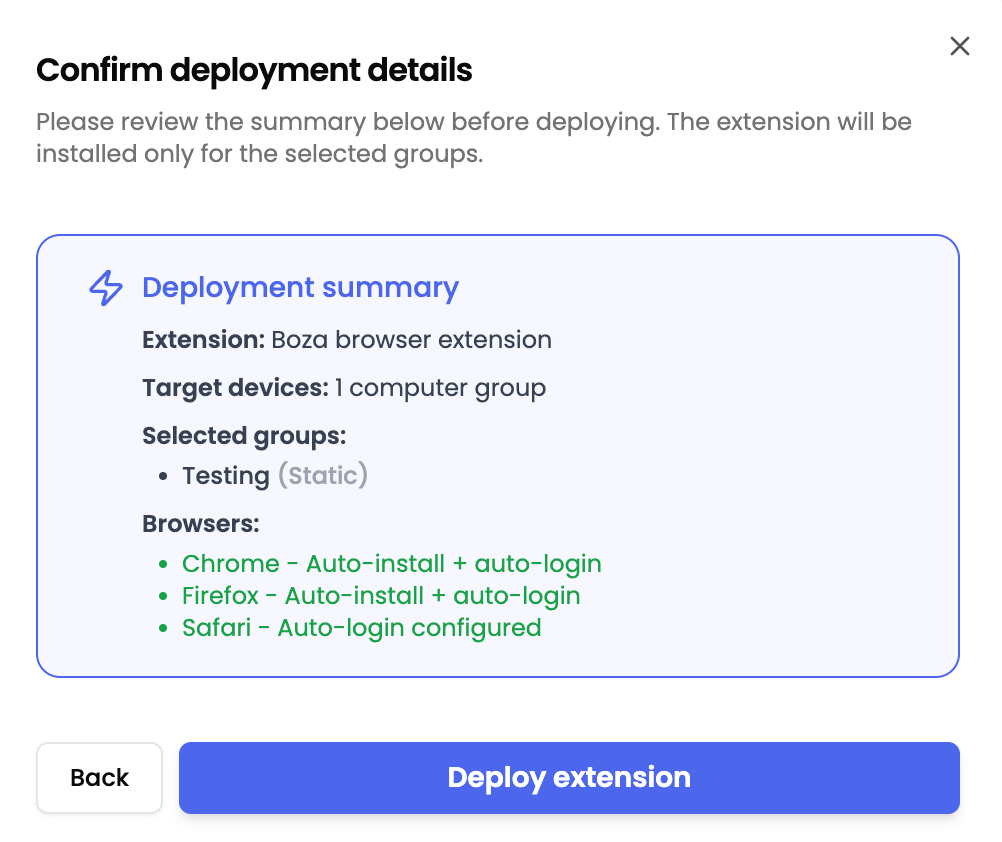
 ### Step 5 — Confirm deployment details
Review the deployment summary showing the selected groups and browser configurations. Click **Deploy extension** to start.
### Step 5 — Confirm deployment details
Review the deployment summary showing the selected groups and browser configurations. Click **Deploy extension** to start.
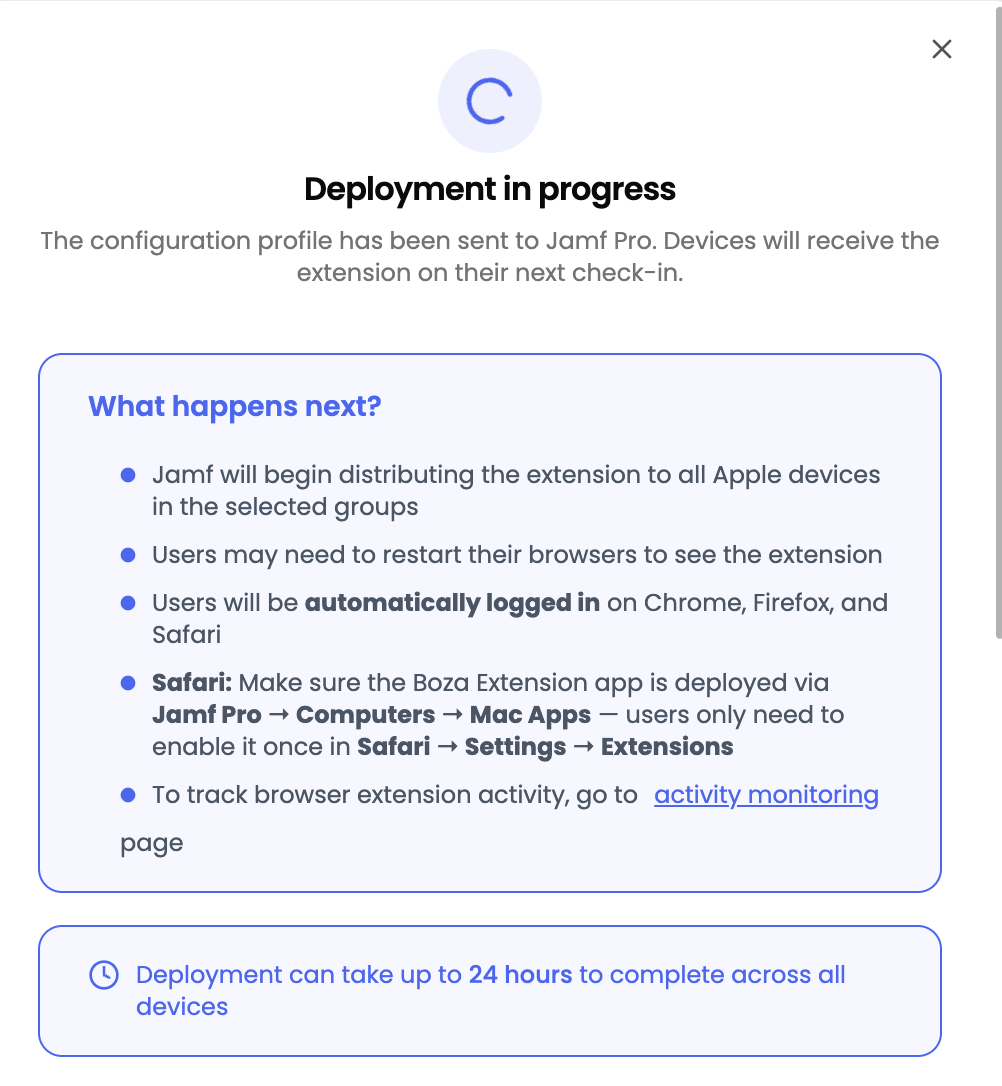
 ### Step 6 — Deployment in progress
Boza sends configuration profiles to Jamf Pro. Jamf distributes them to all devices in the selected groups on their next check-in.
What happens next:
* Jamf distributes the extension to all Apple devices in the selected groups.
* Users may need to restart their browser to see the extension.
* Users are automatically logged in on Chrome, Firefox, and Safari once the profiles are applied.
{% hint style="info" %}
Deployment can take up to 24 hours to reach all devices, depending on how frequently they check in with Jamf.
{% endhint %}
### Step 6 — Deployment in progress
Boza sends configuration profiles to Jamf Pro. Jamf distributes them to all devices in the selected groups on their next check-in.
What happens next:
* Jamf distributes the extension to all Apple devices in the selected groups.
* Users may need to restart their browser to see the extension.
* Users are automatically logged in on Chrome, Firefox, and Safari once the profiles are applied.
{% hint style="info" %}
Deployment can take up to 24 hours to reach all devices, depending on how frequently they check in with Jamf.
{% endhint %}
 ### Step 7 — Monitor deployment status
After deployment, Boza shows real-time installation status for each device. The status panel displays:
* **Browser Deployment** — whether the profile is pending or installed for each browser
* **Device Installation Status** — individual device status with a progress bar
The device list refreshes every 30 seconds. You can also check status later from **Integrations > Jamf**.
### Step 7 — Monitor deployment status
After deployment, Boza shows real-time installation status for each device. The status panel displays:
* **Browser Deployment** — whether the profile is pending or installed for each browser
* **Device Installation Status** — individual device status with a progress bar
The device list refreshes every 30 seconds. You can also check status later from **Integrations > Jamf**.
 ***
## Part 3: Deploy the Safari App (Mac App Store)
Safari requires the **Boza - Extension** container app to be installed before the extension can run. This app is free on the Mac App Store and must be deployed via Jamf's Mac apps feature.
### Step 1 — Navigate to Mac Apps in Jamf
In Jamf Pro, go to **Computers > Mac Apps**.
***
## Part 3: Deploy the Safari App (Mac App Store)
Safari requires the **Boza - Extension** container app to be installed before the extension can run. This app is free on the Mac App Store and must be deployed via Jamf's Mac apps feature.
### Step 1 — Navigate to Mac Apps in Jamf
In Jamf Pro, go to **Computers > Mac Apps**.
 ### Step 2 — Add a new app
Click the **App Store** tab, then click **+ New** in the top-right corner.
### Step 2 — Add a new app
Click the **App Store** tab, then click **+ New** in the top-right corner.
 ### Step 3 — Select app source
Select **Mac App Store** as the app source. Click **Next**.
### Step 3 — Select app source
Select **Mac App Store** as the app source. Click **Next**.
 ### Step 4 — Search for Boza
In the **Search** field, type `Boza`. Set the **App Store Country or Region** to match your organization's region. Click **Search**.
### Step 4 — Search for Boza
In the **Search** field, type `Boza`. Set the **App Store Country or Region** to match your organization's region. Click **Search**.
 ### Step 5 — Add the app
The search returns **Boza - Extension** by BOZA. Click **Add**.
### Step 5 — Add the app
The search returns **Boza - Extension** by BOZA. Click **Add**.
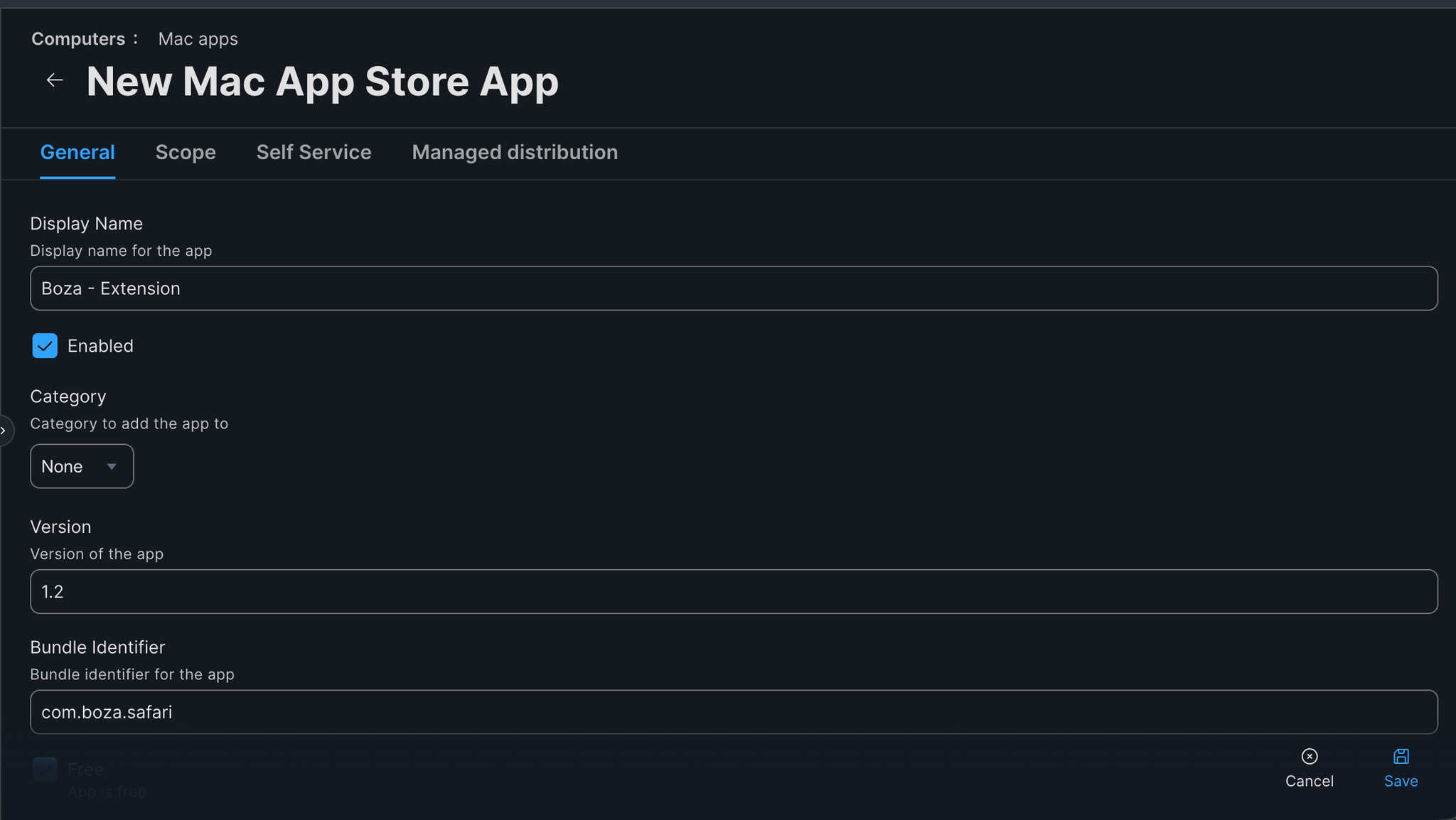
 ### Step 6 — Configure general settings
Verify the pre-filled values:
| Field | Expected Value |
| ----------------- | ----------------- |
| Display Name | Boza - Extension |
| Enabled | Checked |
| Bundle Identifier | `com.boza.safari` |
### Step 6 — Configure general settings
Verify the pre-filled values:
| Field | Expected Value |
| ----------------- | ----------------- |
| Display Name | Boza - Extension |
| Enabled | Checked |
| Bundle Identifier | `com.boza.safari` |
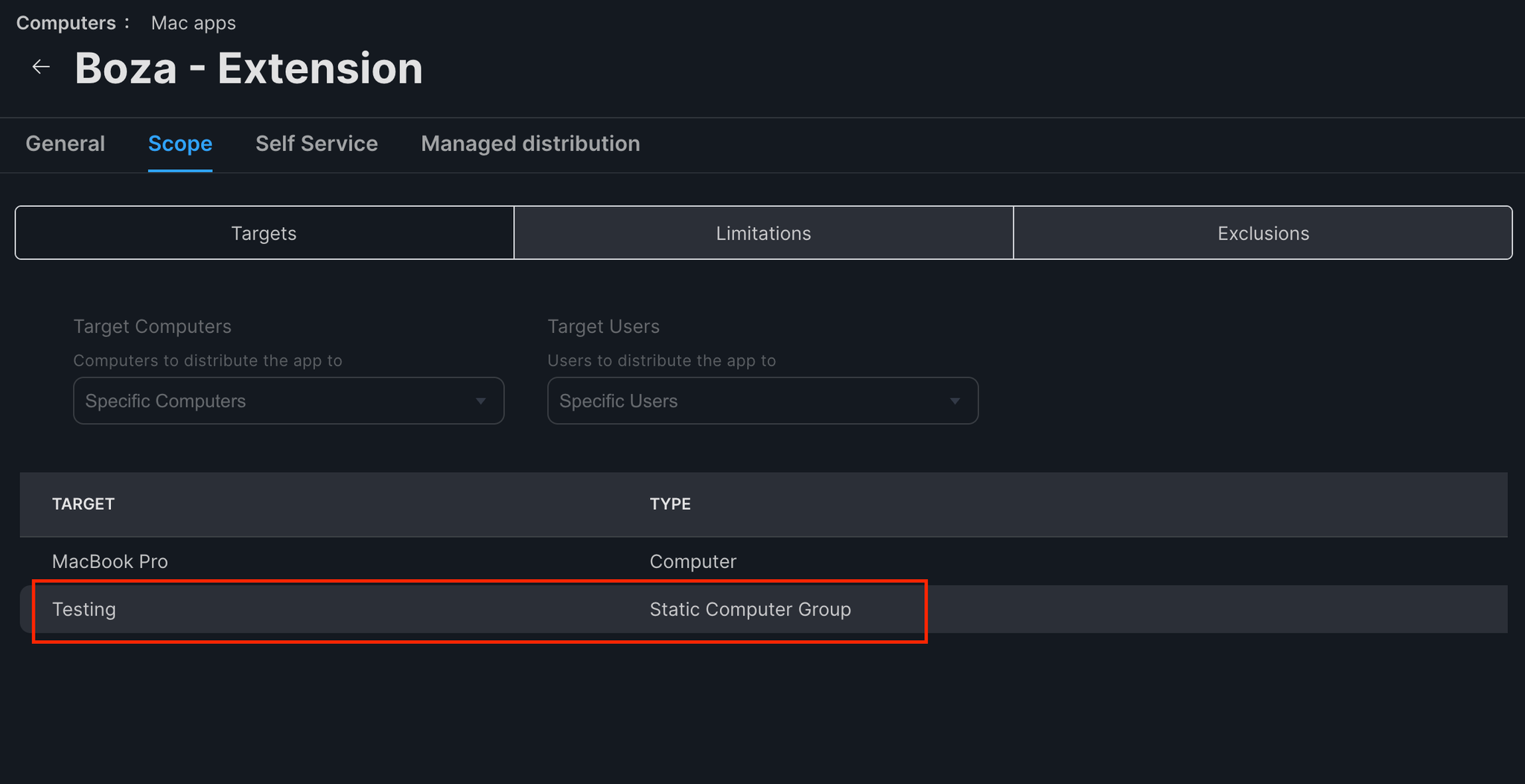
 ### Step 7 — Set the scope
1. Click the **Scope** tab.
2. Click **+ Add** to select computer groups.
3. Switch to the **Computer Groups** tab and add the same groups you selected in Part 2.
4. Set the **Distribution Method** to **Install Automatically** for silent installation.
5. Click **Save**.
### Step 7 — Set the scope
1. Click the **Scope** tab.
2. Click **+ Add** to select computer groups.
3. Switch to the **Computer Groups** tab and add the same groups you selected in Part 2.
4. Set the **Distribution Method** to **Install Automatically** for silent installation.
5. Click **Save**.


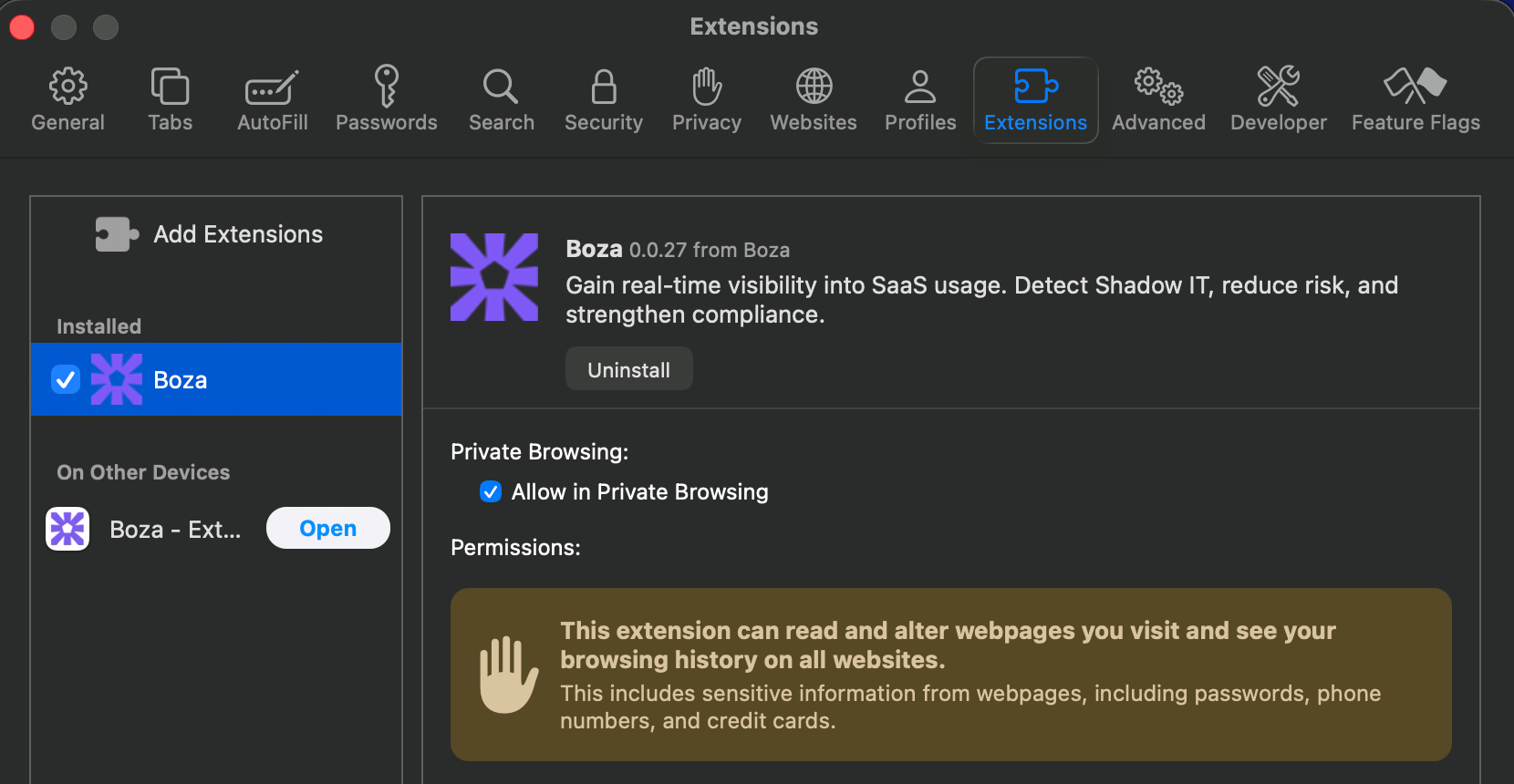
 ### Step 8 — Users enable the extension (one-time)
After the app is installed on their Mac, each user must enable the Boza extension in Safari once:
1. Open **Safari**.
2. Go to **Safari > Settings > Extensions**.
3. Find **Boza** and toggle it on.
{% hint style="info" %}
This is the only manual step required from users. After enabling, auto-login happens automatically using the configuration profile pushed by Boza in Part 2.
{% endhint %}
### Step 8 — Users enable the extension (one-time)
After the app is installed on their Mac, each user must enable the Boza extension in Safari once:
1. Open **Safari**.
2. Go to **Safari > Settings > Extensions**.
3. Find **Boza** and toggle it on.
{% hint style="info" %}
This is the only manual step required from users. After enabling, auto-login happens automatically using the configuration profile pushed by Boza in Part 2.
{% endhint %}
 ***
## Verification
To confirm a device has received all configuration profiles, go to **System Settings > Privacy & Security > Profiles** on the device. You should see four Boza profiles:
| Profile Name | Purpose |
| --------------------------------------------- | -------------------------------------------- |
| Boza Browser Extension - Chrome Config | Chrome auto-login configuration |
| Boza Browser Extension - Chrome Force Install | Chrome force-install policy |
| Boza Browser Extension - Firefox | Firefox install and auto-login configuration |
| Boza Browser Extension - Safari | Safari auto-login configuration |
***
## Verification
To confirm a device has received all configuration profiles, go to **System Settings > Privacy & Security > Profiles** on the device. You should see four Boza profiles:
| Profile Name | Purpose |
| --------------------------------------------- | -------------------------------------------- |
| Boza Browser Extension - Chrome Config | Chrome auto-login configuration |
| Boza Browser Extension - Chrome Force Install | Chrome force-install policy |
| Boza Browser Extension - Firefox | Firefox install and auto-login configuration |
| Boza Browser Extension - Safari | Safari auto-login configuration |
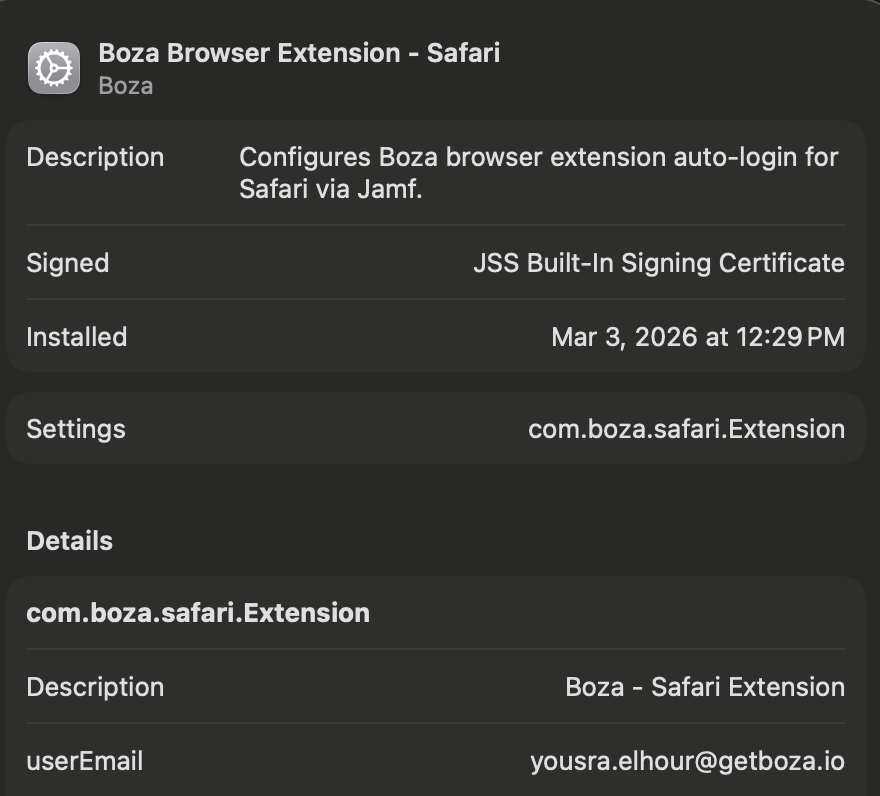
 To inspect the Safari profile, click on **Boza Browser Extension - Safari**. It should show:
* **Settings:** `com.getboza.Boza.Extension`
* **userEmail:** the user's email address (resolved via LDAP/AD)
* **secretKey:** the organization's extension secret key
To inspect the Safari profile, click on **Boza Browser Extension - Safari**. It should show:
* **Settings:** `com.getboza.Boza.Extension`
* **userEmail:** the user's email address (resolved via LDAP/AD)
* **secretKey:** the organization's extension secret key
 For Chrome and Firefox, verify the extension is installed by checking the extensions page in each browser. The Boza extension should appear and be managed (not removable by the user).
***
## Troubleshooting
**The extension does not auto-login**
* Confirm each device has a user email assigned in Jamf. The `$EMAIL` variable is populated from the device's **User and Location** record.
* Check the configuration profile is installed on the device (**System Settings > Privacy & Security > Profiles**).
* Verify the profile contains a non-empty `userEmail` value.
**Devices are not showing up in the deployment status**
* Devices check in with Jamf periodically — allow 15--30 minutes for status to update.
* Force a check-in on a test device via Jamf Remote or by running `sudo jamf policy` in Terminal.
**The connection test fails in Boza**
* Verify the Jamf Server URL uses `https://` with no trailing slash.
* Confirm the API client is enabled in Jamf.
* Confirm the Client Secret was copied correctly (it is only shown once).
**Safari extension is not appearing**
* Confirm the **Boza - Extension** app was deployed via **Computers > Mac Apps** in Jamf.
* Ask the user to check **Safari > Settings > Extensions** and enable Boza if it appears but is disabled.
* If the app is not visible in Safari extensions, it may not have been installed yet — check the Mac Apps scope and deployment status in Jamf.
---
# Agent Instructions
This documentation is published with GitBook. GitBook is the documentation platform designed so that both humans and AI agents can read, navigate, and reason over technical content effectively. Learn more at gitbook.com.
## Querying This Documentation
If you need additional information that is not directly available in this page, you can query the documentation by asking a question.
Perform an HTTP GET request on the following URL with the `ask` and `goal` query parameters:
```
GET https://boza.gitbook.io/docs/browser-extension/deployment/jamf.md?ask=&goal=
```
`ask` is the immediate question: it should be specific, self-contained, and written in natural language.
`goal` is what the user is ultimately trying to achieve, the reason they need the answer. Sharing it helps GitBook give you a better, more relevant answer. A goal is most helpful when it describes the outcome the user wants rather than restating the question. For example, with `ask=how do I create an API token`, a goal like `automate deployments from our CI pipeline` lets GitBook tailor the answer to that use case.
The response will contain a direct answer to the question and relevant excerpts and sources from the documentation.
Use this mechanism when the answer is not explicitly present in the current page, you need clarification or additional context, or you want to retrieve related documentation sections.
For Chrome and Firefox, verify the extension is installed by checking the extensions page in each browser. The Boza extension should appear and be managed (not removable by the user).
***
## Troubleshooting
**The extension does not auto-login**
* Confirm each device has a user email assigned in Jamf. The `$EMAIL` variable is populated from the device's **User and Location** record.
* Check the configuration profile is installed on the device (**System Settings > Privacy & Security > Profiles**).
* Verify the profile contains a non-empty `userEmail` value.
**Devices are not showing up in the deployment status**
* Devices check in with Jamf periodically — allow 15--30 minutes for status to update.
* Force a check-in on a test device via Jamf Remote or by running `sudo jamf policy` in Terminal.
**The connection test fails in Boza**
* Verify the Jamf Server URL uses `https://` with no trailing slash.
* Confirm the API client is enabled in Jamf.
* Confirm the Client Secret was copied correctly (it is only shown once).
**Safari extension is not appearing**
* Confirm the **Boza - Extension** app was deployed via **Computers > Mac Apps** in Jamf.
* Ask the user to check **Safari > Settings > Extensions** and enable Boza if it appears but is disabled.
* If the app is not visible in Safari extensions, it may not have been installed yet — check the Mac Apps scope and deployment status in Jamf.
---
# Agent Instructions
This documentation is published with GitBook. GitBook is the documentation platform designed so that both humans and AI agents can read, navigate, and reason over technical content effectively. Learn more at gitbook.com.
## Querying This Documentation
If you need additional information that is not directly available in this page, you can query the documentation by asking a question.
Perform an HTTP GET request on the following URL with the `ask` and `goal` query parameters:
```
GET https://boza.gitbook.io/docs/browser-extension/deployment/jamf.md?ask=&goal=
```
`ask` is the immediate question: it should be specific, self-contained, and written in natural language.
`goal` is what the user is ultimately trying to achieve, the reason they need the answer. Sharing it helps GitBook give you a better, more relevant answer. A goal is most helpful when it describes the outcome the user wants rather than restating the question. For example, with `ask=how do I create an API token`, a goal like `automate deployments from our CI pipeline` lets GitBook tailor the answer to that use case.
The response will contain a direct answer to the question and relevant excerpts and sources from the documentation.
Use this mechanism when the answer is not explicitly present in the current page, you need clarification or additional context, or you want to retrieve related documentation sections.