> For the complete documentation index, see [llms.txt](https://boza.gitbook.io/docs/llms.txt). Markdown versions of documentation pages are available by appending `.md` to page URLs; this page is available as [Markdown](https://boza.gitbook.io/docs/browser-extension/deployment/jamf-via-profile.md).
# Jamf via Profile
This guide covers a **manual** way to deploy the Boza browser extension with **Jamf Pro**: instead of letting Boza create and push the profiles automatically (see [Deploy via Jamf](/docs/browser-extension/deployment/jamf.md)), you take the configuration profiles below, drop in your secret key, and upload them to Jamf yourself.
{% hint style="info" %}
Prefer a one-click rollout? The [automatic Jamf deployment](/docs/browser-extension/deployment/jamf.md) creates and assigns these profiles for you from the Boza admin panel. Use this method only if you want to manage the profiles manually.
{% endhint %}
## At a Glance
* **The profiles use Jamf's `$EMAIL` variable**, which Jamf automatically replaces with each user's email address from your LDAP / Active Directory — this is what identifies the user and enables auto-login.
* **Chrome and Firefox:** upload the profile in Jamf Pro (**Configuration Profiles > Upload**) and scope it to your user groups.
* **Safari:** deployment has two parts — install the app via **Mac Apps** in Jamf (from the Mac App Store), then upload the configuration profile for auto-login.
## The Profiles
Copy each profile below into a text editor and save it with a `.mobileconfig` extension (for example, `boza-chrome.mobileconfig`). Before uploading, make two replacements in each file:
* **`YOUR_SECRET_KEY_HERE`** → your Boza extension secret key. **Boza provides this** — ask your Account Executive for it.
* **`YOUR_ORG`** → a short identifier for your organization (for example, your domain or company name). Replace it in every `PayloadIdentifier`.
Leave **`userEmail`** as the literal **`$EMAIL`** — Jamf replaces it with each user's address from your LDAP, so everyone is identified individually. You don't fill in a personal email; you only fill in the secret key.
How the three browsers differ:
* **Chrome** and **Firefox** — the profile both **force-installs** the extension and **configures auto-login**.
* **Safari** — the profile only **configures auto-login**. The Safari extension ships inside the **Boza - Extension** app, which you install separately from the Mac App Store (see [Deploy the Safari App](#deploy-the-safari-app)).
{% hint style="warning" %}
Once you've added your secret key, treat the saved files as confidential — they grant extension access for your organization. Don't reuse them across organizations or share them outside your IT team.
{% endhint %}
### Chrome
```xml
PayloadContent
PayloadType
com.google.Chrome
PayloadVersion
1
PayloadIdentifier
com.boza.profile.chrome.forcelist.YOUR_ORG
PayloadUUID
A1111111-0000-4000-8000-000000000001
PayloadDisplayName
Boza - Chrome Extension Force Install
ExtensionInstallForcelist
lgdogpphmkjofjogicpokolmlmcfilja;https://clients2.google.com/service/update2/crx
PayloadType
com.google.Chrome.extensions.lgdogpphmkjofjogicpokolmlmcfilja
PayloadVersion
1
PayloadIdentifier
com.boza.profile.chrome.config.YOUR_ORG
PayloadUUID
A2222222-0000-4000-8000-000000000002
PayloadDisplayName
Boza - Chrome Extension Config
userEmail
$EMAIL
secretKey
YOUR_SECRET_KEY_HERE
PayloadDisplayName
Boza Browser Extension - Chrome
PayloadIdentifier
com.boza.profile.chrome.YOUR_ORG
PayloadRemovalDisallowed
PayloadScope
System
PayloadType
Configuration
PayloadUUID
A3333333-0000-4000-8000-000000000003
PayloadVersion
1
PayloadOrganization
Boza
```
### Firefox
```xml
PayloadContent
PayloadType
org.mozilla.firefox
PayloadVersion
1
PayloadIdentifier
com.boza.profile.firefox.YOUR_ORG
PayloadUUID
B1111111-0000-4000-8000-000000000001
PayloadDisplayName
Boza - Firefox Extension
EnterprisePoliciesEnabled
ExtensionSettings
extension-firefox@getboza.io
installation_mode
force_installed
install_url
https://addons.mozilla.org/firefox/downloads/latest/extension-firefox@getboza.io/latest.xpi
3rdparty
Extensions
extension-firefox@getboza.io
userEmail
$EMAIL
secretKey
YOUR_SECRET_KEY_HERE
PayloadDisplayName
Boza Browser Extension - Firefox
PayloadIdentifier
com.boza.profile.firefox.YOUR_ORG
PayloadRemovalDisallowed
PayloadScope
System
PayloadType
Configuration
PayloadUUID
B2222222-0000-4000-8000-000000000002
PayloadVersion
1
PayloadOrganization
Boza
```
### Safari
```xml
PayloadContent
PayloadType
com.boza.safari.Extension
PayloadVersion
1
PayloadIdentifier
com.boza.profile.safari.YOUR_ORG
PayloadUUID
C1111111-0000-4000-8000-000000000001
PayloadDisplayName
Boza - Safari Extension
userEmail
$EMAIL
secretKey
YOUR_SECRET_KEY_HERE
PayloadDisplayName
Boza Browser Extension - Safari
PayloadIdentifier
com.boza.profile.safari.YOUR_ORG
PayloadRemovalDisallowed
PayloadScope
System
PayloadType
Configuration
PayloadUUID
C2222222-0000-4000-8000-000000000002
PayloadVersion
1
PayloadOrganization
Boza
```
## Prerequisites
* Admin access to your **Jamf Pro** instance
* Your **Boza extension secret key** (provided by your Boza Account Executive)
* Your **LDAP / Active Directory connected to Jamf Pro** — required so the `$EMAIL` variable resolves to each user's address (see [The `$EMAIL` Variable](#the-email-variable))
* Computer groups already defined in Jamf for targeting (for example, *All Managed Clients* or a specific group)
***
## Deploy the Chrome and Firefox Profiles
### Step 1 — Open Configuration Profiles
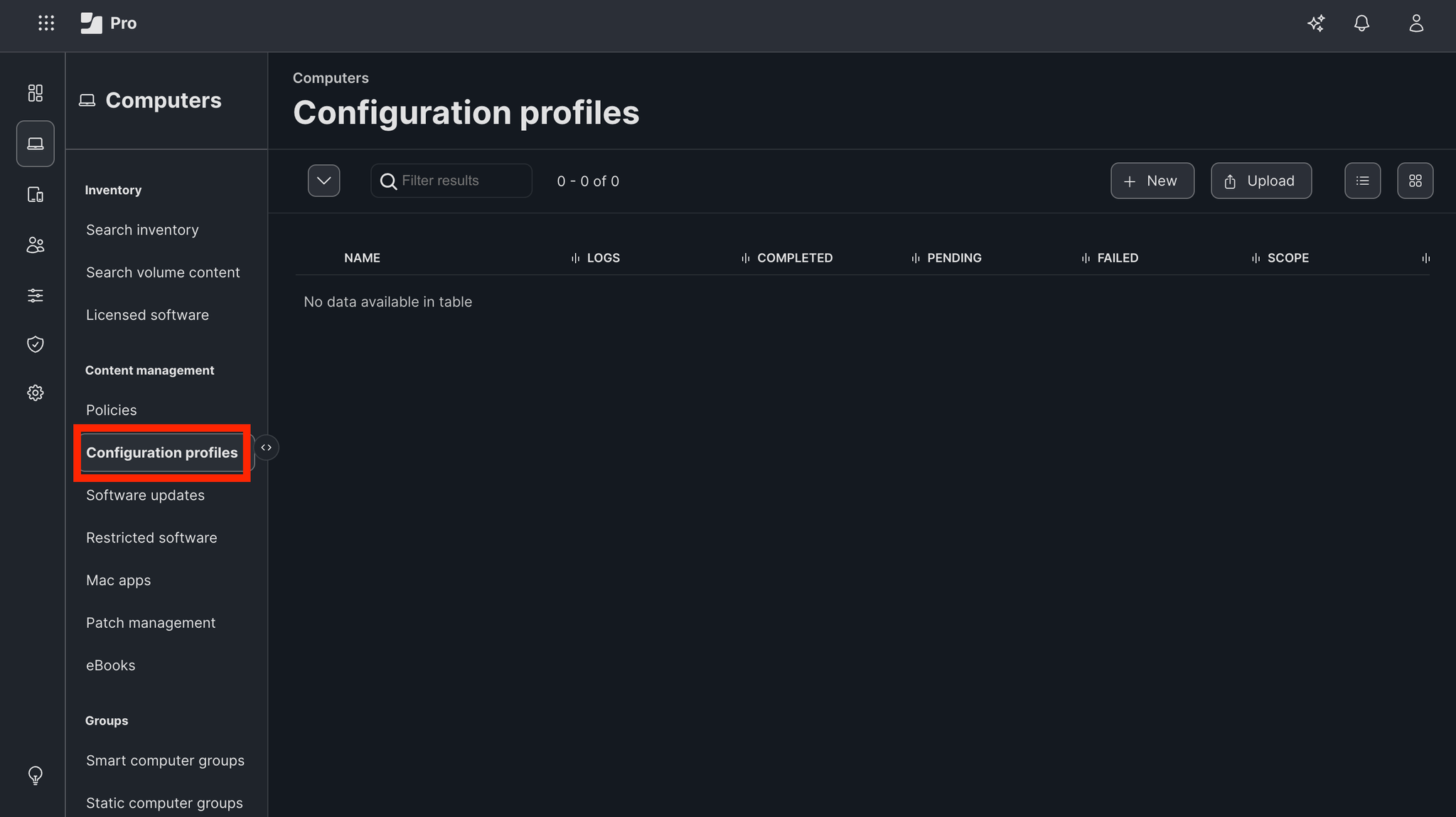
In Jamf Pro, go to **Computers > Content Management > Configuration Profiles**.
 ### Step 2 — Click Upload
Click the **Upload** button in the top-right corner.
### Step 2 — Click Upload
Click the **Upload** button in the top-right corner.
 ### Step 3 — Select the file
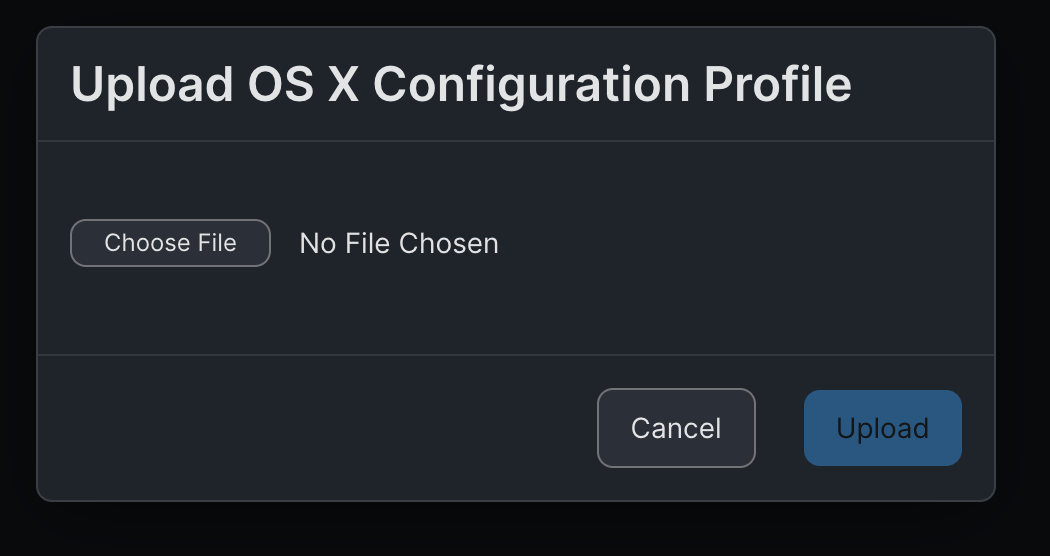
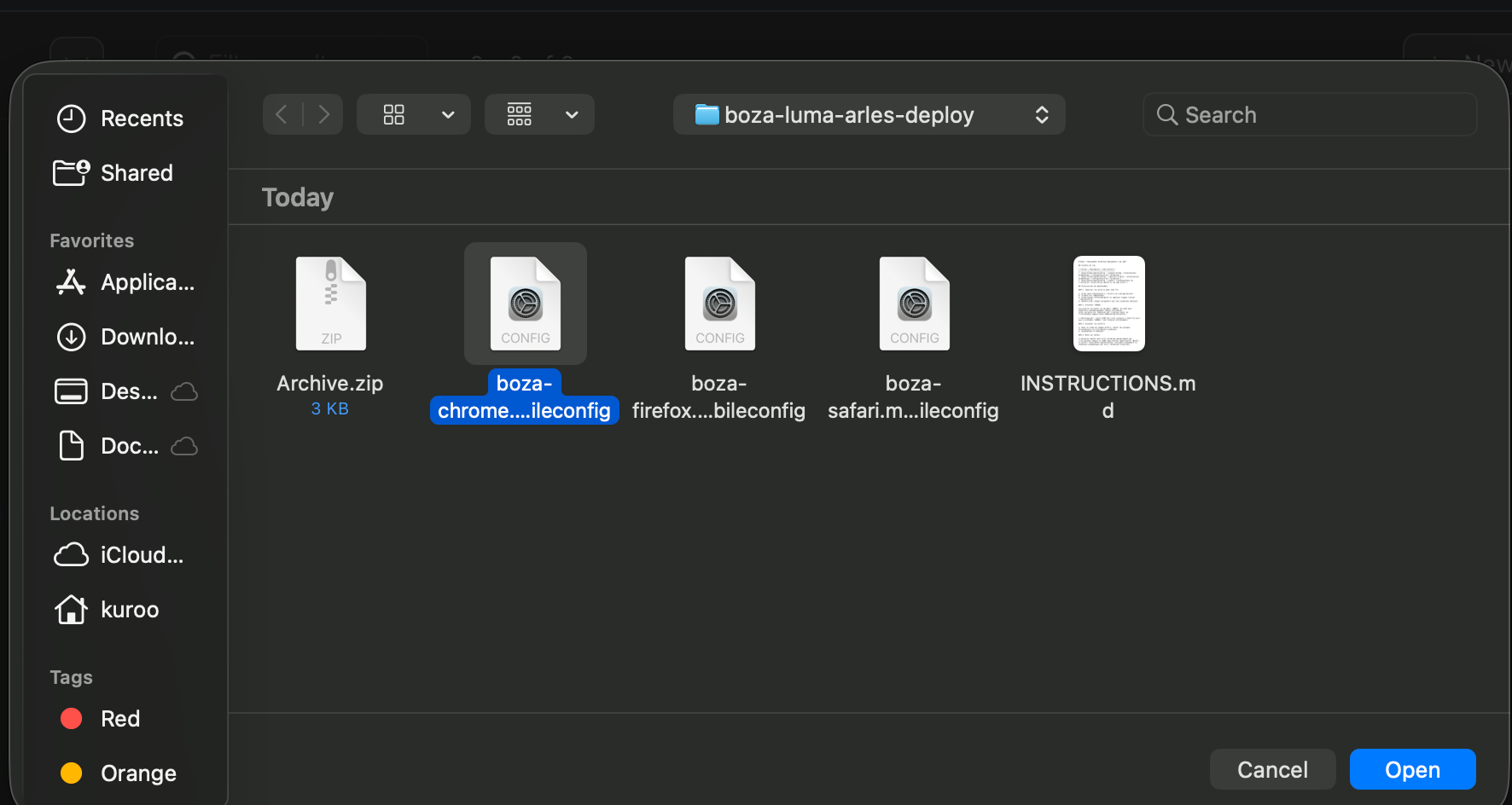
In the dialog that appears, click **Choose File** and select the `.mobileconfig` file you saved (for example, `boza-chrome.mobileconfig`).
### Step 3 — Select the file
In the dialog that appears, click **Choose File** and select the `.mobileconfig` file you saved (for example, `boza-chrome.mobileconfig`).
 ### Step 4 — Check the options and save
On the **Options > General** tab, confirm the profile name is correct, then click **Save**.
### Step 4 — Check the options and save
On the **Options > General** tab, confirm the profile name is correct, then click **Save**.
 ### Step 5 — Set the scope (deployment targets)
1. Open the **Scope** tab to define the target computers or groups.
2. Click **Add** to add the computer groups you want to target (for example, *All Managed Clients* or a specific group).
3. Once your targets are selected, click **Save** to finalize the profile deployment.
### Step 5 — Set the scope (deployment targets)
1. Open the **Scope** tab to define the target computers or groups.
2. Click **Add** to add the computer groups you want to target (for example, *All Managed Clients* or a specific group).
3. Once your targets are selected, click **Save** to finalize the profile deployment.


 ### Step 6 — Repeat for each browser
Repeat Steps 2–5 for the Chrome, Firefox, and Safari profiles.
{% hint style="info" %}
The Safari profile configures auto-login, but Safari also needs the Boza app installed from the Mac App Store. See [Deploy the Safari App](#deploy-the-safari-app) below.
{% endhint %}
***
## Verification
### On the user's Mac
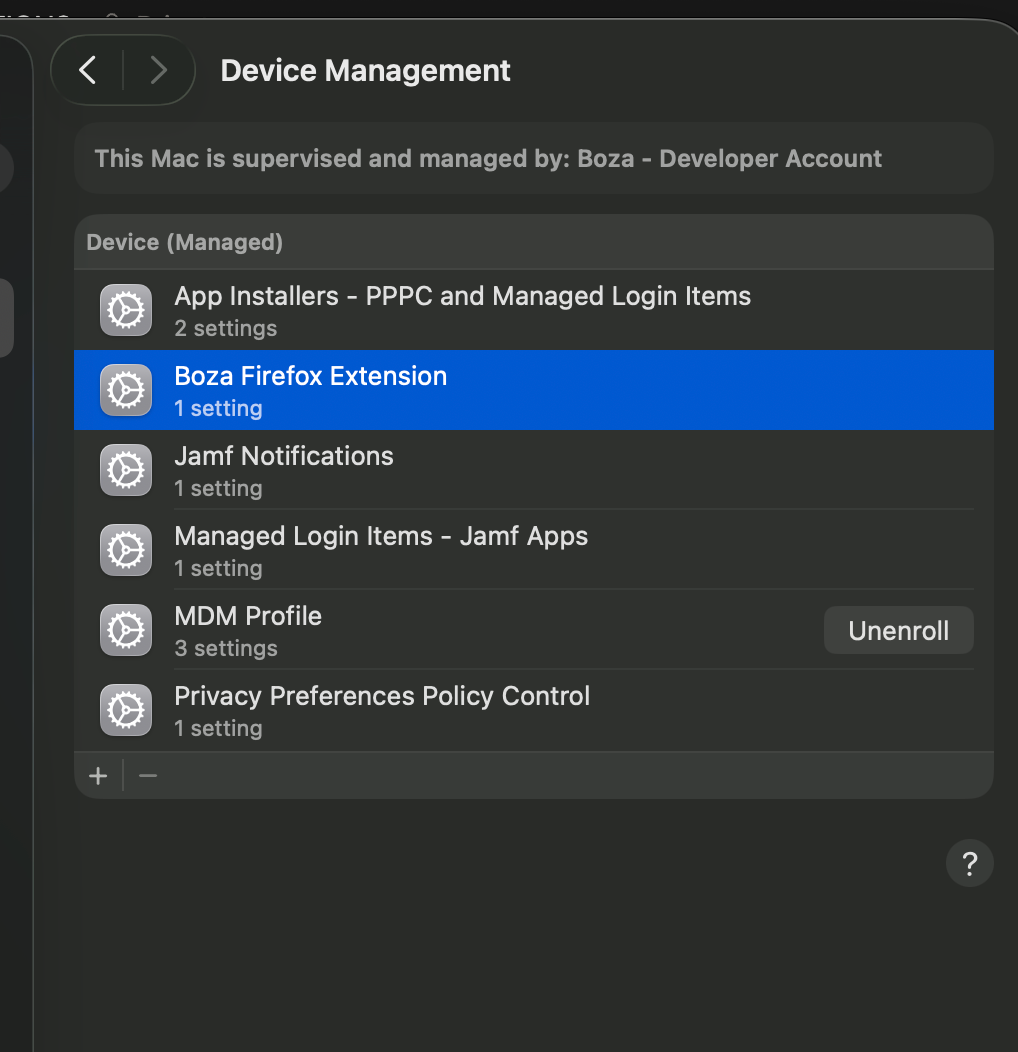
After deployment, the profile appears under **System Settings > General > Device Management**.
### Step 6 — Repeat for each browser
Repeat Steps 2–5 for the Chrome, Firefox, and Safari profiles.
{% hint style="info" %}
The Safari profile configures auto-login, but Safari also needs the Boza app installed from the Mac App Store. See [Deploy the Safari App](#deploy-the-safari-app) below.
{% endhint %}
***
## Verification
### On the user's Mac
After deployment, the profile appears under **System Settings > General > Device Management**.
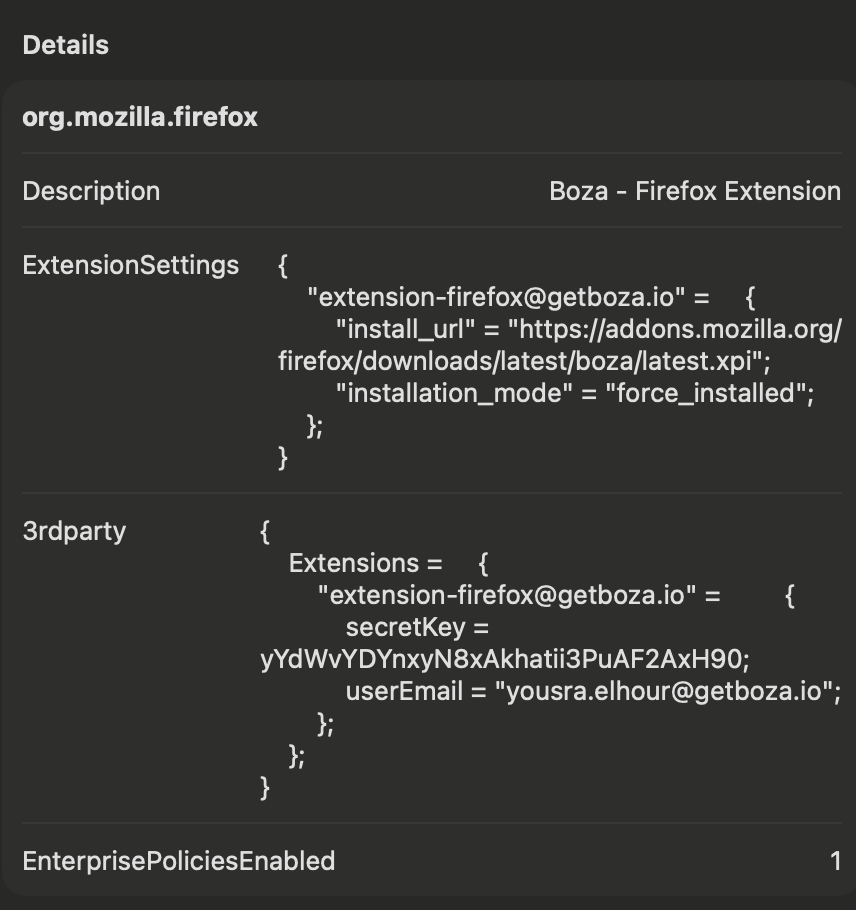
 ### Firefox
In Firefox, type `about:policies` in the address bar to confirm the policy is applied with the extension settings.
### Firefox
In Firefox, type `about:policies` in the address bar to confirm the policy is applied with the extension settings.
 ### Chrome
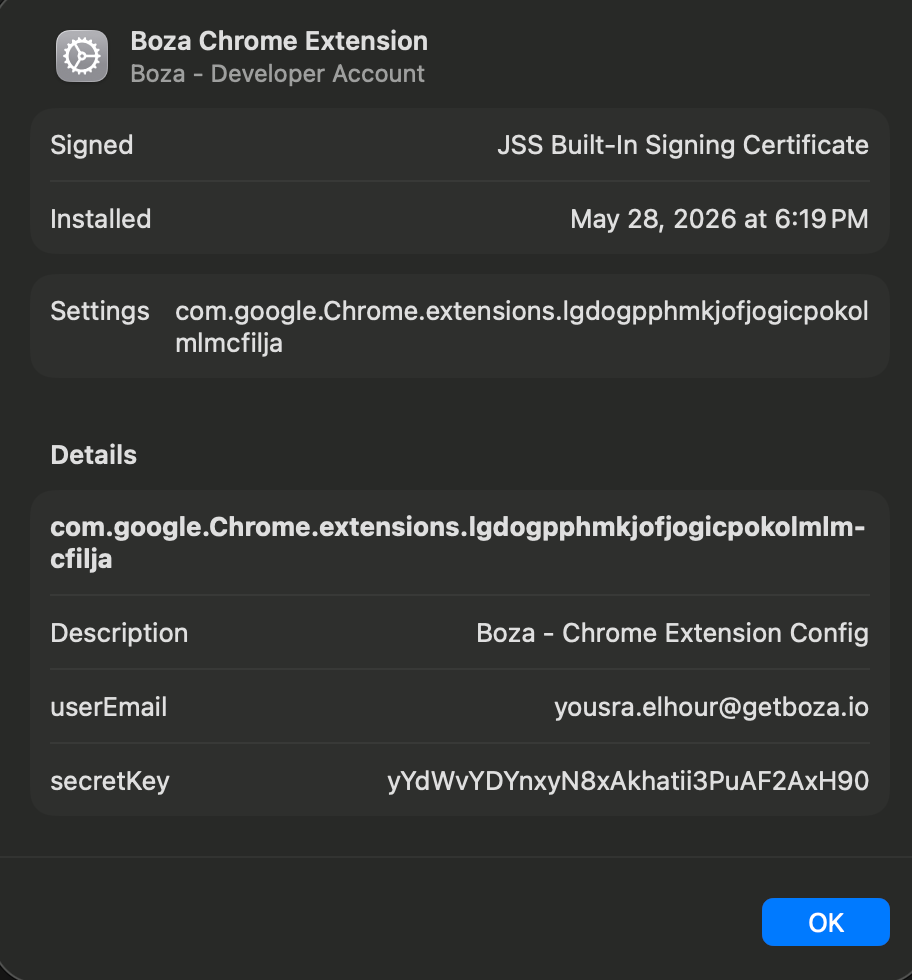
The Chrome profile can be verified in the profile details under **System Settings > General > Device Management**.
### Chrome
The Chrome profile can be verified in the profile details under **System Settings > General > Device Management**.
 ***
## The `$EMAIL` Variable
The profiles use Jamf's `$EMAIL` variable to identify each user automatically. Jamf replaces this variable with the user's email address from your LDAP / Active Directory.
{% hint style="warning" %}
**Prerequisite:** your LDAP must be connected to Jamf Pro for the `$EMAIL` variable to resolve correctly. If it is not, the `userEmail` field will be empty and auto-login will not work.
{% endhint %}
***
## Deploy the Safari App
Safari deploys in two parts:
1. **Install the app** via Jamf Mac Apps (Mac App Store).
2. **Configure auto-login** via the Safari profile above — the same upload procedure as Chrome/Firefox (Steps 1–5).
### Part 1 — Install the Safari app from the Mac App Store
**Step S1 — Open Mac Apps**
In Jamf Pro, go to **Computers > Content Management > Mac Apps**. Select **Mac App Store** as the source.
***
## The `$EMAIL` Variable
The profiles use Jamf's `$EMAIL` variable to identify each user automatically. Jamf replaces this variable with the user's email address from your LDAP / Active Directory.
{% hint style="warning" %}
**Prerequisite:** your LDAP must be connected to Jamf Pro for the `$EMAIL` variable to resolve correctly. If it is not, the `userEmail` field will be empty and auto-login will not work.
{% endhint %}
***
## Deploy the Safari App
Safari deploys in two parts:
1. **Install the app** via Jamf Mac Apps (Mac App Store).
2. **Configure auto-login** via the Safari profile above — the same upload procedure as Chrome/Firefox (Steps 1–5).
### Part 1 — Install the Safari app from the Mac App Store
**Step S1 — Open Mac Apps**
In Jamf Pro, go to **Computers > Content Management > Mac Apps**. Select **Mac App Store** as the source.
 **Step S2 — Search for Boza**
In the search field, type `Boza`. Set the region to **France**.
**Step S2 — Search for Boza**
In the search field, type `Boza`. Set the region to **France**.
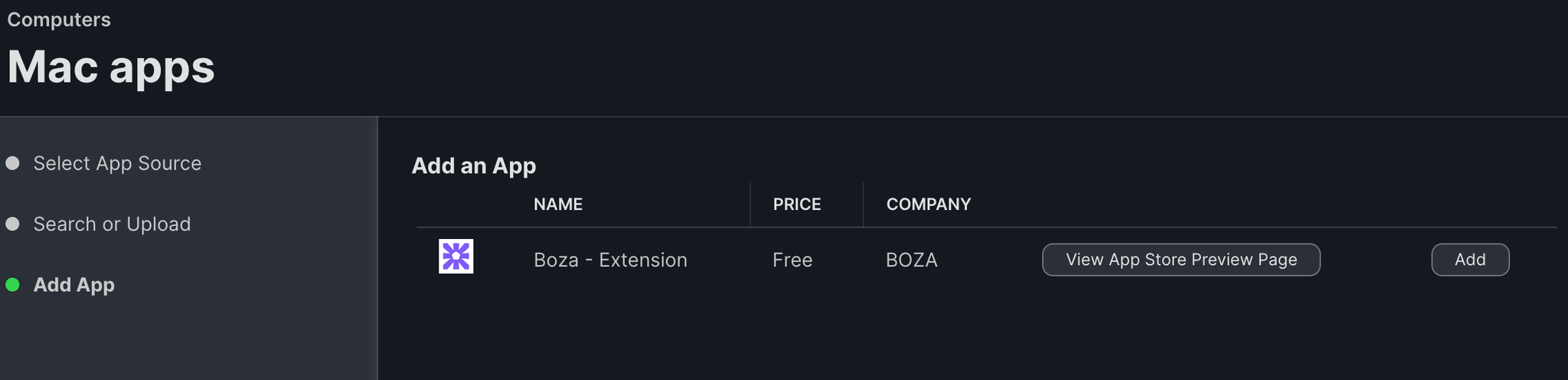
 **Step S3 — Add the app**
The **Boza - Extension** app appears in the results (free, published by BOZA). Click **Add**.
**Step S3 — Add the app**
The **Boza - Extension** app appears in the results (free, published by BOZA). Click **Add**.
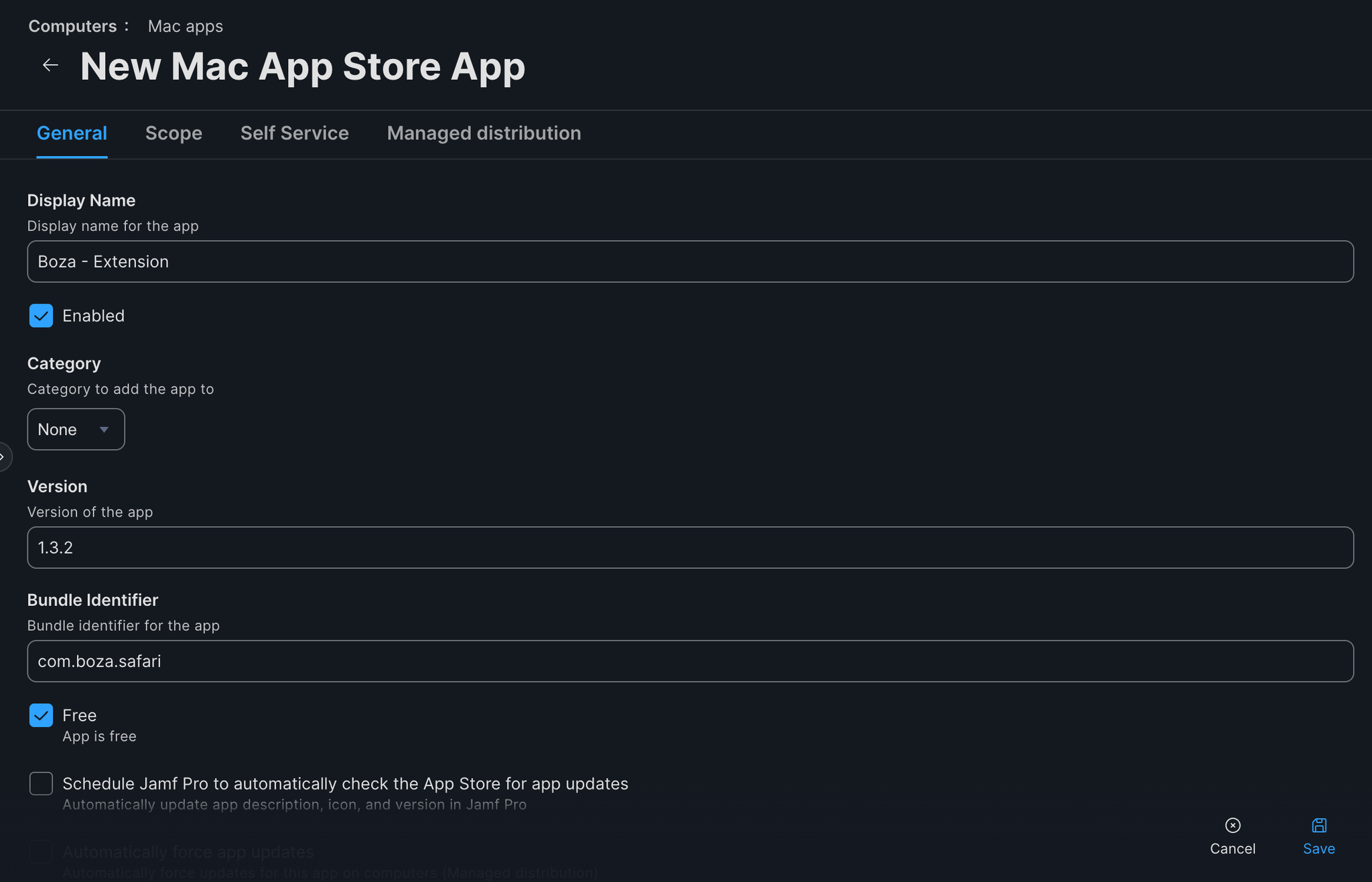
 **Step S4 — Check the details and save**
Verify the information on the **General** tab (Display Name, Bundle Identifier), then click **Save**.
**Step S4 — Check the details and save**
Verify the information on the **General** tab (Display Name, Bundle Identifier), then click **Save**.
 **Step S5 — Set the scope**
Open the **Scope** tab and add the target computers or groups.
**Step S5 — Set the scope**
Open the **Scope** tab and add the target computers or groups.
 ### Part 2 — Deploy the Safari configuration profile
Upload the **Safari** profile (from [The Profiles](#the-profiles) above) using Steps 1–5 from [Deploy the Chrome and Firefox Profiles](#deploy-the-chrome-and-firefox-profiles). This configures the extension's auto-login once the app is installed.
{% hint style="info" %}
After installation, the user must enable the extension in **Safari > Settings > Extensions**.
{% endhint %}
### Safari verification
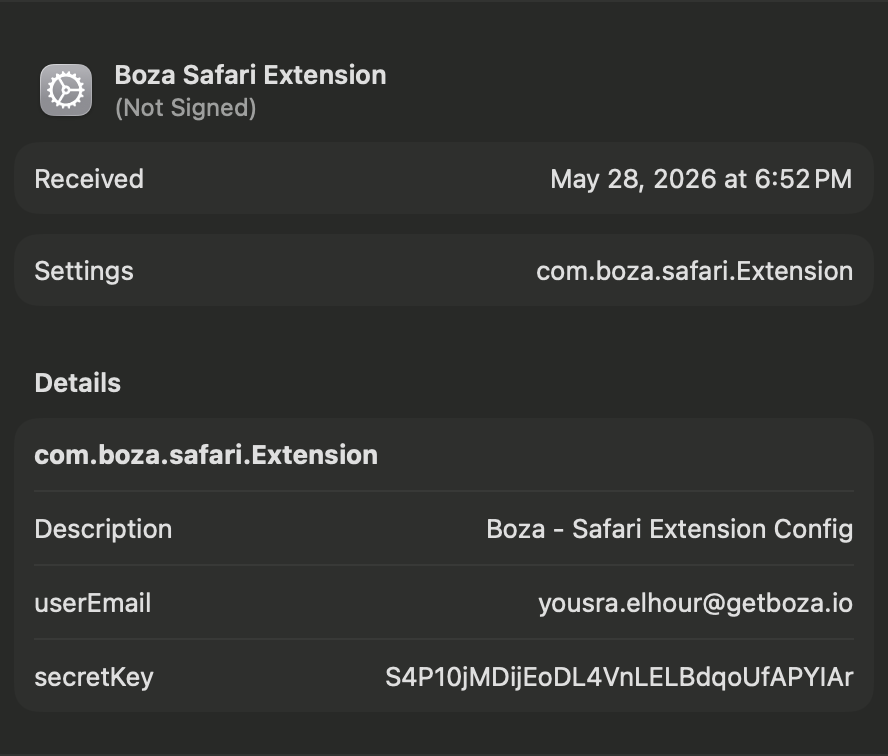
The Safari profile can be verified under **System Settings > General > Device Management** by clicking **Boza Safari Extension**.
### Part 2 — Deploy the Safari configuration profile
Upload the **Safari** profile (from [The Profiles](#the-profiles) above) using Steps 1–5 from [Deploy the Chrome and Firefox Profiles](#deploy-the-chrome-and-firefox-profiles). This configures the extension's auto-login once the app is installed.
{% hint style="info" %}
After installation, the user must enable the extension in **Safari > Settings > Extensions**.
{% endhint %}
### Safari verification
The Safari profile can be verified under **System Settings > General > Device Management** by clicking **Boza Safari Extension**.
 ***
Need help? Contact the Boza team at ****.
---
# Agent Instructions
This documentation is published with GitBook. GitBook is the documentation platform designed so that both humans and AI agents can read, navigate, and reason over technical content effectively. Learn more at gitbook.com.
## Querying This Documentation
If you need additional information that is not directly available in this page, you can query the documentation by asking a question.
Perform an HTTP GET request on the following URL with the `ask` and `goal` query parameters:
```
GET https://boza.gitbook.io/docs/browser-extension/deployment/jamf-via-profile.md?ask=&goal=
```
`ask` is the immediate question: it should be specific, self-contained, and written in natural language.
`goal` is what the user is ultimately trying to achieve, the reason they need the answer. Sharing it helps GitBook give you a better, more relevant answer. A goal is most helpful when it describes the outcome the user wants rather than restating the question. For example, with `ask=how do I create an API token`, a goal like `automate deployments from our CI pipeline` lets GitBook tailor the answer to that use case.
The response will contain a direct answer to the question and relevant excerpts and sources from the documentation.
Use this mechanism when the answer is not explicitly present in the current page, you need clarification or additional context, or you want to retrieve related documentation sections.
***
Need help? Contact the Boza team at ****.
---
# Agent Instructions
This documentation is published with GitBook. GitBook is the documentation platform designed so that both humans and AI agents can read, navigate, and reason over technical content effectively. Learn more at gitbook.com.
## Querying This Documentation
If you need additional information that is not directly available in this page, you can query the documentation by asking a question.
Perform an HTTP GET request on the following URL with the `ask` and `goal` query parameters:
```
GET https://boza.gitbook.io/docs/browser-extension/deployment/jamf-via-profile.md?ask=&goal=
```
`ask` is the immediate question: it should be specific, self-contained, and written in natural language.
`goal` is what the user is ultimately trying to achieve, the reason they need the answer. Sharing it helps GitBook give you a better, more relevant answer. A goal is most helpful when it describes the outcome the user wants rather than restating the question. For example, with `ask=how do I create an API token`, a goal like `automate deployments from our CI pipeline` lets GitBook tailor the answer to that use case.
The response will contain a direct answer to the question and relevant excerpts and sources from the documentation.
Use this mechanism when the answer is not explicitly present in the current page, you need clarification or additional context, or you want to retrieve related documentation sections.