> For the complete documentation index, see [llms.txt](https://boza.gitbook.io/docs/llms.txt). Markdown versions of documentation pages are available by appending `.md` to page URLs; this page is available as [Markdown](https://boza.gitbook.io/docs/browser-extension/deployment/microsoft-intune.md).
# Microsoft Intune
The recommended Intune deployment starts inside Boza. The wizard authorizes Boza to create and assign the extension deployment in your Intune tenant—there is no PowerShell file to download or edit.
New deployments created with the current Windows script cover **Chrome, Microsoft Edge, and Firefox**. Automatic identification works when the generated deployment can resolve the signed-in corporate user. If it cannot, the script exits with an error before it configures the browsers, so check the Intune device result instead of assuming that SSO fallback was installed. Existing tenants may still have an older Chrome-and-Edge-only script—check the migration note below before expanding it.
***
## Prerequisites
* Access to **Settings > Browser extension** in Boza.
* Microsoft Intune administrator access with permission to manage device scripts and assignments.
* Windows devices enrolled in Intune.
* Target Microsoft Entra groups containing the pilot devices.
* Users signed in to Windows with their corporate account.
* Outbound access to the Chrome Web Store and Mozilla Add-ons.
Boza requests the Microsoft Graph permission `DeviceManagementConfiguration.ReadWrite.All` so it can create and assign the Intune deployment. Use an account allowed to grant that consent, then return to a less-privileged operational account for routine work.
{% hint style="warning" %}
Review existing Intune, GPO, and Google Admin browser policies first. Do not let two systems write competing force-install or extension-settings policies to the same devices.
{% endhint %}
***
## Deploy from Boza
### 1. Open the deployment wizard
In Boza:
1. Go to **Settings > Browser extension**.
2. Select **Deploy extension**.
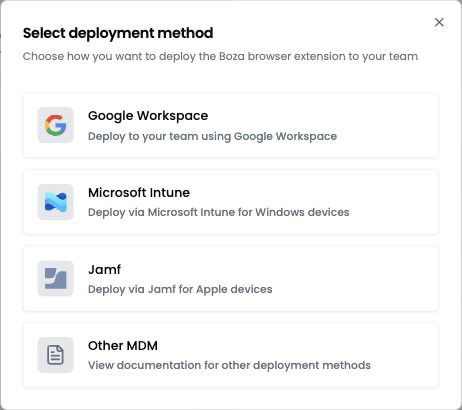
3. Select **Microsoft Intune**.
Select Microsoft Intune to start the managed Windows deployment.
### 2. Authorize Microsoft Intune
1. Select the authorization button.
2. Sign in with the Microsoft administrator account for the correct tenant.
3. Review and grant the requested device-management permission.
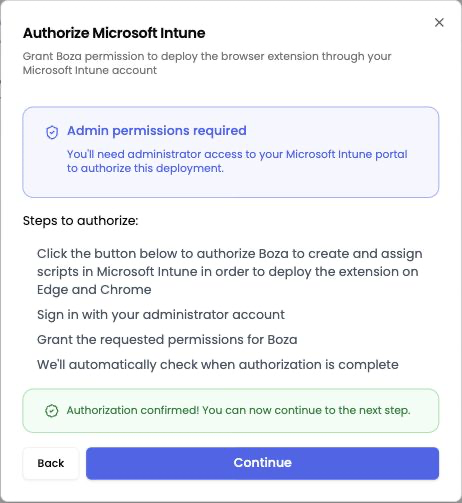
4. Return to Boza. The wizard checks the authorization and enables **Continue** when it succeeds.
Boza confirms the Microsoft authorization before group selection and deployment.
The authorization dialog in this screenshot still mentions Chrome and Edge only. That interface copy is stale: a newly created current script also configures Firefox. If Boza reuses an existing legacy Chrome-and-Edge script, its content remains unchanged; review the migration note below.
{% hint style="info" %}
The authorization lets Boza create and assign the deployment through Intune. It does not give end users additional Boza privileges.
{% endhint %}
### 3. Select a pilot group
1. Choose one or more target groups shown by the wizard.
2. Start with a dedicated group containing one to five Windows devices.
3. Review the selected groups and browser coverage.
4. Confirm the deployment.
For a new deployment, Boza creates this Intune platform script:
```
Configure Boza Extension - Chrome, Edge & Firefox via API
```
The script runs in device context and is assigned to the selected groups. If a Boza deployment script already exists, the wizard preserves its existing group assignments when adding more groups.
{% hint style="warning" %}
Older tenants may have `Configure Boza Extension - Chrome & Edge`. The current backend can reuse that legacy script, but adding groups does **not** rename it, replace its content, add Firefox, or refresh an embedded secret. Inspect the actual script in Intune. Contact Boza Support to remove and recreate a legacy deployment before relying on current three-browser behavior.
{% endhint %}
### 4. Monitor Intune
In the Microsoft Intune admin center:
1. Open **Devices > Scripts and remediations > Platform scripts**.
2. Select the Boza deployment script.
3. Confirm the intended group assignments.
4. Review **Device status** after the pilot devices sync.
Microsoft can change navigation labels over time. Search for `Configure Boza Extension` if the menu has moved, then confirm whether the script is the current three-browser version or the legacy Chrome-and-Edge version.
### 5. Validate the pilot
On a synced pilot device:
1. Open `chrome://policy`, `edge://policy`, or `about:policies`.
2. Confirm the Boza extension policy is active.
3. Open `chrome://extensions`, `edge://extensions`, or `about:addons`.
4. Confirm Boza is installed and managed.
5. Completely restart the browser.
6. Open Boza and confirm the correct user is identified.
Use these exact identifiers:
| Browser | Extension identifier |
| --------------- | ---------------------------------- |
| Chrome and Edge | `lgdogpphmkjofjogicpokolmlmcfilja` |
| Firefox | `extension-firefox@getboza.io` |
If the extension opens the SSO screen, the extension is present but automatic identification did not complete. Confirm this platform script's device status and rule out another installation policy before broad rollout.
{% hint style="warning" %}
Boza's Edge policy currently uses the Chrome Web Store update service. [Microsoft documents restrictions](https://learn.microsoft.com/en-us/deployedge/microsoft-edge-policies/extensioninstallforcelist) on force-installing extensions from outside Edge Add-ons on Windows devices that are not joined to an on-premises Active Directory domain. Pilot Edge explicitly on Intune-only or Entra-only devices. If Edge rejects the policy, do not bypass the browser restriction; contact Boza for a supported deployment path.
{% endhint %}
### 6. Expand in stages
Add groups through the Boza wizard in controlled waves. Check Intune device status and spot-check users after each wave.
***
## What the Boza Wizard Manages
* Creates the current Windows deployment script in Intune when no Boza deployment script already exists.
* Force-installs and pins Boza for Chrome, Edge, and Firefox with the current script.
* Supplies the organization configuration needed for automatic identification.
* Detects the interactive corporate user on the device.
* Assigns the script to the selected groups.
* Preserves existing deployment-group assignments when more groups are added later.
{% hint style="info" %}
Automatic identification depends on successful user detection and a matching user in the Boza workspace. If the extension is already present without valid managed identification, it may offer SSO; a failed platform script still requires investigation in Intune.
{% endhint %}
If the wizard finds a legacy deployment script, its existing content remains authoritative until you complete a supported migration.
***
## Manual Policy-only Fallback
Use this fallback when your security policy does not allow Boza to create Intune scripts. It force-installs the extension but does **not** provide automatic identification; each user signs in once with SSO.
Microsoft and Google recommend Intune's **Settings Catalog** for supported browser policies:
* [Google's Chrome with Intune guide](https://support.google.com/chrome/a/answer/12129062?hl=en)
* [Microsoft's Edge with Intune guide](https://learn.microsoft.com/en-us/intune/device-configuration/settings-catalog/configure-edge)
### Create the Chrome and Edge profile
1. In Intune, go to **Devices > Manage devices > Configuration > Create > New policy**.
2. Select **Windows 10 and later** and **Settings catalog**.
3. Name the policy `Boza Extension - Policy Only`.
4. Add the device variant of the Chrome and Edge settings below.
### Chrome
Find:
**Administrative Templates > Google > Google Chrome > Extensions > Configure the list of force-installed apps and extensions**
Enable it and add one item:
```
lgdogpphmkjofjogicpokolmlmcfilja;https://clients2.google.com/service/update2/crx
```
### Microsoft Edge
Find:
**Administrative Templates > Microsoft Edge > Extensions > Control which extensions are installed silently**
Enable it and add one item:
```
lgdogpphmkjofjogicpokolmlmcfilja;https://clients2.google.com/service/update2/crx
```
Finish the Chrome and Edge profile, assign it to a pilot **device** group, and create it.
### Firefox
Firefox uses a **separate Imported Administrative Templates profile**; it is not added to the Chrome and Edge Settings Catalog profile.
1. Obtain the templates from [Mozilla's policy-template repository](https://github.com/mozilla/policy-templates).
2. Follow [Microsoft's imported-ADMX guidance](https://learn.microsoft.com/en-us/intune/device-configuration/settings-catalog/import-custom-admx-templates).
3. Import `mozilla.admx` with `mozilla.adml` first and wait until its status is **Available**.
4. Import `firefox.admx` with `firefox.adml` and wait until its status is **Available**.
5. Create a new policy with **Windows 10 and later > Templates > Imported Administrative templates**.
6. Name it `Boza Extension - Firefox Policy Only`.
7. Configure Firefox `ExtensionSettings` with the Boza add-on:
```json
{
"extension-firefox@getboza.io": {
"installation_mode": "force_installed",
"install_url": "https://addons.mozilla.org/firefox/downloads/latest/extension-firefox@getboza.io/latest.xpi"
}
}
```
Assign the separate Firefox profile to the same pilot **device** group as the Chrome and Edge profile. Review each profile's per-setting status before expanding them.
{% hint style="warning" %}
Do not configure the same browser setting through Settings Catalog, imported ADMX, custom OMA-URI, and a script at the same time. Conflicting policy sources can make installation or removal unreliable.
{% endhint %}
***
## Remove the Deployment
For wizard-managed devices, use the removal action in the same Boza Intune deployment flow and select the groups to remove. Boza removes those groups from the deployment assignment and creates or updates the Intune removal assignment for them.
Monitor the removal script in Intune until devices report success. Do not delete the removal assignment before the target devices have checked in.
For policy-only deployment, remove only the Boza item from each browser's force-install policy. Removing the entry causes the managed browser to uninstall that extension. Preserve any entries for other extensions.
***
## Permissions and Secret Safety
* Authorize the correct Microsoft tenant and review `DeviceManagementConfiguration.ReadWrite.All` before consent.
* Use a pilot group rather than an all-devices assignment.
* Limit who can edit the Boza platform script and its group assignments in Intune.
* Do not copy the generated script content into tickets, chat, or source control; it contains organization-specific configuration.
* Remove or reassign the Boza deployment before revoking the Microsoft authorization. Revoking consent alone does not undo a script already deployed through Intune.
### If organization configuration may be exposed
1. Pause the affected assignments and restrict access to the Intune script.
2. Contact **** or your account team immediately to rotate the extension secret.
3. Follow Boza's rotation sequence to remove and recreate or otherwise refresh the generated deployment. Adding groups or rerunning the normal deployment against an existing script does not update its content.
4. Redeploy to every affected group.
5. Confirm the new configuration works and the previous secret no longer does.
***
## Troubleshooting
### Authorization never completes
* Confirm you selected the correct Microsoft tenant.
* Confirm the account can grant the requested device-management permission.
* Check whether your tenant blocks user consent or requires an admin-consent workflow.
* Retry from Boza after the Microsoft consent page completes.
### No groups are available
* Confirm the connected Microsoft tenant is correct.
* Confirm the target group exists and the connected account can access it.
* Refresh the wizard after group changes have propagated.
### The script is assigned but has not run
* Force a device sync from Intune or Company Portal.
* Review the script's **Device status** and assignment filters.
* Confirm the device is enrolled and belongs to the selected group.
* Check for a conflicting script or browser policy.
### Boza is installed but asks for SSO
* Confirm the user is signed in to Windows with their corporate account.
* Confirm that email exists in the correct Boza workspace.
* Restart the browser completely.
* Review the platform-script status and Boza deployment log without exposing secret values.
### Only one browser is missing
* Check that browser's policy page and store connectivity.
* Confirm the identifier matches the table above.
* For Firefox, verify Mozilla policy support and access to `addons.mozilla.org`.
### A previous removal assignment conflicts
Run the deployment again for the intended groups through the Boza wizard. The deployed service removes those groups from the existing Boza removal assignment before applying the deployment.
### Intune shows the legacy Chrome and Edge script
Do not assume Firefox support or current organization configuration. Record the script's assignments, then contact Boza Support for a controlled removal and fresh deployment. Simply adding groups preserves the legacy content.
Need help? Contact ****.
---
# Agent Instructions
This documentation is published with GitBook. GitBook is the documentation platform designed so that both humans and AI agents can read, navigate, and reason over technical content effectively. Learn more at gitbook.com.
## Querying This Documentation
If you need additional information that is not directly available in this page, you can query the documentation by asking a question.
Perform an HTTP GET request on the following URL with the `ask` and `goal` query parameters:
```
GET https://boza.gitbook.io/docs/browser-extension/deployment/microsoft-intune.md?ask=&goal=
```
`ask` is the immediate question: it should be specific, self-contained, and written in natural language.
`goal` is what the user is ultimately trying to achieve, the reason they need the answer. Sharing it helps GitBook give you a better, more relevant answer. A goal is most helpful when it describes the outcome the user wants rather than restating the question. For example, with `ask=how do I create an API token`, a goal like `automate deployments from our CI pipeline` lets GitBook tailor the answer to that use case.
The response will contain a direct answer to the question and relevant excerpts and sources from the documentation.
Use this mechanism when the answer is not explicitly present in the current page, you need clarification or additional context, or you want to retrieve related documentation sections.