> For the complete documentation index, see [llms.txt](https://boza.gitbook.io/docs/llms.txt). Markdown versions of documentation pages are available by appending `.md` to page URLs; this page is available as [Markdown](https://boza.gitbook.io/docs/getting-started/setup-configuration.md).
# Setup & Configuration
Connect the sources Boza needs, verify that data is arriving, and prepare a controlled rollout to your organization.
{% hint style="warning" %}
If you are using the demo workspace, choosing **Connect my environment** removes the sample data and converts the workspace to live data. Review [Exploring the Demo Workspace](/docs/getting-started/demo-workspace.md) before continuing.
{% endhint %}
## Before You Start
Prepare:
* A Google Workspace or Microsoft Entra ID administrator who can grant organization-wide consent.
* The correct Boza workspace and company domain.
* Device-management access if you plan to deploy the browser extension centrally.
* Administrator credentials for any finance, collaboration, or application integrations you want to connect.
* An internal owner for user access, application review, and billing data.
You must be a Boza workspace **Admin** to manage integrations and settings. See [Roles & Permissions](/docs/settings-and-security/settings/roles-and-permissions.md).
## 1. Sign In
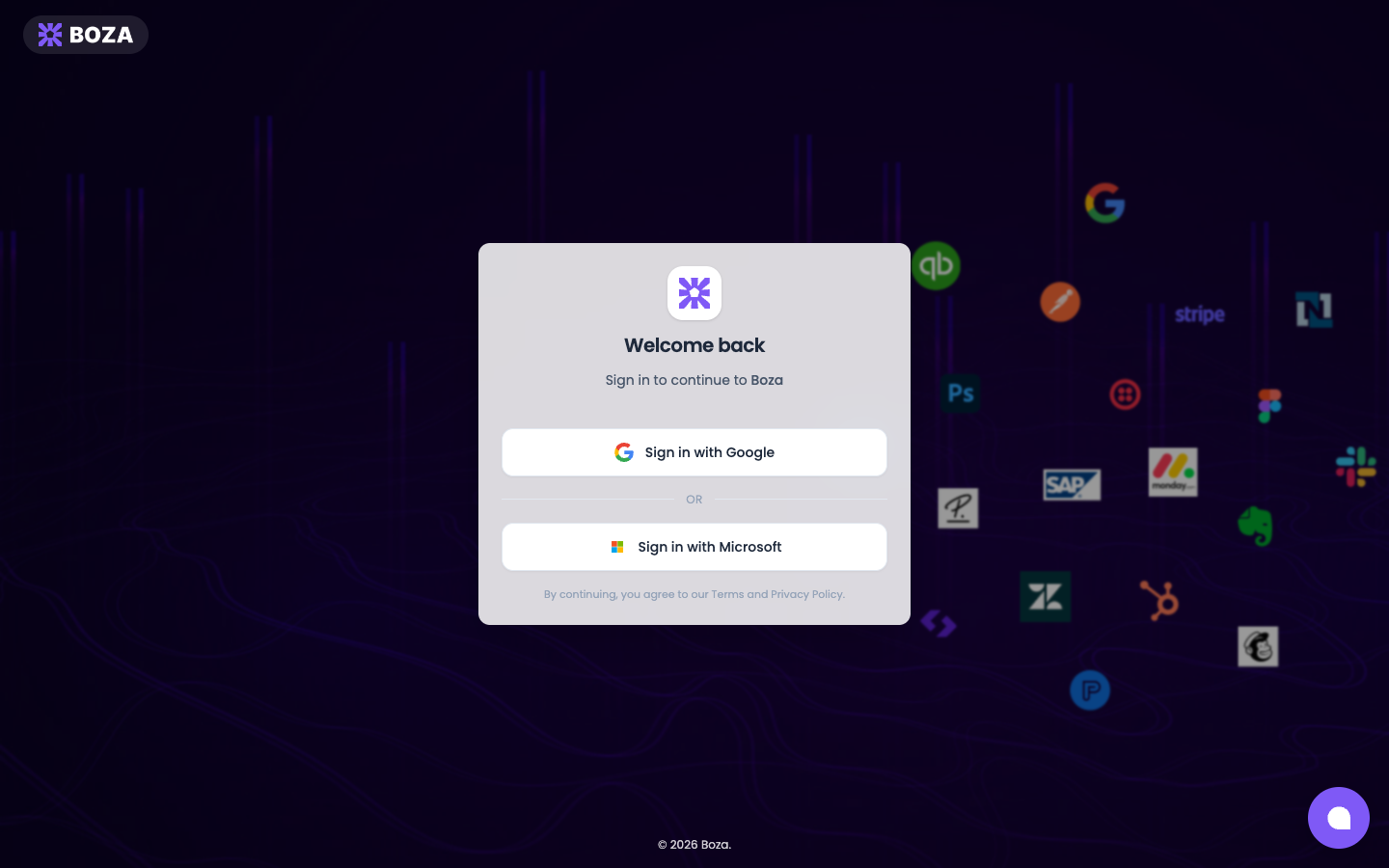
Open [app.getboza.io](https://app.getboza.io) and sign in with **Google** or **Microsoft**.
Use the identity provider associated with your organization.
The account used to create a workspace becomes its first administrator. You can promote other existing users later from **Settings → General → Members & Roles**.
## 2. Connect Your Identity Provider
Your identity provider supplies the initial user directory, organization structure, license assignments, and supported single sign-on activity.
1. If the workspace is in demo mode, click **Connect my environment**.
2. Choose **Google Workspace** or **Microsoft Entra ID**.
3. Sign in with an administrator account.
4. Review the requested permissions and grant consent for the organization.
5. Return to Boza and wait for the connection to show as active.
Follow the provider-specific guide:
* [Google Workspace](/docs/integrations/google-workspace.md)
* [Microsoft Entra ID](/docs/integrations/microsoft-entra-id.md)
* [Whitelist Boza in Your Identity Provider](/docs/getting-started/whitelist-boza.md)
{% hint style="info" %}
The identity-provider authorization also supports Boza's onboarding and offboarding actions. Review the write operations described in the provider guide before granting consent.
{% endhint %}
## 3. Validate the First Synchronization
Check the source data before adding more integrations:
1. Open **Organization** and confirm that the expected organizational units or groups appear.
2. Open **Users** and search for a known active user.
3. Open **Applications** and confirm that identity-provider applications begin to appear.
4. Check names, primary email addresses, status, and team placement for a small sample.
Synchronization is asynchronous. Do not assume one fixed refresh interval for every source; use [Metrics & Data Freshness](/docs/resources/metrics-and-data-freshness.md) to diagnose missing or delayed data.
## 4. Deploy the Browser Extension
Identity-provider logs do not cover applications that bypass single sign-on. Deploy the browser extension to a pilot group so Boza can detect supported browser-based activity.
1. Open **Settings → Browser Extension**.
2. Click **Deploy extension**.
3. Choose the deployment method that matches your device-management platform.
4. Assign the policy to a small pilot group.
5. Confirm installation and recent activity before expanding the assignment.
Start with the [Browser Extension overview](/docs/browser-extension/browser-extension.md) and the [deployment decision guide](/docs/browser-extension/deployment.md).
## 5. Connect Collaboration Notifications
Boza uses the collaboration channel associated with your identity provider:
* A Google Workspace organization uses the [Boza bot for Slack](/docs/integrations/bot-slack.md).
* A Microsoft Entra ID organization uses the [Boza bot for Microsoft Teams](/docs/integrations/bot-teams.md).
Open **Integrations** from the main navigation, select the relevant connector, and complete its authorization or deployment flow. Then send a controlled test through a supported workflow or announcement.
If a delivery channel is unavailable in the announcement composer, check that the correct bot is connected and deployed and that the signed-in user belongs to the corresponding organization.
## 6. Connect Financial Data
Choose the source that represents how your organization pays software vendors:
* [Pennylane](/docs/integrations/pennylane.md) for supported accounting invoices and suppliers.
* [Bank Account (Powens)](/docs/integrations/powens.md) for supported bank transactions.
* [Invoice upload](/docs/inventory/subscriptions-and-vendors/upload-invoices.md) for PDF or image invoices that need extraction and review.
* [Payments CSV](/docs/platform/analysis/payments.md) when you need to import a supported payment file manually.
Open **Integrations** from the main navigation to connect Pennylane or Powens. Imported transactions and detected invoice items do not automatically mean the same thing as approved subscription cost; see [Metrics & Data Freshness](/docs/resources/metrics-and-data-freshness.md).
## 7. Add Direct Integrations as Needed
Connect only the systems that improve a workflow you plan to use. Available connectors include application, asset-management, device-management, and collaboration tools.
1. Open **Integrations**.
2. Select a connector.
3. Review its prerequisites, permissions, and data behavior.
4. Authorize it with a service or administrator account approved by your organization.
5. Verify the connection state and a sample of synchronized data.
The [Integrations overview](/docs/integrations/integrations.md) links to the setup guide for each supported connector.
## 8. Configure Workspace Controls
Review the following pages before inviting a wider audience:
* **Settings → General → Language** — choose **English** or **Français** for the interface and every email Boza sends. Only admins can change it; everyone sees the same language.
* **Settings → General → Email sending** — optionally connect a Google Workspace or Microsoft 365 mailbox so access-review emails come from your own domain rather than `notifications@getboza.io`.
* **Settings → General** — confirm the displayed domains and currency; both are read-only.
* **Settings → General → Members & Roles** — promote or demote existing Boza users.
* **Settings → Notifications** — choose supported automatic-renewal and ownership-digest emails.
* **Settings → Privacy & Analytics** — choose whether this browser can send product analytics and masked session replay.
* **Applications** — assign application owners and Access Reviewers to important apps.
See [Settings](/docs/settings-and-security/settings.md) and [Roles & Permissions](/docs/settings-and-security/settings/roles-and-permissions.md).
## Expected Result
Your workspace is ready for a controlled rollout when:
* The identity-provider connection is active.
* A sample of users, organization units, and applications is correct.
* Pilot devices show browser-extension installation and recent activity.
* Required collaboration and finance integrations are connected and tested.
* Workspace Admins and application owners are assigned deliberately.
* Pending invoice and Shadow IT queues have named owners.
Continue with the [Go-Live Checklist](/docs/getting-started/go-live-checklist.md) for validation, ownership, and rollout steps.
## Troubleshooting
### Users or organization units are missing
Confirm the identity-provider connection, administrator consent, and user scope. Wait for the active synchronization to complete, then compare a known user in the provider and Boza.
### Applications are missing
Check whether the app is expected from single sign-on, browser activity, an invoice, or a direct integration. Each source has different coverage.
### A collaboration channel is unavailable
Confirm that the workspace's identity provider matches the connector, the bot is deployed, and the connector shows as active.
### Cost totals do not match payments
Clear pending invoice reviews and compare the same year and filters. Subscription cost and transaction spend are different data sets and can legitimately differ.
---
# Agent Instructions
This documentation is published with GitBook. GitBook is the documentation platform designed so that both humans and AI agents can read, navigate, and reason over technical content effectively. Learn more at gitbook.com.
## Querying This Documentation
If you need additional information that is not directly available in this page, you can query the documentation by asking a question.
Perform an HTTP GET request on the following URL with the `ask` and `goal` query parameters:
```
GET https://boza.gitbook.io/docs/getting-started/setup-configuration.md?ask=&goal=
```
`ask` is the immediate question: it should be specific, self-contained, and written in natural language.
`goal` is what the user is ultimately trying to achieve, the reason they need the answer. Sharing it helps GitBook give you a better, more relevant answer. A goal is most helpful when it describes the outcome the user wants rather than restating the question. For example, with `ask=how do I create an API token`, a goal like `automate deployments from our CI pipeline` lets GitBook tailor the answer to that use case.
The response will contain a direct answer to the question and relevant excerpts and sources from the documentation.
Use this mechanism when the answer is not explicitly present in the current page, you need clarification or additional context, or you want to retrieve related documentation sections.