> For the complete documentation index, see [llms.txt](https://boza.gitbook.io/docs/llms.txt). Markdown versions of documentation pages are available by appending `.md` to page URLs; this page is available as [Markdown](https://boza.gitbook.io/docs/integrations/atlassian.md).
# Atlassian
Boza offers three Atlassian connectors so you can import users and track license usage across your Atlassian products. Connect the ones that match how your organization is set up:
| Connector | Best for | Authentication |
| ------------------------ | ------------------------------------------------ | --------------- |
| **Atlassian Jira** | Tracking Jira users | One-click OAuth |
| **Atlassian Confluence** | Tracking Confluence users | One-click OAuth |
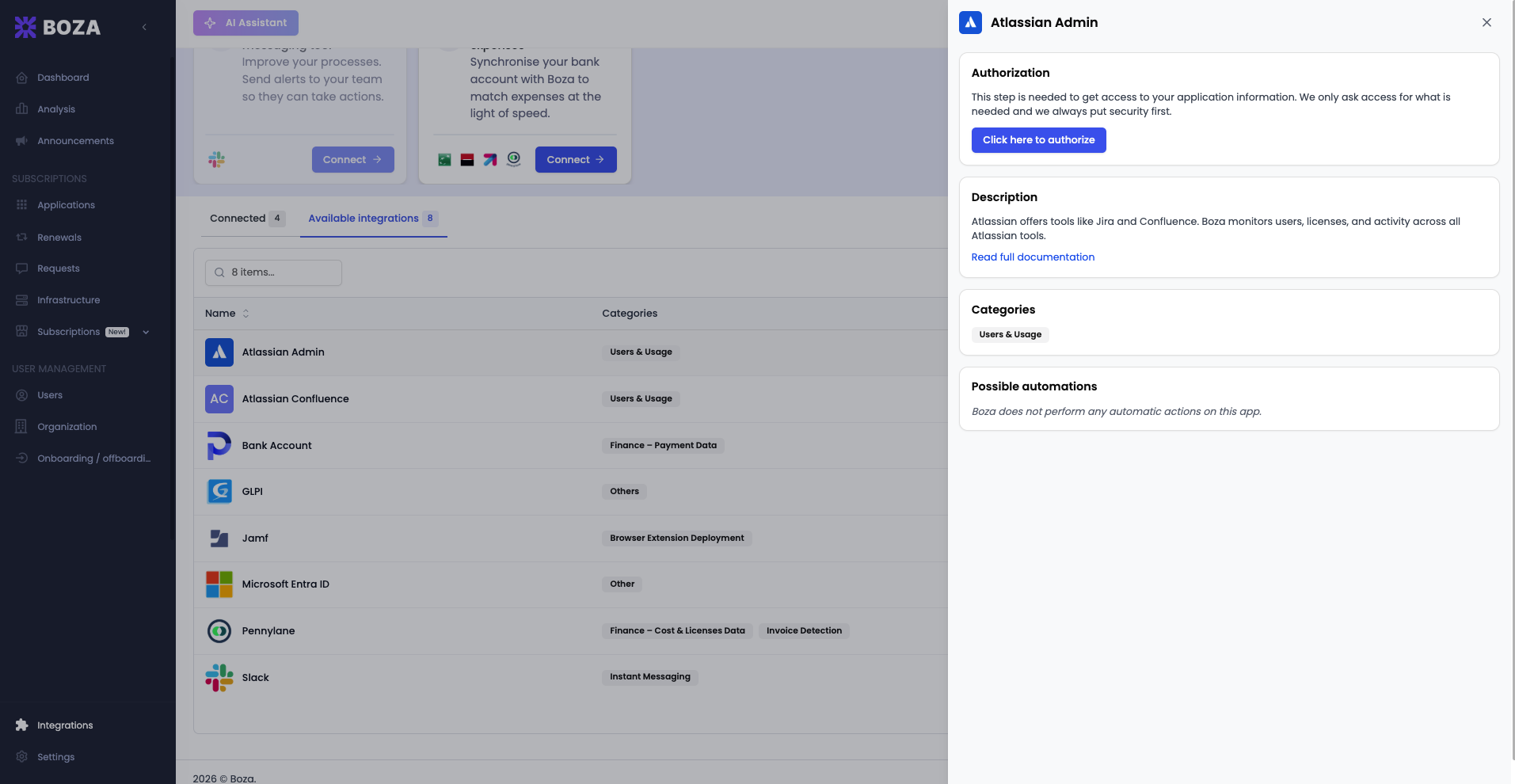
| **Atlassian Admin** | Importing your whole Atlassian directory at once | API key (SCIM) |
All three are read-only — Boza imports user information to track access and licenses, and never modifies anything in Atlassian.
***
## Atlassian Jira
Imports the active users of your Jira site.
1. Open **Integrations** from the main navigation.
2. Select **Atlassian Jira** and click **Connect**.
3. You will be redirected to Atlassian. Sign in and **accept** the requested access.
Synchronization starts automatically and refreshes daily.
***
## Atlassian Confluence
Imports the members of your Confluence site.
1. Open **Integrations** from the main navigation.
2. Select **Atlassian Confluence** and click **Connect**.
3. You will be redirected to Atlassian. Sign in and **accept** the requested access.
Synchronization starts automatically and refreshes daily.
***
## Atlassian Admin (organization-wide)
Where Jira and Confluence import the users of a single product, **Atlassian Admin** imports your entire Atlassian directory through SCIM — useful if you manage many Atlassian products centrally. This connector uses an API key rather than OAuth.
{% hint style="warning" %}
SCIM user provisioning requires an **Atlassian Guard** (formerly Atlassian Access) subscription.
{% endhint %}
### How to get your SCIM credentials
1. Go to [admin.atlassian.com](https://admin.atlassian.com) and select your organization.
2. Click **Security** > **Identity providers**.
3. Connect your identity provider (for example, Google Workspace) if it isn't already connected.
4. Select your identity provider, then click **User provisioning**.
5. Click **Create directory** if SCIM isn't set up yet.
6. Copy the **Directory ID** and the **API key**. The API key is shown only once, so store it safely.
### Connect in Boza
1. Open **Integrations** from the main navigation.
2. Select **Atlassian Admin** and click **Connect**.
3. Enter your credentials:
* **API Key** — the API key from the step above.
* **Organization ID** — paste your **SCIM Directory ID** here.
4. Click **Submit Credentials**.
Synchronization starts automatically and refreshes daily.
***
## What Data Is Synced
| Data Type | Source | Purpose |
| -------------------------- | --------------------------------------- | ------------------------------------------- |
| Active users (name, email) | Jira, Confluence, or the SCIM directory | Track who has access and reconcile licenses |
## Prerequisites
* An Atlassian organization administrator to authorize the connection.
* For **Atlassian Admin**: an Atlassian Guard subscription and a SCIM directory configured for your identity provider.
* Administrator permissions in Boza.
## Need Help?
If you have questions or run into issues, contact us at ****.
---
# Agent Instructions
This documentation is published with GitBook. GitBook is the documentation platform designed so that both humans and AI agents can read, navigate, and reason over technical content effectively. Learn more at gitbook.com.
## Querying This Documentation
If you need additional information that is not directly available in this page, you can query the documentation by asking a question.
Perform an HTTP GET request on the following URL with the `ask` and `goal` query parameters:
```
GET https://boza.gitbook.io/docs/integrations/atlassian.md?ask=&goal=
```
`ask` is the immediate question: it should be specific, self-contained, and written in natural language.
`goal` is what the user is ultimately trying to achieve, the reason they need the answer. Sharing it helps GitBook give you a better, more relevant answer. A goal is most helpful when it describes the outcome the user wants rather than restating the question. For example, with `ask=how do I create an API token`, a goal like `automate deployments from our CI pipeline` lets GitBook tailor the answer to that use case.
The response will contain a direct answer to the question and relevant excerpts and sources from the documentation.
Use this mechanism when the answer is not explicitly present in the current page, you need clarification or additional context, or you want to retrieve related documentation sections.