> For the complete documentation index, see [llms.txt](https://boza.gitbook.io/docs/llms.txt). Markdown versions of documentation pages are available by appending `.md` to page URLs; this page is available as [Markdown](https://boza.gitbook.io/docs/integrations/bot-teams.md).
# Bot for Microsoft Teams
Use Microsoft Teams to receive Boza notifications and respond to supported workflow actions without leaving your collaboration tool.
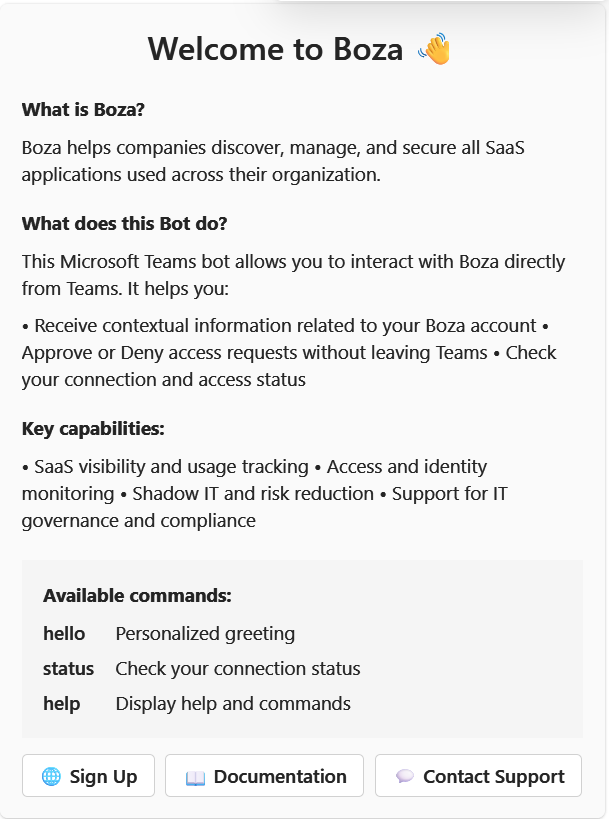
The welcome card confirms that the Boza bot is available in Microsoft Teams.
## What the bot delivers
For a Microsoft-connected organization, Boza can use Teams to:
* Deliver announcements created with the **Microsoft Teams** channel.
* Notify the responsible person about supported onboarding, offboarding, and other manual tasks.
* Present supported actions as Adaptive Cards so the recipient can complete or deny an item and provide a message when requested.
* Confirm bot connectivity through the built-in `hello`, `status`, and `help` commands.
Available actions depend on the Boza feature that generated the card and the recipient's role.
## Prerequisites
Before using the bot:
1. Connect the organization's [Microsoft Entra ID](/docs/integrations/microsoft-entra-id.md) directory to Boza.
2. Have a Microsoft Teams administrator deploy the Boza app to the organization.
3. Confirm that the intended recipients exist in the synchronized directory and can access the bot in Teams.
The Boza Teams app is distributed through the organization's Teams admin catalog rather than a public app-store listing. Contact your Boza account team or **** for the current package and tenant deployment instructions.
## Verify the connection
After deployment:
1. Open the Boza bot in Microsoft Teams.
2. Send `hello` to display the welcome card.
3. Send `status` to check the connection.
4. In Boza, open **Integrations** from the main sidebar and confirm the Microsoft connection is healthy.
5. Send a limited test announcement to an internal test audience before using Teams for a company-wide announcement.
{% hint style="info" %}
The **Microsoft Teams** announcement channel is available only when the bot is deployed for the tenant. If the channel is unavailable in the announcement composer, verify deployment and connection status first.
{% endhint %}
## Troubleshooting
* **A user receives no card** — confirm that their Boza email matches the synchronized Microsoft account and that the app is available to that user in Teams.
* **The announcement channel is unavailable** — confirm that the bot deployment is active for the tenant.
* **A card action fails** — retry once, then check **Integrations** for a lost connection.
If the issue continues, contact **** with the affected user, approximate delivery time, and the type of notification. Do not include secrets or access tokens.
---
# Agent Instructions
This documentation is published with GitBook. GitBook is the documentation platform designed so that both humans and AI agents can read, navigate, and reason over technical content effectively. Learn more at gitbook.com.
## Querying This Documentation
If you need additional information that is not directly available in this page, you can query the documentation by asking a question.
Perform an HTTP GET request on the following URL with the `ask` and `goal` query parameters:
```
GET https://boza.gitbook.io/docs/integrations/bot-teams.md?ask=&goal=
```
`ask` is the immediate question: it should be specific, self-contained, and written in natural language.
`goal` is what the user is ultimately trying to achieve, the reason they need the answer. Sharing it helps GitBook give you a better, more relevant answer. A goal is most helpful when it describes the outcome the user wants rather than restating the question. For example, with `ask=how do I create an API token`, a goal like `automate deployments from our CI pipeline` lets GitBook tailor the answer to that use case.
The response will contain a direct answer to the question and relevant excerpts and sources from the documentation.
Use this mechanism when the answer is not explicitly present in the current page, you need clarification or additional context, or you want to retrieve related documentation sections.