> For the complete documentation index, see [llms.txt](https://boza.gitbook.io/docs/llms.txt). Markdown versions of documentation pages are available by appending `.md` to page URLs; this page is available as [Markdown](https://boza.gitbook.io/docs/integrations/google-workspace.md).
# Google Workspace
Connect Google Workspace to synchronize directory and sign-in data, support user lifecycle workflows, and optionally deploy the browser extension through Google management policies.
{% hint style="warning" %}
This integration is not read-only. Standard synchronization reads data, but explicit Boza workflows can create or delete Google Workspace users, add aliases and group memberships, update directory fields, transfer user data during offboarding, or change Chrome extension policy. Review the planned action before approving or running it.
{% endhint %}
## What Boza Reads
* Directory users and supported profile fields.
* Groups, group membership, organizational units, customer, and domain information.
* Google login, OAuth authorization, and SAML sign-in audit events used for supported application and usage signals.
* The information required to show and operate supported Google Workspace workflows.
Boza does not read Gmail message content or Google Drive file contents during normal synchronization.
## What Boza Can Change
Boza uses write access when an administrator starts the corresponding supported action:
| Action in Boza | Possible Google Workspace change |
| -------------------------------------- | --------------------------------------------------------------------------------------------------------- |
| Onboard a user | Create the directory user, add an alias, set supported profile fields, and add selected group memberships |
| Offboard a user | Optionally request a supported data transfer, then delete the directory user |
| Update supported organization data | Update supported directory fields or group membership |
| Automated browser-extension deployment | Apply Chrome extension policy to selected managed groups |
{% hint style="warning" %}
Offboarding can delete the Google Workspace user. Confirm the transfer target, applications in scope, and your organization's retention process before approving the workflow.
{% endhint %}
## Prerequisites
* A Google Workspace administrator who can grant the requested organization permissions.
* An existing Boza workspace associated with the same organization.
* Internal approval for directory write, data-transfer, audit-log, and Chrome policy access.
* A pilot group if you plan to use automated extension deployment.
## Connect Google Workspace
1. Open **Integrations** from the main navigation.
2. Select **Google Workspace**.
3. Click **Connect** or **Authorize**.
4. Sign in with an approved Google Workspace administrator account.
5. Review the requested permissions.
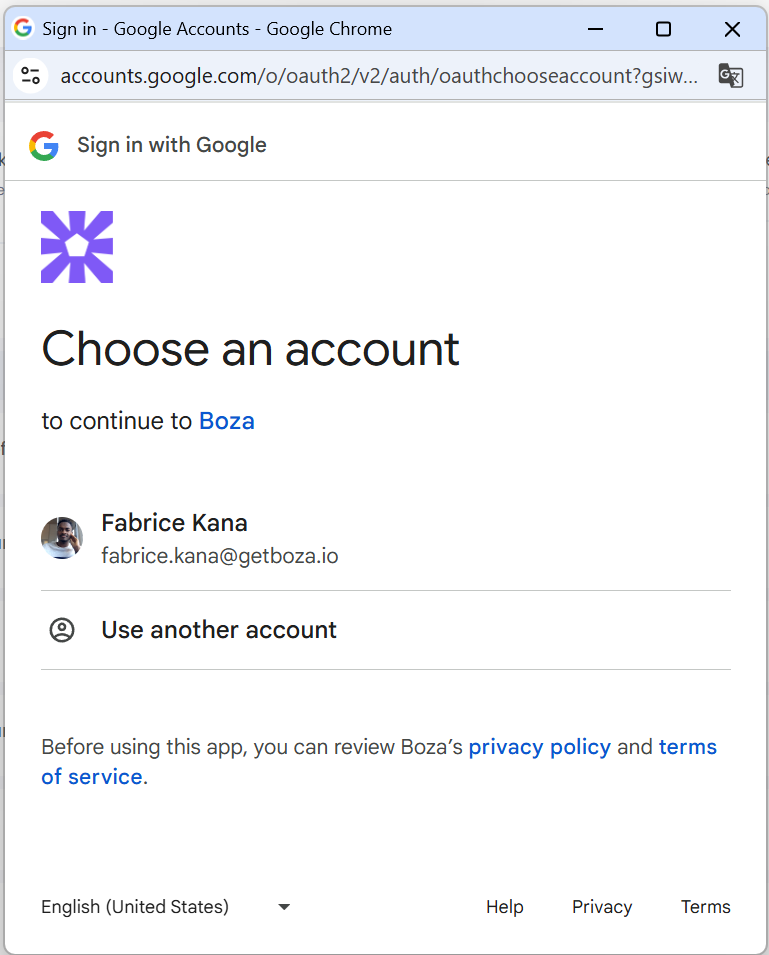
Select the administrator account approved for the integration.
Review the requested access before granting organization consent.
6. Approve the connection and return to Boza.
7. Wait for the connector to show as active.
## Verify the Connection
1. Open **Organization** and confirm that expected organizational units or groups appear.
2. Open **Users** and compare a known active user with Google Workspace.
3. Open **Applications** and check that supported Google sign-in activity begins to appear.
4. If using automated extension deployment, deploy to a pilot group and verify the result under **Settings → Browser Extension**.
Synchronization and downstream processing are asynchronous. See [Metrics & Data Freshness](/docs/resources/metrics-and-data-freshness.md) before diagnosing an apparent gap.
## Disconnect
Open **Integrations → Google Workspace** and use the available disconnect action.
Disconnecting stops future synchronization and prevents new Google-backed workflow actions. It does not reverse directory changes that Boza already completed, remove already-deployed browser policies, or automatically delete data already stored in Boza.
## Troubleshooting
### Authorization Fails
Confirm that you are using a Google Workspace administrator account for the intended organization and that your organization allows the requested permissions.
### Users or Organizational Units Are Missing
Check the connected domain and administrator scope, allow the active synchronization to finish, then compare a specific user or organizational unit in both systems.
### A Lifecycle Action Fails
Check that the connection is active and the administrator authorization still has the required directory or data-transfer permissions. Review the failed workflow step before retrying.
### Extension Deployment Fails
Confirm that the administrator granted Chrome policy access and that the selected Google group contains the pilot users or devices expected by your management setup. See [Google Admin Console deployment](/docs/browser-extension/deployment/google-admin.md).
## Related Guides
* [Onboarding & Offboarding](/docs/user-management/onboarding-offboarding.md)
* [Google Admin Console deployment](/docs/browser-extension/deployment/google-admin.md)
* [Security & Privacy](/docs/settings-and-security/security-and-privacy.md)
---
# Agent Instructions
This documentation is published with GitBook. GitBook is the documentation platform designed so that both humans and AI agents can read, navigate, and reason over technical content effectively. Learn more at gitbook.com.
## Querying This Documentation
If you need additional information that is not directly available in this page, you can query the documentation by asking a question.
Perform an HTTP GET request on the following URL with the `ask` and `goal` query parameters:
```
GET https://boza.gitbook.io/docs/integrations/google-workspace.md?ask=&goal=
```
`ask` is the immediate question: it should be specific, self-contained, and written in natural language.
`goal` is what the user is ultimately trying to achieve, the reason they need the answer. Sharing it helps GitBook give you a better, more relevant answer. A goal is most helpful when it describes the outcome the user wants rather than restating the question. For example, with `ask=how do I create an API token`, a goal like `automate deployments from our CI pipeline` lets GitBook tailor the answer to that use case.
The response will contain a direct answer to the question and relevant excerpts and sources from the documentation.
Use this mechanism when the answer is not explicitly present in the current page, you need clarification or additional context, or you want to retrieve related documentation sections.