> For the complete documentation index, see [llms.txt](https://boza.gitbook.io/docs/llms.txt). Markdown versions of documentation pages are available by appending `.md` to page URLs; this page is available as [Markdown](https://boza.gitbook.io/docs/inventory/shadow-it.md).
# Shadow IT
Discover and manage unsanctioned SaaS usage across your organization.
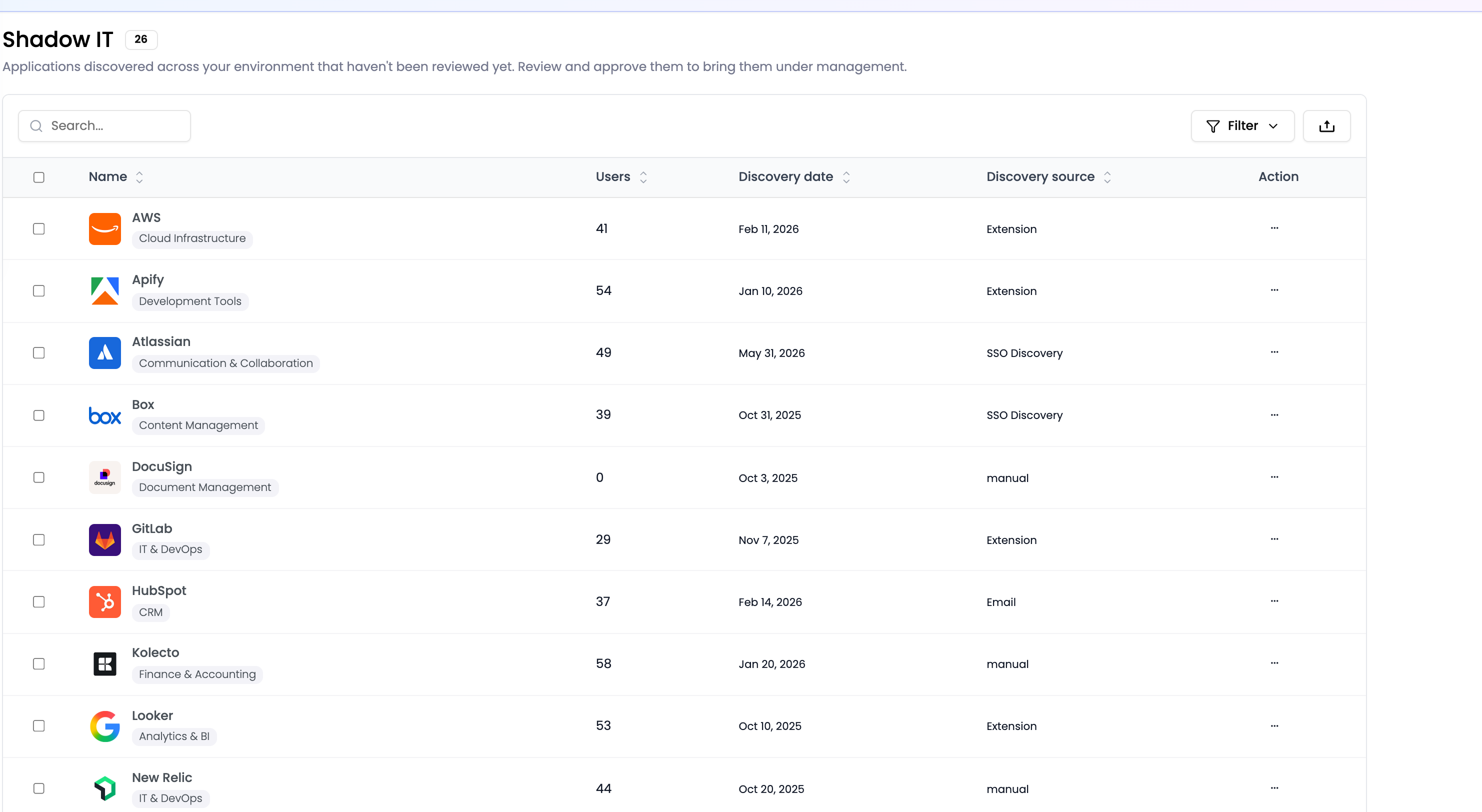
Shadow IT refers to applications employees use without formal IT approval. Boza detects these applications automatically and places new discoveries on a dedicated **Shadow IT** page for administrator review.
Review newly discovered applications before adding them to the managed inventory.
## Discovery Channels
Boza uses three complementary channels to detect unknown applications:
1. **Browser extension** — matches visited domains against Boza's application catalog and reports supported application signals. It does not inspect page content, form values, or keystrokes, but a catalog match does not determine whether that particular visit was professional or personal.
2. **SSO / IdP logs** — imports authentication events from Google Workspace or Microsoft Entra ID to identify applications accessed through your identity provider.
3. **Third-party integrations** — pulls usage data from connected platforms such as Atlassian, Notion, or GLPI.
Each channel catches different blind spots. The browser extension picks up free tools, trials, and apps that bypass SSO. SSO logs capture apps used on unmanaged devices where the extension is not installed. Third-party integrations add data from platforms that manage their own user directories.
{% hint style="info" %}
Combine browser extension deployment with SSO integration for the most complete visibility. Neither channel alone covers everything.
{% endhint %}
## How Discovery Works
When Boza detects an application that is not already in your portfolio, it creates an entry on the **Shadow IT** page. The page shows the discovery backlog and provides the same search, sorting, filtering, selection, and export tools used in the application inventory. Depending on the available signal, an entry can include:
* The application name and domain
* The discovery source
* Hosting or category information
* The number of users associated with the application
No action is taken automatically — every discovered app waits for a human decision.
## Triage Workflow
From **Shadow IT**, select one or more applications and choose the appropriate action:
1. **Approve** — classify the application as approved and move it into **Applications > My Apps**.
2. **Unapprove** — classify the application as unapproved and move it into **Applications > Unapproved Apps**.
3. **Track** or **Untrack** — control monitoring independently from the approval decision. It is one button: it reads **Track** only when every selected application is untracked.
4. **Unapprove & Untrack** — apply both controls in one action when the tool should remain recorded but not monitored.
5. **Assign Admins**, and for workspace Admins **Merge** — the bar is the same selection bar as on Applications; see [Act on several applications at once](/docs/tutorials/select-and-act-in-bulk.md).
6. **Delete** — remove a false positive or non-business tool.
Open an application before deciding when you need to inspect its users or discovery evidence. After approval, complete its ownership, cost, security, and document information from the [app detail page](/docs/inventory/applications/app-detail.md).
{% hint style="info" %}
Approval and tracking are independent. Keep an unapproved application tracked if you still need usage visibility while investigating or enforcing policy.
{% endhint %}
## Maximizing Discovery Coverage
To get the most out of shadow IT detection:
* **Deploy the browser extension broadly** — the more devices it runs on, the more apps you discover. See the [Browser Extension](/docs/browser-extension/browser-extension.md) setup guide.
* **Connect your identity provider** — SSO integration fills the gap on devices without the extension. See [Google Workspace](/docs/integrations/google-workspace.md) or [Microsoft Entra ID](/docs/integrations/microsoft-entra-id.md) setup guides.
* **Enable third-party integrations** — platforms like Atlassian and Notion add another layer of visibility. See [Integrations](/docs/integrations/integrations.md).
* **Review weekly** — a regular cadence prevents the Shadow IT queue from becoming an unmanageable backlog.
## Related Links
* [Applications overview](/docs/inventory/applications.md)
* [Authorization Categories](/docs/inventory/applications/authorization-categories.md) — understand approval and tracking status
* [App Detail](/docs/inventory/applications/app-detail.md) — what you see after approving an app
* [Browser Extension](/docs/browser-extension/browser-extension.md) — deploy the primary discovery channel
---
# Agent Instructions
This documentation is published with GitBook. GitBook is the documentation platform designed so that both humans and AI agents can read, navigate, and reason over technical content effectively. Learn more at gitbook.com.
## Querying This Documentation
If you need additional information that is not directly available in this page, you can query the documentation by asking a question.
Perform an HTTP GET request on the following URL with the `ask` and `goal` query parameters:
```
GET https://boza.gitbook.io/docs/inventory/shadow-it.md?ask=&goal=
```
`ask` is the immediate question: it should be specific, self-contained, and written in natural language.
`goal` is what the user is ultimately trying to achieve, the reason they need the answer. Sharing it helps GitBook give you a better, more relevant answer. A goal is most helpful when it describes the outcome the user wants rather than restating the question. For example, with `ask=how do I create an API token`, a goal like `automate deployments from our CI pipeline` lets GitBook tailor the answer to that use case.
The response will contain a direct answer to the question and relevant excerpts and sources from the documentation.
Use this mechanism when the answer is not explicitly present in the current page, you need clarification or additional context, or you want to retrieve related documentation sections.