> For the complete documentation index, see [llms.txt](https://boza.gitbook.io/docs/llms.txt). Markdown versions of documentation pages are available by appending `.md` to page URLs; this page is available as [Markdown](https://boza.gitbook.io/docs/inventory/subscriptions-and-vendors.md).
# Subscriptions & Invoices
Use **Subscriptions** to turn invoice lines into a reliable contract inventory, review uncertain detections, assign seats, and maintain renewals without losing billing history.
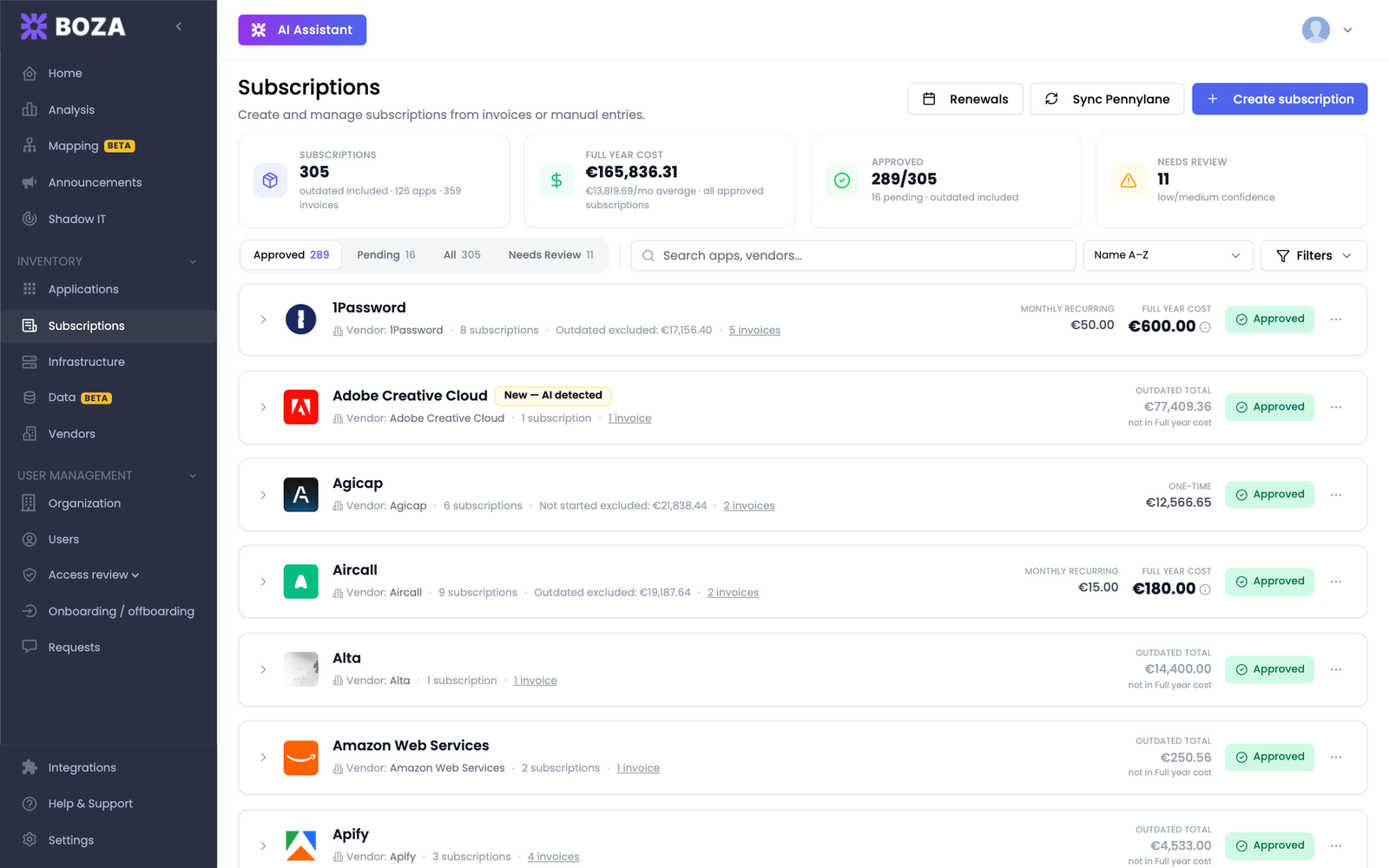
The KPI cards and tabs help you move from invoice detections to approved contracts.
## Choose How to Add a Subscription
| Method | Best for | Result |
| ----------------------- | --------------------------------------- | ------------------------------------------------------------------ |
| **Create manually** | A contract that has no invoice in Boza | Creates the subscription directly on the selected applications |
| **Import from invoice** | A PDF or image that Boza should extract | Creates editable detected items that you review before approval |
| **Sync Pennylane** | Invoices already managed in Pennylane | Sends new invoices through the same extraction and review workflow |
On **Subscriptions**, click **Create subscription** and choose **Create from invoices** or **Create manually**. The manual route is a three-step flow:
1. **Applications** — select one or more applications. You can add a catalog or custom application without leaving the flow.
2. **Details** — for each selected application, enter the subscription's name, billing model, cost, quantity, billing cycle, and dates.
3. **Review** — check every draft, then save them together.
You can also work from one application: open **Applications → an application → Costs**, and in the **Subscriptions** card select **Add → Create manually** or **Add → Import from invoice**. To upload invoices from several vendors, open **Subscriptions**, click **Create subscription**, and choose **Create from invoices**. See [Upload Invoices](/docs/inventory/subscriptions-and-vendors/upload-invoices.md).
{% hint style="info" %}
Manual records show **Manual** as their source and do not have a linked invoice. Invoice imports stay pending until you review them.
{% endhint %}
## Read the KPI Cards
The four cards at the top are also shortcuts to the relevant list:
| Card | What it means |
| ------------------ | ------------------------------------------------------------------------------------------------------ |
| **Subscriptions** | Every subscription found, including outdated ones, followed by the application count and invoice count |
| **Full year cost** | Active approved recurring subscriptions priced for twelve months, plus the monthly average |
| **Approved** | Approved-to-total ratio and the number still pending |
| **Needs Review** | Pending items with **Low** or **Medium** AI confidence |
**Full year cost** is an annual run rate at today's price. Outdated subscriptions, one-time subscriptions, and discounts are excluded from it — which is why it can describe fewer records than the **Subscriptions** count beside it. It is also not the same as cash paid this month or year-to-date spend; see [Metrics and Data Freshness](/docs/resources/metrics-and-data-freshness.md#cost-metrics).
When filters are active on the **Approved** tab, the card totals the subscriptions matching them and says so.
## Filter the List
Click **Filters**, find a filter by name in the left pane, then choose its values on the right. Filters are grouped:
* **Assigned users** — Organization, Team, Group, and whether a subscription has assigned users.
* **Subscription details** — billing cycle, billing model, whether the record was created manually or from an invoice, and type (subscription, service, or discount adjustment).
* **Renewal** — active, outdated, renewing within 90 days, or auto-renew enabled.
Active filters appear as chips beside the **Filter** button and are kept in the page address, so a reload or a shared link restores the same view. Filters apply to the **Approved** tab.
## Understand the Tabs and Statuses
| Tab or badge | What it contains | What to do |
| ---------------- | ------------------------------------------------------------------------------- | ------------------------------------------------------- |
| **Approved** | Confirmed subscriptions and historical **Outdated** contracts | Maintain dates, pricing, renewals, and user assignments |
| **Pending** | Invoice-detected items that have not been approved | Verify the extracted details, then approve or dismiss |
| **All** | Approved and pending items together | Search across the complete inventory |
| **Needs Review** | Low- or medium-confidence pending items | Check the source invoice and correct uncertain fields |
| **Failed** | Items whose invoice processing failed; the tab appears only when failures exist | Retry, correct, dismiss, or re-upload a clearer file |
**Needs Review** is a confidence filter, not a separate lifecycle status. A pending item can appear in both **Pending** and **Needs Review**.
An **Outdated** badge marks a previous contract cycle retained for history. Renewing it creates the next active cycle without rewriting the past.
## Review Confidence and Missing Fields
Each detected item has a **High**, **Medium**, or **Low** confidence badge. Confidence tells you how certain the extraction was; it does not guarantee that all required fields are present.
A standard subscription needs:
* an application and subscription name;
* billing cycle and billing driver;
* cost and, for per-user or per-license billing, quantity;
* start date, contract duration, and notice period.
A service needs an application or service name and a cost. Missing fields appear in amber and prevent a normal approval until corrected.
Open the item or its source invoice to compare the extracted values with the document. For the complete field-by-field workflow, see [Review Detected Subscriptions](/docs/inventory/subscriptions-and-vendors/reviewing-subscriptions.md).
## Classify Subscriptions, Services, and Discounts
* **Subscription** — recurring or one-time software access. Choose a billing driver such as per user, per license, flat fee, or usage.
* **Service** — consulting, implementation, support, or another professional service. Service records use service-specific contract and quantity fields and do not always have a renewal.
* **Discount** — a reduction extracted from an invoice. Add it inside an invoice item with **Add Discount**. If Boza produces a separate pending discount row, use **Link to subscription** so the reduction is applied to the correct contract.
Correct classification matters because contract cost, renewal dates, and seat assignment are calculated differently for each type.
## Approve a Match or Create a Separate Contract
When Boza finds a likely existing contract, the item shows **Existing match**. Approval opens a comparison of cost, billing cycle, seats, and contract duration.
* Choose **Update existing** when the invoice is the next bill or pricing update for the same contract. Boza links the invoice and updates that record.
* Choose **Create new** when the invoice represents a separate plan, entity, or concurrent contract.
Review the match instead of assuming every repeated invoice is a duplicate. File and invoice-number duplicate checks happen during upload; contract matching is a separate decision.
## Work with Several Pending Items
Select pending rows to open the bulk action bar:
* **Approve** — approve all ready items. If matches are present, choose whether they should update existing records or create new ones.
* **App** — move the selected items to the correct application.
* **Vendor** — change the vendor for pending items. This action is unavailable when an approved item is selected.
* **Merge** — combine selected items under one name when they belong to the same application. Invoices are consolidated and values from the latest invoice are used.
* **Move & Merge** — choose a target application and combine items selected across applications.
* **Dismiss** (trash icon) — remove the selected detections from the active review queue.
Use merge only when the lines represent the same commercial contract. Separate plans with different seats, dates, or renewal terms should remain separate.
## Resolve Failed Processing
When invoice processing is still active, a progress panel shows completed, processing, and failed counts.
1. Click **Retry failed** to retry every failed invoice in the current queue.
2. If a single failed item needs attention, open its menu and choose **Retry**.
3. Use **Edit details** if the required values can be corrected manually.
4. Use **Dismiss** if the detection should not become a subscription.
5. Re-upload a clearer or simpler document if retrying still fails.
Duplicate-invoice failures cannot be fixed by reparsing. Open the existing record instead.
## Maintain Approved Subscriptions
Click an approved row to inspect contract details, linked invoices, discounts, and assigned users. The available actions have different effects:
| Action | Effect |
| ------------------------------ | ------------------------------------------------------------------------------------------------------------------------------------------------------------------------------------------------------------------ |
| **Edit details** | Corrects the record and recalculates past and future billing |
| **Update** | Changes future pricing while keeping past billing history |
| **Renew** | Extends the contract into its next cycle and preserves the previous cycle |
| **Price history** | Shows what the subscription cost over time, period by period, newest first |
| **Assign** or **Assign Users** | Adds users. If the selection exceeds the recorded seats, Boza warns and suggests updating the quantity; only a subscription with zero seats blocks the assignment. Users can also be removed from the detail panel |
| **View invoices** | Opens the source document or review queue |
| **Delete** | Permanently removes the subscription's billing history; source invoices remain |
**Renew** appears for outdated contracts and, when a notice period is recorded, for active contracts from 15 days before the notice period starts until the renewal date.
{% hint style="warning" %}
**Delete** is not the same as dismissing a pending detection. Deleting an approved subscription permanently removes its billing history and cannot be undone from the interface.
{% endhint %}
## Find the Right Record
Use search to find an application or vendor. Sort by name, cost, date added, or renewal date. Application groups can be expanded to compare their individual contracts.
## Related Guides
* [Upload Invoices](/docs/inventory/subscriptions-and-vendors/upload-invoices.md)
* [Review Detected Subscriptions](/docs/inventory/subscriptions-and-vendors/reviewing-subscriptions.md)
* [Vendor Directory](/docs/inventory/vendors.md)
* [Renewals](/docs/inventory/renewals.md)
---
# Agent Instructions
This documentation is published with GitBook. GitBook is the documentation platform designed so that both humans and AI agents can read, navigate, and reason over technical content effectively. Learn more at gitbook.com.
## Querying This Documentation
If you need additional information that is not directly available in this page, you can query the documentation by asking a question.
Perform an HTTP GET request on the following URL with the `ask` and `goal` query parameters:
```
GET https://boza.gitbook.io/docs/inventory/subscriptions-and-vendors.md?ask=&goal=
```
`ask` is the immediate question: it should be specific, self-contained, and written in natural language.
`goal` is what the user is ultimately trying to achieve, the reason they need the answer. Sharing it helps GitBook give you a better, more relevant answer. A goal is most helpful when it describes the outcome the user wants rather than restating the question. For example, with `ask=how do I create an API token`, a goal like `automate deployments from our CI pipeline` lets GitBook tailor the answer to that use case.
The response will contain a direct answer to the question and relevant excerpts and sources from the documentation.
Use this mechanism when the answer is not explicitly present in the current page, you need clarification or additional context, or you want to retrieve related documentation sections.