> For the complete documentation index, see [llms.txt](https://boza.gitbook.io/docs/llms.txt). Markdown versions of documentation pages are available by appending `.md` to page URLs; this page is available as [Markdown](https://boza.gitbook.io/docs/inventory/subscriptions-and-vendors/reviewing-subscriptions.md).
# Review Detected Subscriptions
Review each extracted invoice item before it becomes an approved subscription or service. You can correct fields, exclude charges, add missing items, handle an existing-contract match, and assign users during the same workflow.
Keep the source document visible while you verify every extracted item.
## Open the Review Queue
After an upload, select one or more ready invoices and click **Review Now**.
* One invoice opens directly on **Review Invoice**.
* Several invoices open a queue labeled **Reviewing *****N***** of *****M***.
* Use the numbered markers, **Previous**, and **Next** to move through the queue.
* Dirty edits are saved before queue navigation. Leaving the review page with unsaved changes prompts you to **Save & leave** or discard them.
* **Finish Review** saves the current edits and returns to the invoice list.
{% hint style="info" %}
The current queue uses individual decisions. Review and create the valid items, or ignore the invoice, one invoice at a time. **Finish Review** saves your work but does not approve undecided invoices.
{% endhint %}
## Check the Invoice Header
The header shows the detected vendor, confidence, and status.
1. Compare the vendor with the document. You can search for and select a different vendor while the invoice is pending.
2. Read the **AI confidence** reason when confidence is not High.
3. Review any warning that the document may be a receipt, credit note, or another non-invoice document.
4. If extraction is poor, click **Re-parse** to run the document through analysis again.
5. Use **Ignore Invoice** when the entire document should not create software records.
Once every item is created, the validated invoice is locked. Existing approved items remain viewable and can still be used to assign users or open the application subscription.
| Invoice status | Meaning |
| --------------- | --------------------------------------------------------------------- |
| **To validate** | Extraction is complete and the invoice remains editable |
| **Validated** | All relevant items have been created; approved item fields are locked |
| **Ignored** | The invoice was intentionally set aside and created no subscriptions |
| **Failed** | Extraction did not complete; retry, delete, or upload a better source |
## Review Every Identified Item
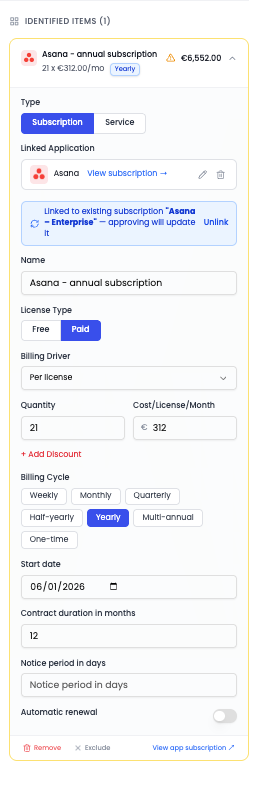
Expand an item to correct its classification and contract fields.
### Subscription fields
For a software subscription, verify:
* **Linked Application** and **Name**
* **License Type**: Free or Paid
* **Billing Driver**: per user, per license, flat fee, or usage
* **Quantity** and cost per license where applicable
* **Billing Cycle**
* **Start date**
* **Contract duration in months**
* **Notice period in days**
* **Automatic renewal**
* **Discount** amount and optional description
The required-fields panel lists anything that still needs attention. The invoice date can be missing without blocking creation, but Boza recommends verifying it.
### Service fields
Switch **Type** to **Service** for consulting, implementation, training, support, or other professional work. The form adapts to service-specific fields such as:
* linked application or an additional service with no app link;
* service name and service type;
* one-time, recurring, or time-and-material contract type;
* quantity in days or hours and the unit rate;
* service date;
* optional discount and description.
Services require a name or linked application and a cost. They do not require the complete renewal field set used by subscriptions.
### Discounts
Click **+ Add Discount** inside an item to record a reduction and its description. This keeps the discount attached to the subscription or service whose cost it reduces.
If a discount appears later as its own pending row on **Subscriptions**, use **Link to subscription** rather than approving it as a separate contract.
## Handle Existing Matches
When the item shows that it matches an existing subscription, inspect the matched contract before creating it.
* Keep the match when this invoice should update the same contract.
* Remove the match when it is a distinct plan or concurrent contract.
* From the **Subscriptions** approval dialog, choose **Update existing** or **Create new** after comparing cost, billing cycle, seats, and duration.
This contract decision is separate from file and invoice-number duplicate detection.
## Include, Exclude, Remove, or Add Items
Use the action that matches the document:
| Action | Effect |
| ---------------- | ----------------------------------------------------------------------------- |
| **Exclude** | Keeps the extracted line visible but prevents it from creating a subscription |
| **Include** | Restores an excluded line |
| **Remove** | Deletes the extracted item from the pending invoice review |
| **Subscription** | Adds a missing subscription item |
| **Service** | Adds a missing service item |
Exclude taxes, hardware, reimbursements, and unrelated charges. Use **Remove** when the extraction itself is wrong and should not remain as an invoice item.
## Create Items and Assign Seats
Each included item is approved individually:
1. Correct all required fields.
2. Click **Users** to pre-assign people before approval if the contract is seat-based.
3. Click **Create** on that item.
4. If no users were pre-assigned, use the **Assign Users** dialog after creation or choose **Skip for now**.
5. Repeat for the other valid items.
6. Click **Next** to review the next invoice.
After creation, the item shows **Assign Users** and **View app subscription**. You can also add or remove users later from the subscription detail panel. When you assign more users than the recorded seats, Boza warns and suggests updating the quantity; only a subscription with zero seats blocks the assignment.
## Re-parse, Ignore, or Delete an Invoice
These actions have different consequences:
* **Re-parse** reruns extraction and refreshes the identified data. Review the new result before creating anything.
* **Ignore Invoice** marks a pending invoice as ignored and creates no subscriptions. In a multi-invoice queue, Boza advances to the next invoice.
* **Delete** permanently removes the invoice file and record from storage.
* When deleting an invoice with a matched vendor, you can also select **Also block "*****Vendor*****" from future syncs**.
{% hint style="warning" %}
Deleting an invoice cannot be undone. Blocking its vendor also prevents future invoices from that company from being imported as software spend.
{% endhint %}
Failed invoices can be reparsed unless the failure is a duplicate invoice. For a duplicate, open the existing invoice and compare it instead.
## Expected Result
Created items appear on [Subscriptions](/docs/inventory/subscriptions-and-vendors.md), contribute to **Full year cost** when they are recurring and still active, and feed [Renewals](/docs/inventory/renewals.md) when their contract fields support a renewal. Excluded, removed, and ignored items do not become subscriptions.
## Review Checklist
* Compare every amount and quantity with the source document.
* Correct low- and medium-confidence fields first.
* Confirm the vendor and linked application.
* Separate subscriptions from professional services.
* Attach discounts to the correct parent item.
* Decide deliberately between updating an existing contract and creating a new one.
* Assign users only to the appropriate seat-based subscription.
---
# Agent Instructions
This documentation is published with GitBook. GitBook is the documentation platform designed so that both humans and AI agents can read, navigate, and reason over technical content effectively. Learn more at gitbook.com.
## Querying This Documentation
If you need additional information that is not directly available in this page, you can query the documentation by asking a question.
Perform an HTTP GET request on the following URL with the `ask` and `goal` query parameters:
```
GET https://boza.gitbook.io/docs/inventory/subscriptions-and-vendors/reviewing-subscriptions.md?ask=&goal=
```
`ask` is the immediate question: it should be specific, self-contained, and written in natural language.
`goal` is what the user is ultimately trying to achieve, the reason they need the answer. Sharing it helps GitBook give you a better, more relevant answer. A goal is most helpful when it describes the outcome the user wants rather than restating the question. For example, with `ask=how do I create an API token`, a goal like `automate deployments from our CI pipeline` lets GitBook tailor the answer to that use case.
The response will contain a direct answer to the question and relevant excerpts and sources from the documentation.
Use this mechanism when the answer is not explicitly present in the current page, you need clarification or additional context, or you want to retrieve related documentation sections.