> For the complete documentation index, see [llms.txt](https://boza.gitbook.io/docs/llms.txt). Markdown versions of documentation pages are available by appending `.md` to page URLs; this page is available as [Markdown](https://boza.gitbook.io/docs/inventory/subscriptions-and-vendors/upload-invoices.md).
# Upload Invoices
Upload invoice files in bulk and let Boza extract the vendor, applications, subscriptions, services, discounts, amounts, and contract terms for review.
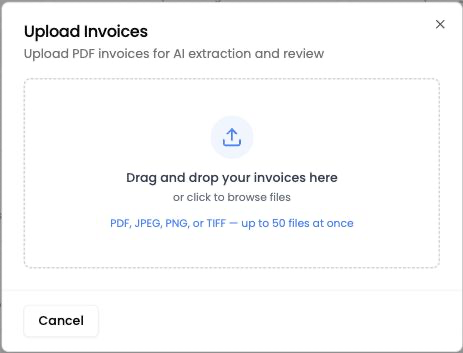
Add up to 50 PDF or image invoices in one batch.
## Supported Files
* **Formats:** PDF, JPEG, PNG, and TIFF, including `.jpg`, `.jpeg`, `.tif`, and `.tiff`.
* **Batch limit:** up to **50 files** at once.
* **Ways to add files:** drag and drop, click the upload area to browse, or paste a file from the clipboard while the dialog is open.
Use **Ctrl+V** on Windows or **Command+V** on macOS to paste an invoice image or copied file.
## Upload a Batch
1. Open **Subscriptions**.
2. Click **Upload Invoices**.
3. Drop, browse for, or paste your files into the dialog.
4. Review the selected filenames. Click the remove icon beside any file that should not be uploaded.
5. Click **Upload *****N***** files**.
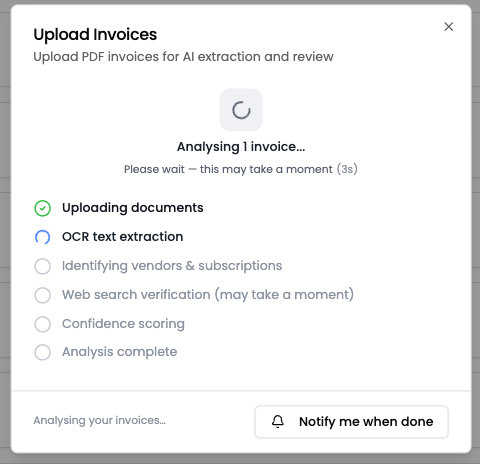
6. Keep the dialog open to follow processing, or click **Notify me when done** to receive an email and continue working elsewhere.
7. When processing finishes, select the invoices you want to review.
8. Click **Review Now** for one invoice or **Review All *****N***** Now** for several.
Successful invoices are preselected. Use **Deselect all** when only part of the batch should enter the current review queue, or click **+ Add to List** to close the dialog and review later.
{% hint style="info" %}
To import invoices for one known application, open **Applications → an application → Costs → Subscriptions → Add → Import from invoice**. Boza uses a shorter extraction flow because the target application is already known.
{% endhint %}
## Follow Processing
For a general upload, the progress dialog reports:
1. **Uploading documents**
2. **OCR text extraction**
3. **Identifying vendors & subscriptions**
4. **Web search verification**
5. **Confidence scoring**
6. **Analysis complete**
Boza extracts the invoice number and date, vendor, application, line-item type, quantity, unit and total costs, billing cycle, and available contract dates. Each result receives a **High**, **Medium**, or **Low** confidence level.
The dialog follows the furthest processing stage reached by the batch.
Processing time varies with the number, length, and complexity of the files. **Notify me when done** is available while analysis is running and emails the person who uploaded the batch.
{% hint style="info" %}
Invoice extraction uses trusted third-party sub-processors. See [Data Privacy & GDPR](/docs/settings-and-security/data-privacy-gdpr.md) for information about processing and safeguards.
{% endhint %}
## Understand the Results
The completed dialog separates ready invoices from skipped or failed files:
| Result | Meaning | Next action |
| --------------------------------------------- | ------------------------------------------------------------------------- | ------------------------------------------------------------------ |
| **Ready for review** | Extraction completed | Select it and click **Review Now** |
| **Already imported — skipped** | The same file was previously imported | No action is required unless this is a genuinely different invoice |
| **Duplicate — invoice number already exists** | Another record uses the extracted invoice number | Click **View existing** and compare the records |
| **Processing failed** | The file was too complex, heavy, long, or otherwise could not be analyzed | Upload a simpler or clearer version |
| **Upload failed** | The batch could not be submitted | Click **Try Again** and select the files again |
Duplicate checks reduce accidental repeats, but they do not decide whether a new invoice belongs to an existing subscription. You make that choice during review with **Update existing** or **Create new**.
## Retry After the Dialog Closes
If processing later appears as failed:
1. Open **Subscriptions**.
2. Use **Retry failed** in the processing panel to retry all failures, or open a failed item's menu and choose **Retry**.
3. A failed detected row can be **Dismissed**. A failed invoice can be **Re-parsed** or permanently **Deleted**.
4. If it still fails, upload a cleaner or simpler file.
Reparsing is not offered for a duplicate-invoice failure because an existing invoice must be reviewed instead.
## Use Pennylane Instead
If Pennylane is connected, click **Sync Pennylane** on **Subscriptions** to fetch available supplier invoices. Pennylane imports enter the same review workflow as manual uploads.
See [Pennylane Integration](/docs/integrations/pennylane.md) for connection requirements.
## Expected Result
The upload itself does not approve a contract. Ready invoices appear in the review queue, where you correct extracted fields and create each valid subscription or service. Continue with [Review Detected Subscriptions](/docs/inventory/subscriptions-and-vendors/reviewing-subscriptions.md).
---
# Agent Instructions
This documentation is published with GitBook. GitBook is the documentation platform designed so that both humans and AI agents can read, navigate, and reason over technical content effectively. Learn more at gitbook.com.
## Querying This Documentation
If you need additional information that is not directly available in this page, you can query the documentation by asking a question.
Perform an HTTP GET request on the following URL with the `ask` and `goal` query parameters:
```
GET https://boza.gitbook.io/docs/inventory/subscriptions-and-vendors/upload-invoices.md?ask=&goal=
```
`ask` is the immediate question: it should be specific, self-contained, and written in natural language.
`goal` is what the user is ultimately trying to achieve, the reason they need the answer. Sharing it helps GitBook give you a better, more relevant answer. A goal is most helpful when it describes the outcome the user wants rather than restating the question. For example, with `ask=how do I create an API token`, a goal like `automate deployments from our CI pipeline` lets GitBook tailor the answer to that use case.
The response will contain a direct answer to the question and relevant excerpts and sources from the documentation.
Use this mechanism when the answer is not explicitly present in the current page, you need clarification or additional context, or you want to retrieve related documentation sections.