> For the complete documentation index, see [llms.txt](https://boza.gitbook.io/docs/llms.txt). Markdown versions of documentation pages are available by appending `.md` to page URLs; this page is available as [Markdown](https://boza.gitbook.io/docs/inventory/vendors.md).
# Vendor Directory
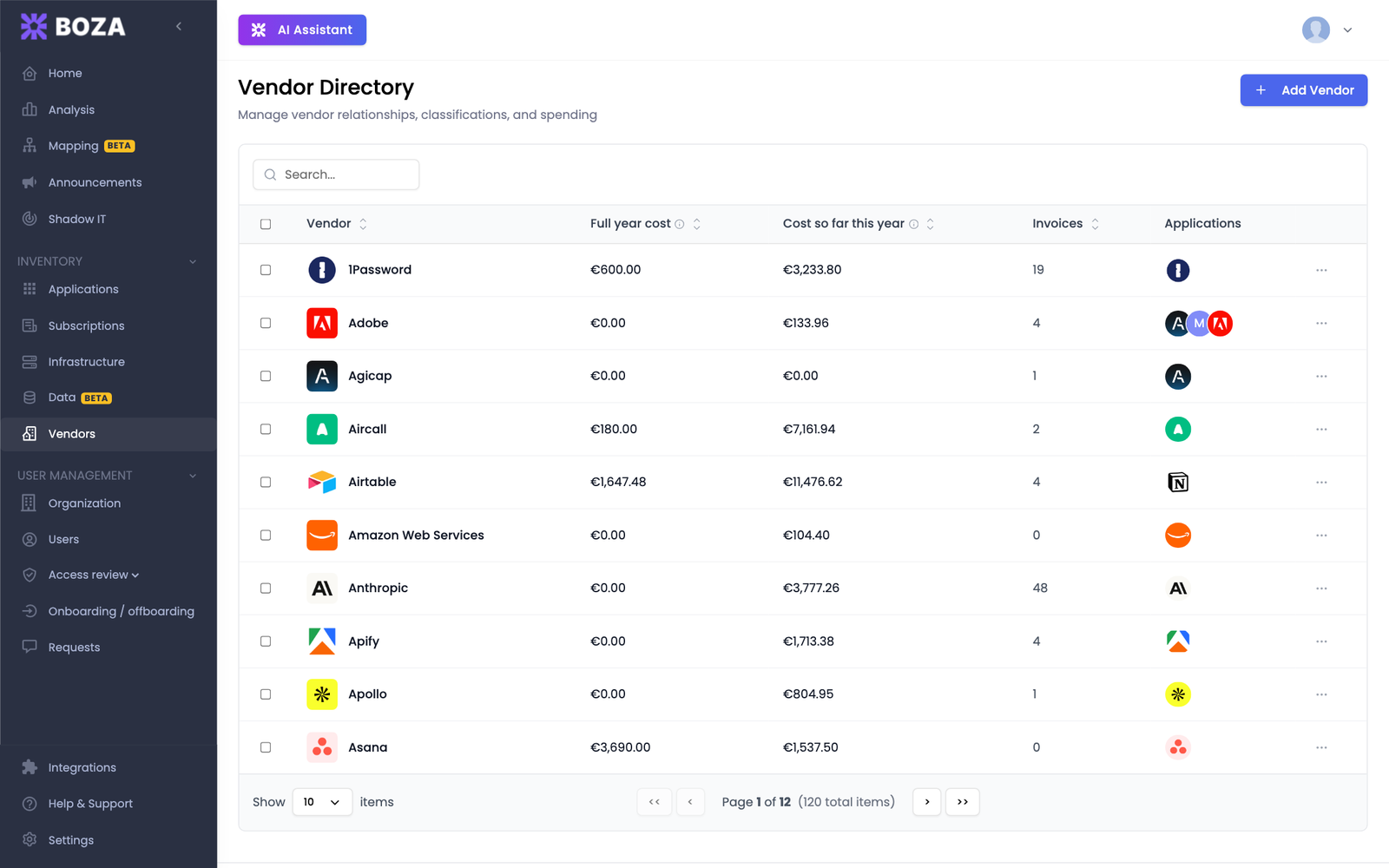
Use the **Vendor Directory** to see who receives your software spend, which applications they provide, and which invoice and payment records contribute to that relationship.
Search, sort, and open a vendor to investigate its cost and application links.
## How Vendor Data Is Organized
Boza uses three connected levels:
1. **Vendor** — the company being paid.
2. **Application** — a product supplied by that vendor.
3. **Subscription** — a contract or service recorded against the application.
Cost figures on a vendor are calculated from the subscriptions recorded against its applications, so a vendor and the applications beneath it report the same numbers. Invoices and payments roll up to the vendor separately.
## Read the Directory
| Column | Meaning |
| ------------------ | ------------------------------------------------------------------------------------------------------------- |
| **Vendor** | Vendor name, logo, and category |
| **Full year cost** | This vendor's active recurring subscriptions priced for twelve months. One-time subscriptions are not counted |
| **Cost YTD** | Current recurring monthly subscription cost for this vendor × the completed months of this year |
| **Invoices** | Number of invoices associated with the vendor |
| **Applications** | Up to three linked application icons, with the remaining count grouped behind **+*****N*** |
Both cost columns use subscription details only, not invoices or payments. Hover the information icon beside a column name to see its period and definition. See [Metrics and Data Freshness](/docs/resources/metrics-and-data-freshness.md#cost-metrics) for the complete set of cost definitions.
Use search to find a vendor by name. Sort supported columns and use pagination to move through a large directory.
## Add a Vendor
1. Click **Add Vendor**.
2. Search for or enter the vendor.
3. Complete the website, description, accounting label, bank-transaction label, and notes that are relevant to your workspace.
4. Select any applications that should be associated with the vendor.
5. Save the vendor.
Search the directory before creating a record. Two records for the same supplier can split spend and application mappings.
## Manage a Vendor
Click a row, or open the row menu and choose **Edit**, to open the detail page.
### Applications
The **Applications** panel shows each linked application, its Super Admin, criticality, and user counts.
* Click **Link** to associate another application with the vendor.
* Use the remove action on an application row to unlink it after confirmation.
* Click an application row to open its application details.
Linking controls which products appear under the vendor; it does not create a subscription by itself.
### Payments
The **Payments** panel lists associated payment descriptions, dates, and amounts. A **Synced** badge appears when a supported bank or accounting connection is active. If no connection is available, **Sync spend** starts the connection flow.
Payments are not subscription cost. They come from approved invoices and imported transactions, an approved invoice may still be unpaid, and the cost columns above are estimates built from your saved prices — so the two totals do not have to match. A note on the panel repeats this in context.
See [Powens](/docs/integrations/powens.md) and [Pennylane](/docs/integrations/pennylane.md) for supported accounting and payment workflows.
### Vendor details
The following fields save when you leave the field or press Enter:
* description;
* **Website**;
* **Service Level Agreement**;
* **Vendor name in your accounting tool**;
* **Vendor name on your bank statements**;
* **Notes and comments**.
Click **Edit custom fields** to add workspace-specific fields and descriptions, then enter values on the vendor.
## Merge Duplicate Vendors
A vendor can appear twice when its trading name and its legal name both reach Boza, for example *Miro* alongside *Miro Ltd*. Its spend is then split between the two records.
Boza raises likely duplicates at the top of the directory: **N possible duplicate vendors found**. Administrators can review and merge them, or select two or more vendors and choose **Merge** from the selection bar at the bottom of the window.
1. Click **Review**. The dialog explains why the pair was flagged, normally that the names match once punctuation and company suffixes are removed.
2. Choose which vendor **survives**.
3. Read **What will happen**. It counts the linked applications, payments, spend, and custom fields that would move.
4. Choose **Merge Vendors**, **Not a duplicate**, or **Decide later**.
What a merge does:
* Linked applications, payments, spend, and custom fields move onto the surviving vendor across every affected part of your workspace.
* A payment already recorded on both vendors is counted once, never twice. The dialog states how many were already recorded, so the figure you see is what genuinely moves.
* The surviving vendor keeps its own details. Anything it is missing, such as description, website, SLA, accounting labels, or notes, is filled in from the vendor being removed.
* Future invoices are recorded under the surviving vendor.
* Only your workspace changes. The shared vendor catalog is untouched.
{% hint style="warning" %}
A merge cannot be undone. Use it when two records describe the same company. When the legal supplier or the commercial relationship is genuinely different, keep them separate.
{% endhint %}
Applications work the same way, from the [Applications list](/docs/inventory/applications.md#merge-duplicate-applications). Step-by-step, with screenshots: [Merge duplicate vendors](/docs/tutorials/merge-duplicate-vendors.md).
## Delete and Block a Vendor
The vendor row menu and detail page both use **Delete & Block**.
1. Open the vendor's three-dot menu and choose **Delete & Block**, or click **Delete & Block** on its detail page.
2. Read the confirmation carefully.
3. Click **Delete & Block** again to confirm.
This removes the vendor from the workspace and blocks it from being identified as a software vendor in future invoice syncs.
{% hint style="warning" %}
Do not use **Delete & Block** merely to correct a name or application link. It is intended for companies that should not be recognized as software vendors again. Use **Edit** or unlink the incorrect application instead.
{% endhint %}
Deleting an invoice also offers an optional vendor-block checkbox when that invoice has a matched vendor. Both paths feed the same future-recognition block.
## Keep the Directory Accurate
* Correct vendor labels so accounting and bank data continue matching the intended supplier.
* Review vendors with unexpected spend before changing their links.
* Keep separate vendors only when the legal supplier or commercial relationship is genuinely different.
* Use **Delete & Block** for false-positive software vendors, not for ordinary cleanup.
---
# Agent Instructions
This documentation is published with GitBook. GitBook is the documentation platform designed so that both humans and AI agents can read, navigate, and reason over technical content effectively. Learn more at gitbook.com.
## Querying This Documentation
If you need additional information that is not directly available in this page, you can query the documentation by asking a question.
Perform an HTTP GET request on the following URL with the `ask` and `goal` query parameters:
```
GET https://boza.gitbook.io/docs/inventory/vendors.md?ask=&goal=
```
`ask` is the immediate question: it should be specific, self-contained, and written in natural language.
`goal` is what the user is ultimately trying to achieve, the reason they need the answer. Sharing it helps GitBook give you a better, more relevant answer. A goal is most helpful when it describes the outcome the user wants rather than restating the question. For example, with `ask=how do I create an API token`, a goal like `automate deployments from our CI pipeline` lets GitBook tailor the answer to that use case.
The response will contain a direct answer to the question and relevant excerpts and sources from the documentation.
Use this mechanism when the answer is not explicitly present in the current page, you need clarification or additional context, or you want to retrieve related documentation sections.