> For the complete documentation index, see [llms.txt](https://boza.gitbook.io/docs/llms.txt). Markdown versions of documentation pages are available by appending `.md` to page URLs; this page is available as [Markdown](https://boza.gitbook.io/docs/platform/analysis/payments.md).
# Payments
The Payments tab tracks the money that actually left your accounts — the real software spend behind your subscriptions. Where [Cost Analysis](/docs/platform/analysis/cost.md) is based on contract data, Payments is based on transactions pulled from your bank and accounting tools, so you can reconcile what you committed to against what you were billed.
***
## Monthly Spends by Vendors
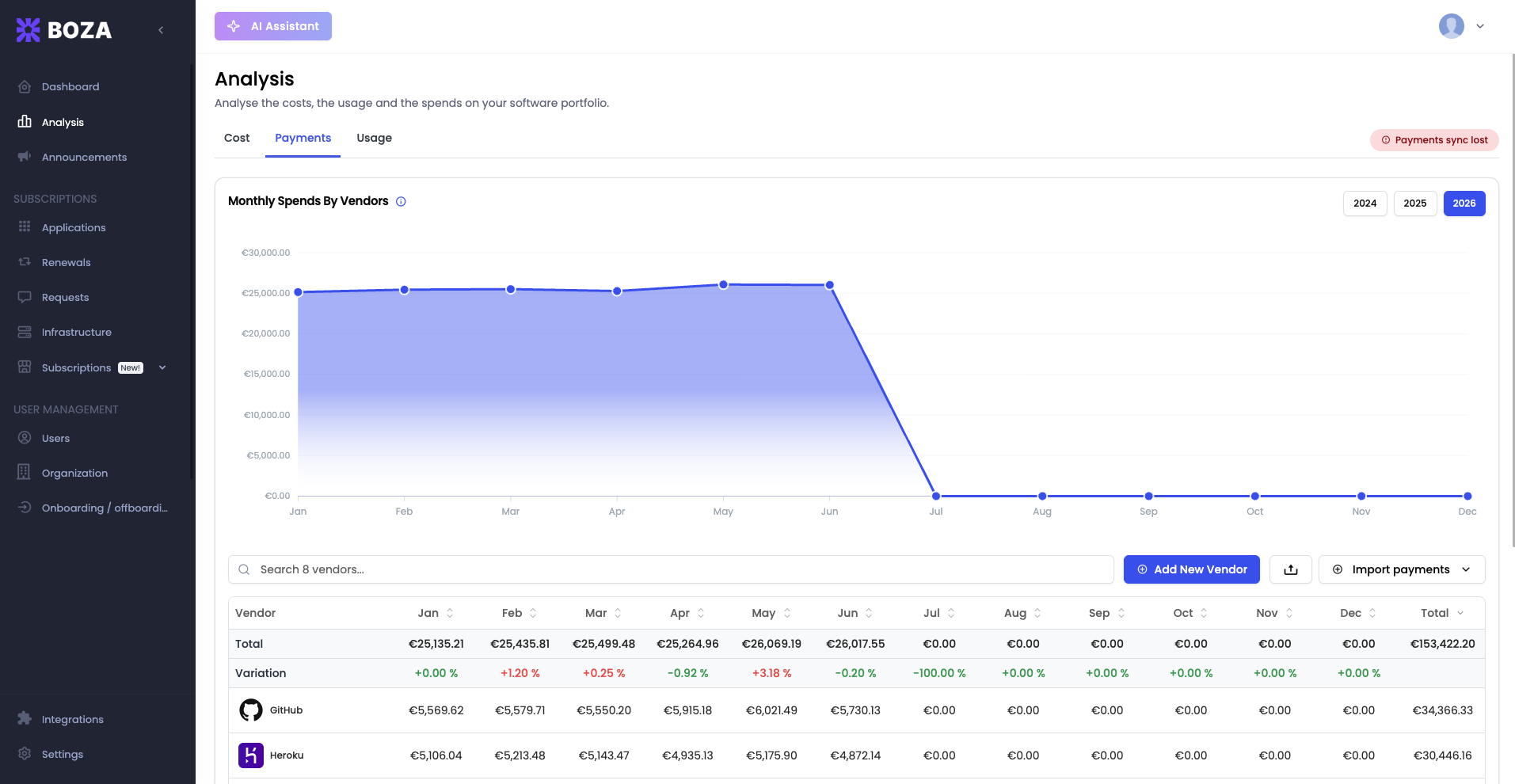
The main view is a table of **spend per vendor, broken down by month**:
* **Rows** — one per vendor (with logo and a link to the vendor's detail page), plus two summary rows at the top:
* **Total** — combined spend across all vendors for each month.
* **Variation** — the month-over-month change as a percentage. A decrease is shown in green, an increase in red, so cost spikes stand out.
* **Columns** — January through December, plus a **Total** column for the year.
* **Year selector** — switch between the last three years to compare trends.
A line chart above the table plots total monthly payments for the selected year. Use the **search** box to filter to a single vendor, and click any month or the **Total** header to sort.
Click **Add New Vendor** to create a vendor manually if a payment isn't matched to one automatically.
***
## Where Payment Data Comes From
A status badge shows whether your payment data is up to date — **Payments synchronized** with the last sync time, or **Payments sync lost** if a connection needs attention. Payments flow in from three sources:
* **Your bank**, via the [Powens](/docs/integrations/powens.md) connection.
* **Your accounting tool**, via the [Pennylane](/docs/integrations/pennylane.md) connection.
* **A CSV file** you import manually (see below).
***
## Importing Payments from a CSV
If some spend isn't covered by an integration, you can upload it directly.
1. On the Payments tab, open the **Import payments** dropdown.
2. Click **Download CSV template** to get a correctly formatted file.
3. Fill in your transactions, following the column headers and the guidance in the template's first row:
* **Vendor Name**
* **Transaction Description**
* **Transaction Date**
* **Debit Amount (in €)**
* **Credit Amount (in €)**
* **Transaction Status**
4. Back in Boza, open the **Import payments** dropdown again and click **Upload payments CSV**, then select your file.
Boza imports the rows, matches them to vendors, and adds them to the spend table. Use a comma as the delimiter and enter amounts as positive numbers in euros.
{% hint style="info" %}
Only `.csv` files are accepted. If an import fails, Boza shows an error message — check that your delimiter is a comma and your dates match the format shown in the template.
{% endhint %}
***
## Exporting Payments
Click the **Export** button to download the current spend table as `payments.csv`. The file contains each vendor's monthly amounts and yearly total — handy for finance reviews, audits, or sharing with stakeholders who don't use Boza.
***
## Best Practices
* **Reconcile monthly.** Compare the Payments total against [Cost Analysis](/docs/platform/analysis/cost.md) to catch billing that doesn't match your contracts.
* **Watch the Variation row.** A sudden jump flags a price increase or an unexpected charge worth investigating.
* **Fill gaps with CSV import.** For vendors not covered by Powens or Pennylane, a quick CSV keeps your spend picture complete.
---
# Agent Instructions
This documentation is published with GitBook. GitBook is the documentation platform designed so that both humans and AI agents can read, navigate, and reason over technical content effectively. Learn more at gitbook.com.
## Querying This Documentation
If you need additional information that is not directly available in this page, you can query the documentation by asking a question.
Perform an HTTP GET request on the following URL with the `ask` and `goal` query parameters:
```
GET https://boza.gitbook.io/docs/platform/analysis/payments.md?ask=&goal=
```
`ask` is the immediate question: it should be specific, self-contained, and written in natural language.
`goal` is what the user is ultimately trying to achieve, the reason they need the answer. Sharing it helps GitBook give you a better, more relevant answer. A goal is most helpful when it describes the outcome the user wants rather than restating the question. For example, with `ask=how do I create an API token`, a goal like `automate deployments from our CI pipeline` lets GitBook tailor the answer to that use case.
The response will contain a direct answer to the question and relevant excerpts and sources from the documentation.
Use this mechanism when the answer is not explicitly present in the current page, you need clarification or additional context, or you want to retrieve related documentation sections.