> For the complete documentation index, see [llms.txt](https://boza.gitbook.io/docs/llms.txt). Markdown versions of documentation pages are available by appending `.md` to page URLs; this page is available as [Markdown](https://boza.gitbook.io/docs/platform/announcements.md).

# Announcements

Create one message, target the right users, preview every selected channel, and publish it through the browser extension, email, Slack, or Microsoft Teams.

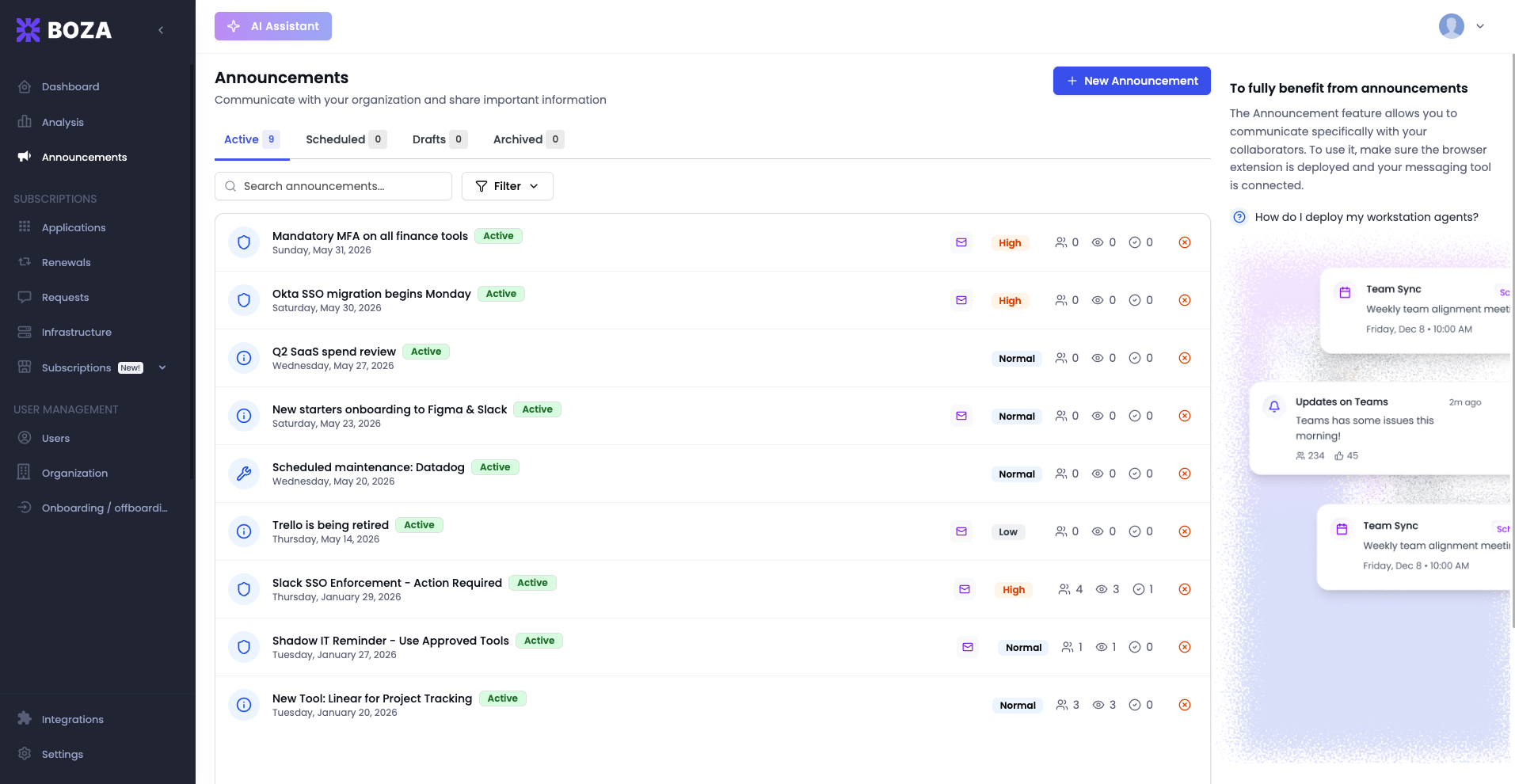
<figure><img src="https://1674559363-files.gitbook.io/~/files/v0/b/gitbook-x-prod.appspot.com/o/spaces%2FvSdGShklbloRzyUwwMzX%2Fuploads%2Fgit-blob-921e6eeae91096f280b4281ce3fa418762a34937%2Fboza-announcements.png?alt=media" alt="Announcements list with Active, Scheduled, Drafts, and Archived tabs plus search and filter controls"><figcaption><p>The list keeps drafts, scheduled messages, active delivery, and historical announcements separate.</p></figcaption></figure>

## Before You Start

The current administrative interface exposes announcement management to workspace **Admins**. Publishing can send messages outside Boza, so use a trusted Admin account and verify the audience and channels before delivery.

## Browse and Manage Announcements

| Tab           | What it contains                                                |
| ------------- | --------------------------------------------------------------- |
| **Active**    | Published announcements that have not expired or been cancelled |
| **Scheduled** | Announcements waiting for their scheduled publishing run        |
| **Drafts**    | Saved announcements that have not been published                |
| **Archived**  | Expired and cancelled announcements                             |

Search by title. The filter panel narrows by priority, type, or channel and sorts by creation date, publication date, title, or priority.

Available row actions depend on status:

* **Publish**, **Edit**, and **Delete** are available for drafts.
* **Cancel** is available for published or scheduled announcements.
* Click a row to open its details and delivery statistics.

## Create an Announcement

Click **New Announcement** to open the composer.

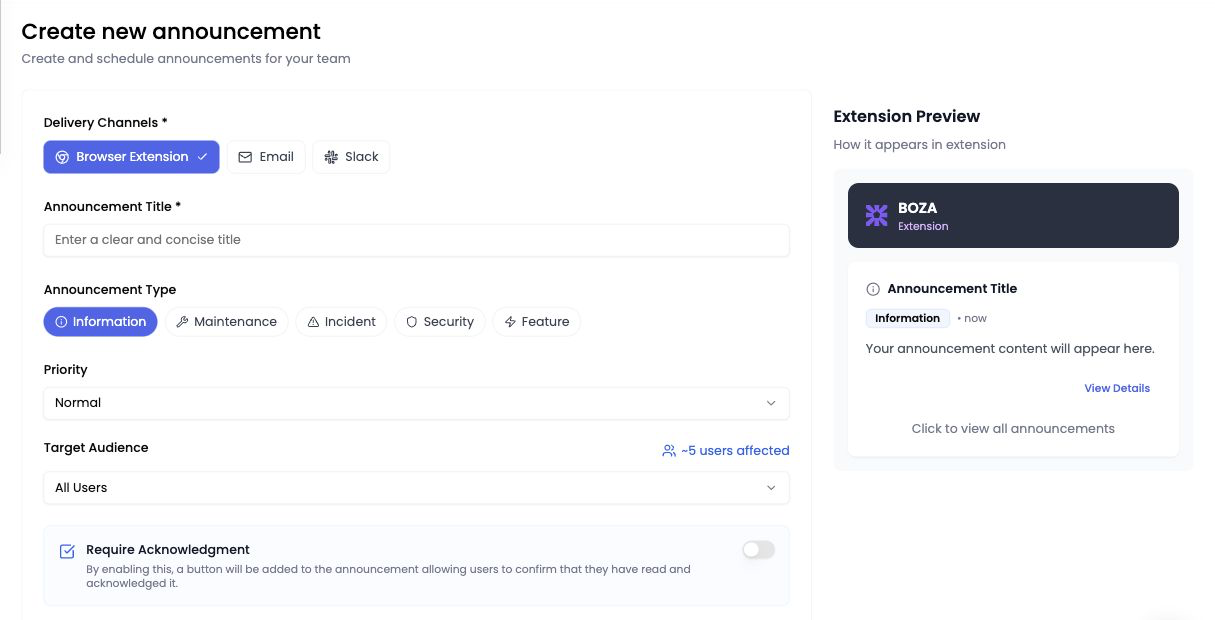
<figure><img src="https://1674559363-files.gitbook.io/~/files/v0/b/gitbook-x-prod.appspot.com/o/spaces%2FvSdGShklbloRzyUwwMzX%2Fuploads%2Fgit-blob-25bf0607779ba7d5fa281ef1393ce1754177153d%2Fboza-announcement-compose.png?alt=media" alt="Create new announcement form with delivery channels, title, type, priority, audience, acknowledgment, and browser-extension preview"><figcaption><p>The preview updates as you compose and switches between selected delivery channels.</p></figcaption></figure>

### Select delivery channels

Choose at least one channel:

| Channel               | Availability                                           | Recipient experience                   |
| --------------------- | ------------------------------------------------------ | -------------------------------------- |
| **Browser Extension** | Any workspace; recipients need the Boza extension      | Announcement appears in the extension  |
| **Email**             | Any workspace with recipient email addresses           | Message arrives in each targeted inbox |
| **Slack**             | Google Workspace tenants with the Slack bot deployed   | Boza sends a direct Slack message      |
| **Microsoft Teams**   | Microsoft Entra ID tenants with the Teams bot deployed | Boza sends a Teams notification        |

The chat channel follows the workspace identity provider: **Google Workspace → Slack** and **Microsoft Entra ID → Microsoft Teams**. A Google tenant does not see Teams in the composer, and a Microsoft tenant does not see Slack.

If the relevant bot is not deployed, its channel appears disabled with guidance to deploy it under **Integrations**. If bot verification fails at publish time, Boza stops publication and offers **Save as Draft** or **Go to Integrations**.

See [Bot for Slack](/docs/integrations/bot-slack.md) or [Bot for Microsoft Teams](/docs/integrations/bot-teams.md) for deployment.

### Complete the message

1. Enter an **Announcement Title**.
2. Select an **Announcement Type**: **Information**, **Maintenance**, **Incident**, **Security**, or **Feature**.
3. Set **Priority** to **Low**, **Normal**, **Medium**, **High**, or **Critical**.
4. Choose a **Target Audience**.
5. Write the required **Content** in the rich-text editor.
6. Review the live preview for each selected channel.

The editor supports headings, emphasis, lists, links, and code blocks. The channel previews show how the same content is adapted for the browser extension, email, Slack, or Teams.

### Choose the audience

| Target             | How recipients are selected                       |
| ------------------ | ------------------------------------------------- |
| **All Users**      | All active users in the workspace                 |
| **By Team**        | Members of one or more selected teams             |
| **By Application** | Users linked to one or more selected applications |
| **Specific Users** | Individually selected users                       |

The composer shows an estimated **\~*****N*****&#x20;users affected** count. Click the count to inspect the resolved recipient list before publishing. Search is available when selecting teams, applications, or individual users.

### Require acknowledgment

When **Browser Extension** is selected, **Require Acknowledgment** adds a confirmation action to the extension announcement. Use it when you need users to affirm that they read a policy, security notice, or required instruction.

Acknowledgment is a browser-extension capability. Email, Slack, and Teams delivery do not supply acknowledgment tracking.

## Save, Schedule, Publish, or Expire

* **Save Draft** stores the composer without delivery.
* **Schedule For** sets a future publishing hour. The scheduling job runs hourly, so minutes and seconds are ignored.
* **Expires At** sets when the active announcement moves to **Archived**. It must be later than the scheduled time, or later than now for immediate publication.
* **Schedule** appears after a future time is selected.
* **Publish Now** starts delivery immediately through all selected channels.

Title and content are required for publication. A scheduled date cannot be in the past, and changing it past the selected expiry clears the invalid expiry.

{% hint style="info" %}
Because scheduled publishing runs hourly, plan for the selected hour rather than an exact minute.
{% endhint %}

## Track Delivery

Open an announcement and select its statistics view. When several channels were used, filter the results by channel.

| Status           | Meaning                                                                     |
| ---------------- | --------------------------------------------------------------------------- |
| **Sent**         | Successful sends, including delivered and read browser-extension records    |
| **Pending**      | Delivery has not finished                                                   |
| **Failed**       | Delivery failed; the recipient row includes the available error             |
| **Read**         | A browser-extension recipient opened the announcement                       |
| **Acknowledged** | A browser-extension recipient confirmed it when acknowledgment was required |

**Read** and **Acknowledged** appear only for browser-extension data. Email, Slack, and Teams can report send success or failure but do not report these two engagement events.

## Cancel or Delete

* Cancelling a scheduled announcement prevents its future publication.
* Cancelling an active announcement moves it out of **Active**, but messages already delivered to email or chat are not recalled.
* Deleting is available for drafts and permanently removes the unpublished record after confirmation.

## Publishing Checklist

* Use a specific title that states the action or time window.
* Reserve high and critical priority for genuinely urgent messages.
* Inspect **\~*****N*****&#x20;users affected** before sending.
* Preview every selected channel.
* Verify the Slack or Teams bot is deployed.
* Use acknowledgment only when a recorded response is necessary.
* Review delivery failures after publication.


---

# Agent Instructions
This documentation is published with GitBook. GitBook is the documentation platform designed so that both humans and AI agents can read, navigate, and reason over technical content effectively. Learn more at gitbook.com.

## Querying This Documentation
If you need additional information that is not directly available in this page, you can query the documentation by asking a question.

Perform an HTTP GET request on the following URL with the `ask` and `goal` query parameters:

```
GET https://boza.gitbook.io/docs/platform/announcements.md?ask=<question>&goal=<user_goal>
```

`ask` is the immediate question: it should be specific, self-contained, and written in natural language.
`goal` is what the user is ultimately trying to achieve, the reason they need the answer. Sharing it helps GitBook give you a better, more relevant answer. A goal is most helpful when it describes the outcome the user wants rather than restating the question. For example, with `ask=how do I create an API token`, a goal like `automate deployments from our CI pipeline` lets GitBook tailor the answer to that use case.

The response will contain a direct answer to the question and relevant excerpts and sources from the documentation.

Use this mechanism when the answer is not explicitly present in the current page, you need clarification or additional context, or you want to retrieve related documentation sections.