> For the complete documentation index, see [llms.txt](https://boza.gitbook.io/docs/llms.txt). Markdown versions of documentation pages are available by appending `.md` to page URLs; this page is available as [Markdown](https://boza.gitbook.io/docs/settings-and-security/settings.md).

# Settings

The **Settings** page lets workspace administrators choose the workspace language and sending mailbox, grant platform administrator access, manage the browser extension, configure notifications, and choose whether this browser contributes privacy-protected product analytics. Open it from **Settings** at the bottom of the sidebar; the sections are listed in a rail on the left: **General**, **Browser extension**, **Notifications**, **Privacy & analytics**.

***

## General

The **General** section holds the workspace-wide settings, editable ones first.

<figure><img src="https://1674559363-files.gitbook.io/~/files/v0/b/gitbook-x-prod.appspot.com/o/spaces%2FvSdGShklbloRzyUwwMzX%2Fuploads%2Fgit-blob-685dbfc51f2216cec9b2c1f8cab0bc844c237c94%2Fboza-settings-general-language-email.png?alt=media" alt="Settings General section showing the Language selector and the Email sending section with the default sender preview"><figcaption><p>Language and Email sending are the first two settings on the page.</p></figcaption></figure>

### Language

One language for the whole workspace: the interface, and every email Boza sends to your employees. Choose **English** or **Français**.

* Only workspace Admins can change it. Everyone else sees the language the admin chose; the selector is read-only for them.
* The change applies to you immediately, without a reload, and to everyone else the next time they load Boza.
* Dates, numbers, and currencies follow the language: `3 septembre 2026` and `1 234,56 €` in French, `September 3, 2026` and `€1,234.56` in English.
* Names your team typed, such as application or vendor names, are never translated. Catalog descriptions and categories are translated progressively after a switch.

Step-by-step: [Switch your workspace to French or English](/docs/tutorials/switch-workspace-language.md).

### Email sending

By default every email Boza sends comes from `Boza <notifications@getboza.io>`, and the **How your employees see it** preview shows exactly that. Connect a mailbox on your own domain so the people who receive an access review recognize the sender and fewer emails are reported as phishing:

1. Click **Connect** next to **Gmail** (Google Workspace) or **Microsoft Outlook** (Microsoft 365). Boza takes you to that connector on the **Integrations** page.
2. Sign in with the mailbox that should send the emails and approve the send-only permission.
3. Back in **Settings → General**, the provider shows **Connected** and **Sending as** the connected address.

A workspace sends from one mailbox at a time, so the other provider's **Connect** button is disabled while one is connected. **Manage** takes you back to the connector to reconnect or disconnect. If the authorization expires, the row shows **Connection lost**; reconnect from **Manage**. Until then Boza sends from its own address again, so no email is lost.

{% hint style="info" %}
Today the connected mailbox is used for **access-review emails**: invitations, reminders, and test reviews. Renewal alerts and the other notifications still come from the Boza address.
{% endhint %}

The preview also reminds you which language the emails are written in. It follows the **Language** setting above.

Step-by-step: [Send Boza emails from your own mailbox](/docs/tutorials/send-emails-from-your-own-mailbox.md).

### Members & Roles

This section controls who has administrator access to Boza. It does not invite new people into your identity provider and it does not grant access to the SaaS applications tracked by Boza.

The only role assignable here is **Admin**. To grant it:

1. Click **+** next to **Members & Roles**.
2. Search for one or more existing, synchronized users by name or email.
3. Confirm the **Admin** role.
4. Click **Add Member**.

To revoke Boza administrator access, click the trash icon on that person's row and confirm in the **Remove Team Member** dialog.

{% hint style="warning" %}
Removing an administrator affects their Boza platform role. It does not remove them from the company directory or revoke access to tracked applications.
{% endhint %}

### Currency

Boza displays the currency your costs and savings are shown in. It is not configurable yet; it will become editable in a future version. Contact **<support@getboza.io>** if it is wrong.

### Domains

The organization's primary email domain and any additional domains are displayed as read-only values. They determine which users and applications belong to the organization. Contact **<support@getboza.io>** if the list needs to change.

***

## Browser Extension

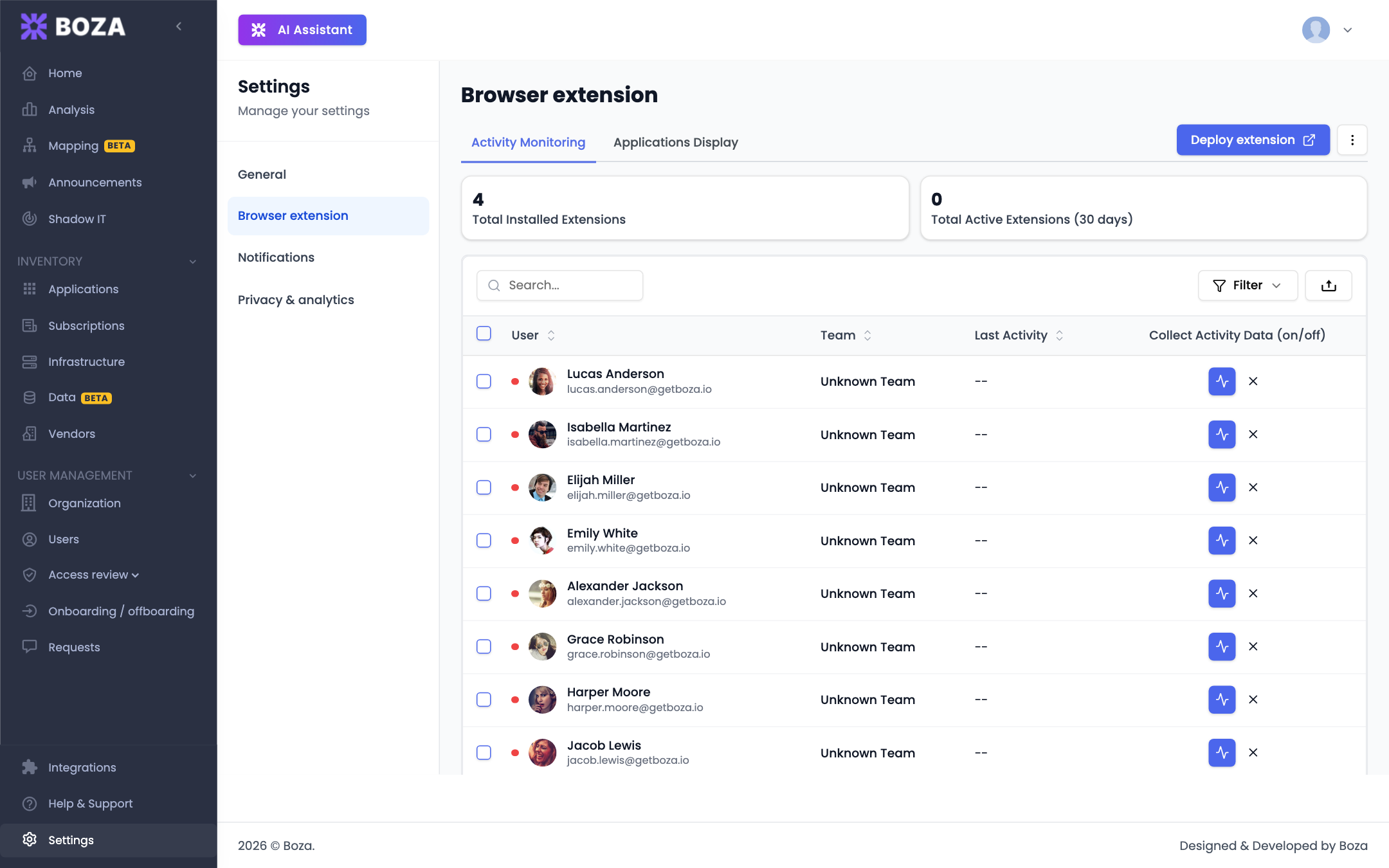
The **Browser extension** section is where you deploy the Boza extension to your team and manage how it behaves once installed.

<figure><img src="https://1674559363-files.gitbook.io/~/files/v0/b/gitbook-x-prod.appspot.com/o/spaces%2FvSdGShklbloRzyUwwMzX%2Fuploads%2Fgit-blob-08220193d7e078edcbaac797d1d4d7fed8b474fe%2Fboza-settings-extension.png?alt=media" alt="Settings Browser extension tab on the Activity Monitoring view, with the installed and active extension counts, the list of users who have the extension, and the Deploy extension button"><figcaption></figcaption></figure>

### Deploying the extension

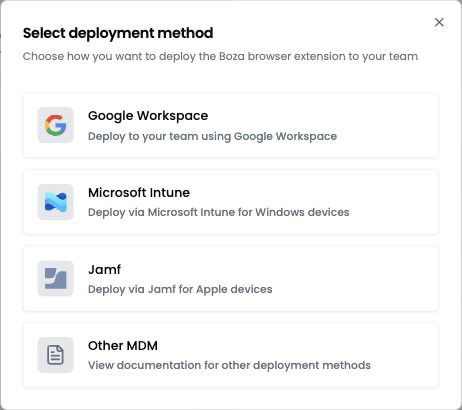
If the extension isn't deployed yet, click **Deploy extension** to open the deployment wizard and choose a method:

<figure><img src="https://1674559363-files.gitbook.io/~/files/v0/b/gitbook-x-prod.appspot.com/o/spaces%2FvSdGShklbloRzyUwwMzX%2Fuploads%2Fgit-blob-2b11db7602adb32f0f767cb956625179ee55160a%2Fboza-extension-deployment-methods.png?alt=media" alt="Browser extension deployment method selector with Google Workspace, Microsoft Intune, Jamf, and Other MDM options"><figcaption><p>Choose the deployment method that manages the target users or devices.</p></figcaption></figure>

* **Google Workspace** — deploy to your team via Google Workspace.
* **Microsoft Intune** — deploy to Windows devices via Intune.
* **Jamf** — deploy to Apple devices via Jamf.
* **Other MDM** — download or follow the generic configuration-profile guidance for another device-management platform.

Where the selected provider supports it, choose the user or device groups to target. Deployment status can take time to update while the device-management platform applies its policy.

{% hint style="info" %}
For step-by-step instructions, see the [Browser Extension](/docs/browser-extension/browser-extension.md) deployment guides, plus the [Jamf](/docs/integrations/jamf.md) and [Microsoft Intune](/docs/integrations/microsoft-intune.md) integration pages.
{% endhint %}

### Managing the extension

Once deployed, the section offers two management views:

* **Activity Monitoring** — see total installed extensions and the number active in the last 30 days. Review each user's most recent activity, deployment state, and data-collection state; filter the list; enable or disable collection individually or in bulk; and export the current view.
* **Applications Display** — review displayed and hidden application counts, filter the inventory, and show or hide applications individually or in bulk. An application needs a **Super Admin** before its extension visibility can change. The current view can also be exported.

### Removing the extension

Use **Uninstall extension** and follow the provider-specific flow to remove it from selected groups or managed devices. Removal timing is controlled by the connected device-management platform.

***

## Notifications

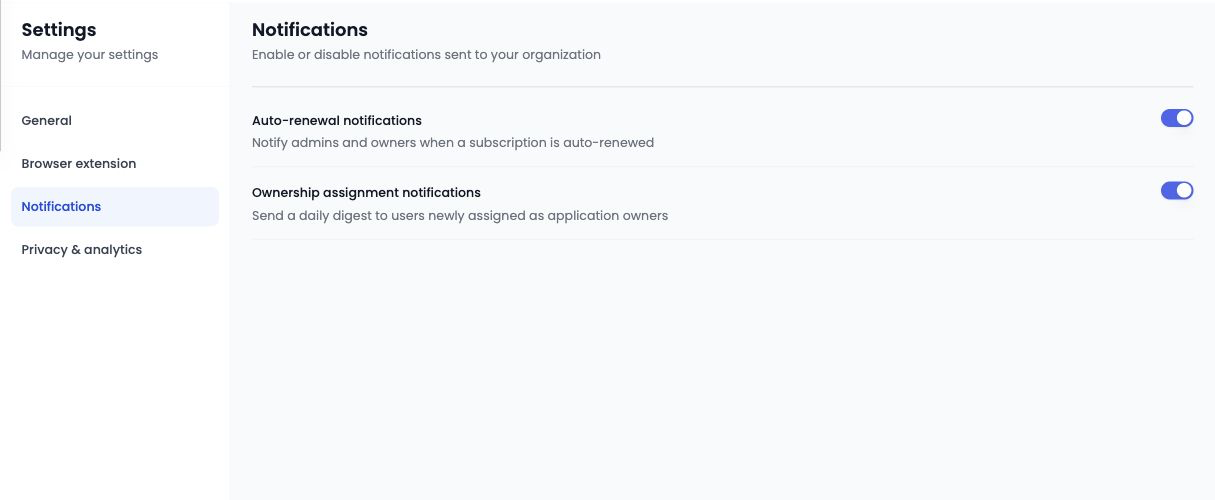
The **Notifications** section controls the automated emails Boza sends on your organization's behalf. Toggle each one on or off:

<figure><img src="https://1674559363-files.gitbook.io/~/files/v0/b/gitbook-x-prod.appspot.com/o/spaces%2FvSdGShklbloRzyUwwMzX%2Fuploads%2Fgit-blob-99d69d1d6260150c313e48b1f5b528598a66a228%2Fboza-settings-notifications.png?alt=media" alt="Settings Notifications tab with auto-renewal and ownership-assignment toggles"><figcaption></figcaption></figure>

* **Auto-renewal notifications** — include automatically renewing contracts in the renewal-alert cycle before the notice period, at the start of the notice period, and on the renewal date.
* **Ownership assignment notifications** — send a daily digest to users who have been newly assigned as application owners.

***

## Privacy & Analytics

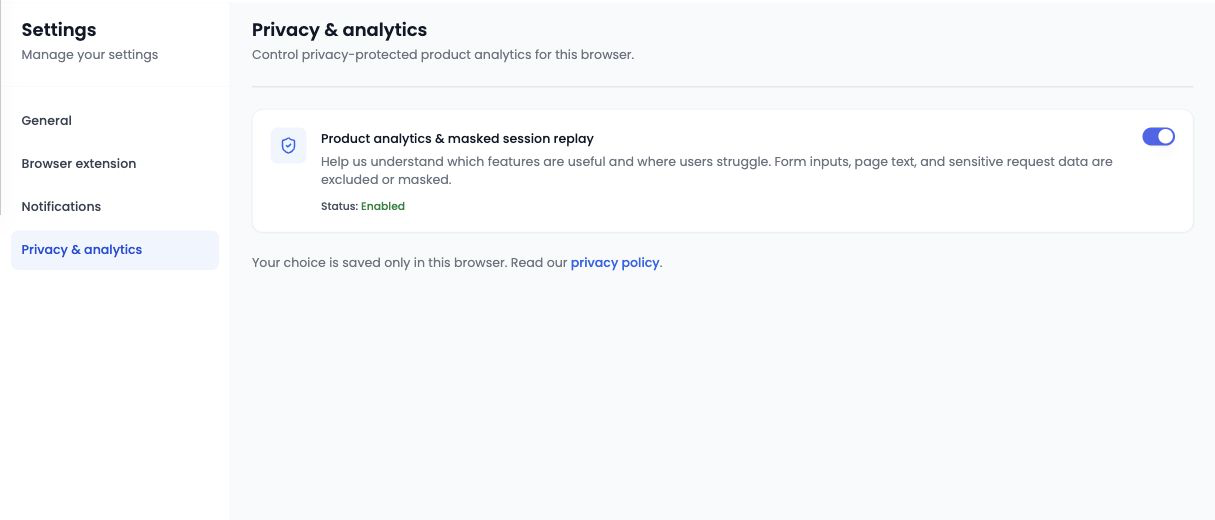
The **Privacy & analytics** section controls product analytics for the browser you are currently using.

<figure><img src="https://1674559363-files.gitbook.io/~/files/v0/b/gitbook-x-prod.appspot.com/o/spaces%2FvSdGShklbloRzyUwwMzX%2Fuploads%2Fgit-blob-0010fa449eecaa647089a6a241a9a8b823062255%2Fboza-settings-privacy-analytics.png?alt=media" alt="Boza Privacy and analytics settings with the product analytics and masked session replay control enabled"><figcaption><p>The choice applies only to the current browser and can be changed at any time.</p></figcaption></figure>

Turn on **Product analytics & masked session replay** if you want to help Boza understand which features are useful and where users encounter friction. Form inputs, page text, and sensitive request data are excluded or masked.

The status can be:

* **Enabled** — analytics are allowed in this browser.
* **Disabled** — this browser does not send product analytics.
* **Unavailable** — analytics are not configured for the current environment.

{% hint style="info" %}
Consent is saved only in the current browser. Enabling the setting on one device or browser profile does not enable it elsewhere.
{% endhint %}

***

## Best Practices

* **Choose the language before inviting your team.** Everyone sees the workspace language on their next load, and every email follows it.
* **Connect a sending mailbox before the first access review.** Employees who have never heard of Boza trust an invitation from your own domain far more.
* **Verify your domains.** If an expected domain is missing, contact support rather than trying to edit it from this page.
* **Limit admin access.** Grant the Admin role only to people who need platform-wide configuration and management capabilities.
* **Check extension coverage.** Review installed and recently active counts after every deployment change.
* **Review browser-local privacy choices.** Set the analytics preference in each browser profile you use.


---

# Agent Instructions
This documentation is published with GitBook. GitBook is the documentation platform designed so that both humans and AI agents can read, navigate, and reason over technical content effectively. Learn more at gitbook.com.

## Querying This Documentation
If you need additional information that is not directly available in this page, you can query the documentation by asking a question.

Perform an HTTP GET request on the following URL with the `ask` and `goal` query parameters:

```
GET https://boza.gitbook.io/docs/settings-and-security/settings.md?ask=<question>&goal=<user_goal>
```

`ask` is the immediate question: it should be specific, self-contained, and written in natural language.
`goal` is what the user is ultimately trying to achieve, the reason they need the answer. Sharing it helps GitBook give you a better, more relevant answer. A goal is most helpful when it describes the outcome the user wants rather than restating the question. For example, with `ask=how do I create an API token`, a goal like `automate deployments from our CI pipeline` lets GitBook tailor the answer to that use case.

The response will contain a direct answer to the question and relevant excerpts and sources from the documentation.

Use this mechanism when the answer is not explicitly present in the current page, you need clarification or additional context, or you want to retrieve related documentation sections.