> For the complete documentation index, see [llms.txt](https://boza.gitbook.io/docs/llms.txt). Markdown versions of documentation pages are available by appending `.md` to page URLs; this page is available as [Markdown](https://boza.gitbook.io/docs/tutorials/run-your-first-access-review.md).
# Run Your First Access Review
Ask the people who know each application to confirm who should still have access, and keep the answers as an audit record. This tutorial takes you from an empty campaign to reviewers receiving their invitation.
## Before you start
* You are a workspace **Admin**.
* The applications to certify are marked **Approved**.
* You know who should certify each application. Reviewers need a Boza user account with a current email address.
* Optional but recommended: the workspace **Language** and **Email sending** settings are the ones your employees should see. Invitations follow both. See [Send Boza emails from your own mailbox](/docs/tutorials/send-emails-from-your-own-mailbox.md).
## 1. Name a reviewer on each application
1. Open **Applications** and select an application.
2. In its **Users & Owners** card, open the owners editor.
3. Add the people who certify access as **Access Reviewers** and save.
Every Access Reviewer receives their own review record for that application. Applications without one can fall back to their Super Admin, a choice you make in step 3.
## 2. Send yourself a test
From **Access review**, click **Send test review**, pick one or two applications, add yourself as a recipient, and send.
You receive the invitation your reviewers will receive. Open it, walk through the review, and check the language and the sender. A test review is a separate campaign with a 14-day deadline: it never counts in the live statistics.
What a reviewer receives. In a French workspace the whole email is in French.
## 3. Configure the campaign
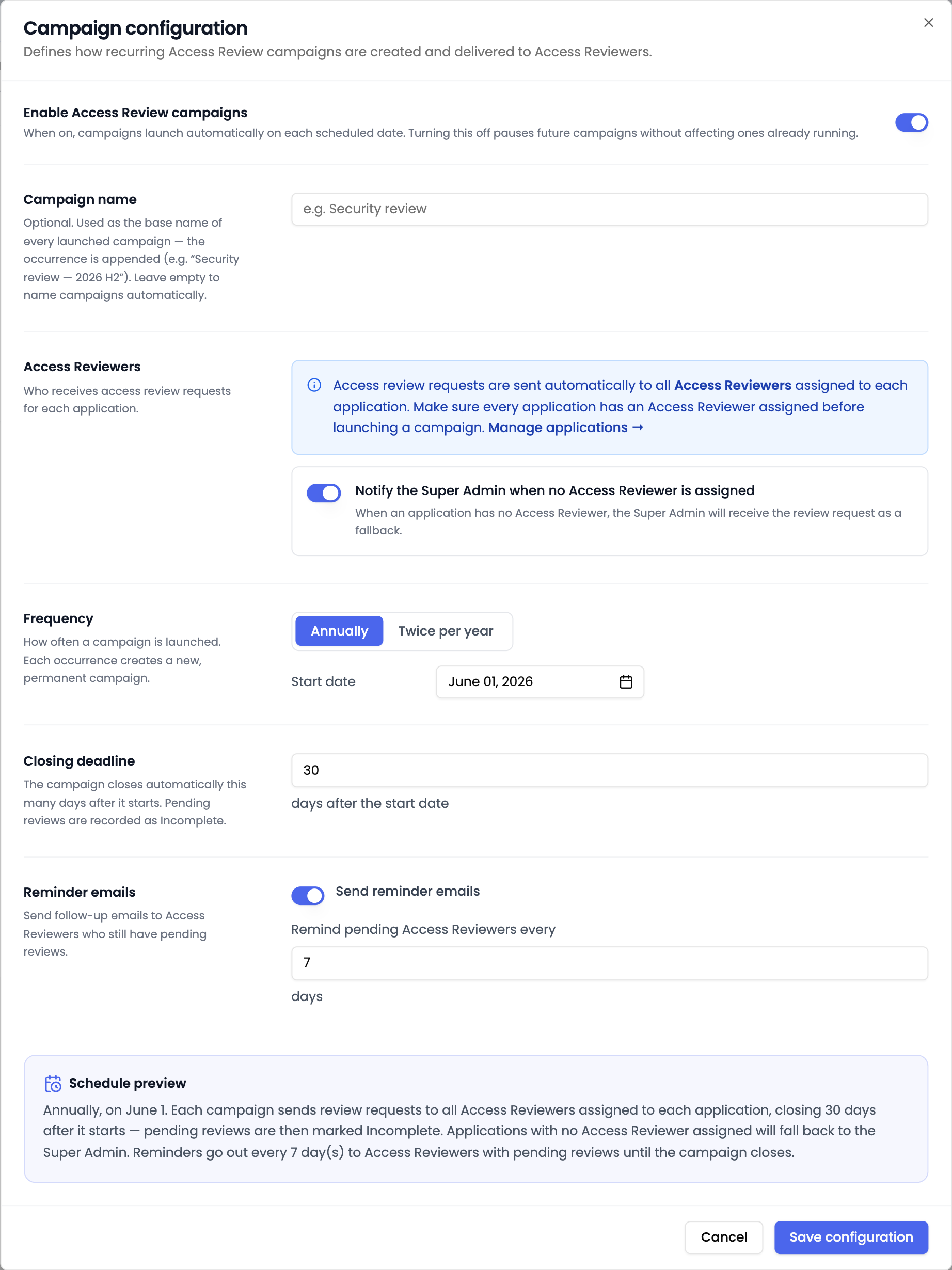
Click **Configure campaign** and fill in the dialog:
| Setting | Choose |
| ---------------------------------- | -------------------------------------------------------------------------------------------------------------------- |
| **Enable Access Review campaigns** | On, to let Boza launch campaigns on the schedule below |
| **Campaign name** | Something your reviewers recognize in the subject line, such as *Q3 2026 access review* |
| **Reviewer fallback** | Whether an application without an Access Reviewer goes to its Super Admin or is reported as **Not covered** |
| **Frequency** and **Start date** | **Annually** or **Twice per year**, and when the first campaign starts. Each occurrence is a new, permanent campaign |
| **Closing deadline** | How many days after the start the campaign closes. Pending reviews are then recorded as **Incomplete** |
| **Reminder emails** | Whether reviewers with pending reviews get a reminder, and after how many days |
Click **Save configuration**, then **Confirm & save** on the summary Boza shows.
## 4. Launch
Either let the schedule start the next campaign, or click **Launch now** for an off-cycle certification with the saved settings and confirm; every reviewer is emailed right away and the launch cannot be undone, although the campaign can be cancelled afterwards. At launch Boza creates one review record per reviewer and application, and sends each reviewer a single invitation listing only their applications.
## Expected result
* **Access review** lists the running campaign with its reviewer and completion counts.
* Each reviewer received one email in the workspace language, from the connected mailbox if you set one up, with a button that opens their review page.
* As reviewers confirm, the campaign totals update; when the deadline passes, the campaign closes and pending reviews are marked incomplete.
## Troubleshooting
* **A reviewer did not receive the invitation.** Check their email address and spam folder, and that the application is approved and assigned to them. They can also sign in and open **My reviews**.
* **An application shows Not covered.** It has no Access Reviewer and the fallback is off. Name a reviewer and it is included next time.
* **The review page opened in the wrong language.** The public review page follows the reviewer's browser language; the email follows the workspace language.
## Related guides
* [Access Reviews](/docs/user-management/access-reviews.md)
* [Configure and manage campaigns](/docs/user-management/access-reviews/configure-campaigns.md)
* [Complete a review](/docs/user-management/access-reviews/complete-a-review.md) (the reviewer's side)
---
# Agent Instructions
This documentation is published with GitBook. GitBook is the documentation platform designed so that both humans and AI agents can read, navigate, and reason over technical content effectively. Learn more at gitbook.com.
## Querying This Documentation
If you need additional information that is not directly available in this page, you can query the documentation by asking a question.
Perform an HTTP GET request on the following URL with the `ask` and `goal` query parameters:
```
GET https://boza.gitbook.io/docs/tutorials/run-your-first-access-review.md?ask=&goal=
```
`ask` is the immediate question: it should be specific, self-contained, and written in natural language.
`goal` is what the user is ultimately trying to achieve, the reason they need the answer. Sharing it helps GitBook give you a better, more relevant answer. A goal is most helpful when it describes the outcome the user wants rather than restating the question. For example, with `ask=how do I create an API token`, a goal like `automate deployments from our CI pipeline` lets GitBook tailor the answer to that use case.
The response will contain a direct answer to the question and relevant excerpts and sources from the documentation.
Use this mechanism when the answer is not explicitly present in the current page, you need clarification or additional context, or you want to retrieve related documentation sections.