> For the complete documentation index, see [llms.txt](https://boza.gitbook.io/docs/llms.txt). Markdown versions of documentation pages are available by appending `.md` to page URLs; this page is available as [Markdown](https://boza.gitbook.io/docs/user-management/access-reviews/complete-a-review.md).
# Complete a Review
Use **My reviews** (under **Access review** in the sidebar) to confirm the applications assigned to you. Each application is submitted separately, so you can add context where it is useful.
My Reviews contains only the applications assigned to the signed-in reviewer.
{% hint style="info" %}
This is the reviewer experience. Campaign configuration, progress tracking, cancellation, and exports are available only to workspace administrators.
{% endhint %}
***
## Why You Received a Review
You receive an access review when:
* You are assigned as an **Access Reviewer** for an approved application; or
* The app has no Access Reviewer, you are its **Super Admin**, and the campaign's fallback is enabled.
The invitation lists only your applications. Other reviewers may receive their own record for the same app.
***
## Before You Start
* Sign in to the Boza workspace named in the invitation.
* Use the Boza account to which the review was assigned.
* Complete the review before the displayed deadline.
* If you are unsure whether access is still appropriate, check the app's users and owners or contact your workspace administrator before confirming.
***
## Complete the Review
1. Open the invitation and sign in to Boza. You can also open **Access review → My reviews** from the platform.
2. Check the campaign name and deadline.
3. Review the first application's name and your role.
4. Add an optional comment when you need to record context, an exception, or a follow-up.
5. Confirm the application.
6. Repeat for every application in the campaign.
After reviewing every remaining item, you can use **Submit all** to confirm them together. Comments already entered on those items are included.
{% hint style="warning" %}
A submitted application cannot be submitted again. Review the details and comment before confirming.
{% endhint %}
If the email points to a particular campaign—including a test review—its link opens that campaign. Opening **My reviews** directly shows your most recent running live campaign.
***
## What Happens After You Confirm?
The item changes from **Pending** to **Completed**, and Boza stores the confirmation time and your comment in the campaign record.
When every assigned item is complete, there is nothing else to submit. The campaign administrator can see the updated counts and, for a non-cancelled live campaign, include your result in the CSV export.
***
## Reviewer Statuses
| Status | What it means for you |
| -------------- | ---------------------------------------- |
| **Pending** | The item still needs your confirmation |
| **Completed** | Your confirmation was recorded |
| **Incomplete** | The deadline passed before you submitted |
Campaigns that are **Closed** or **Cancelled** move into your review history. You can still consult your prior results and comments, but you cannot change them.
{% hint style="info" %}
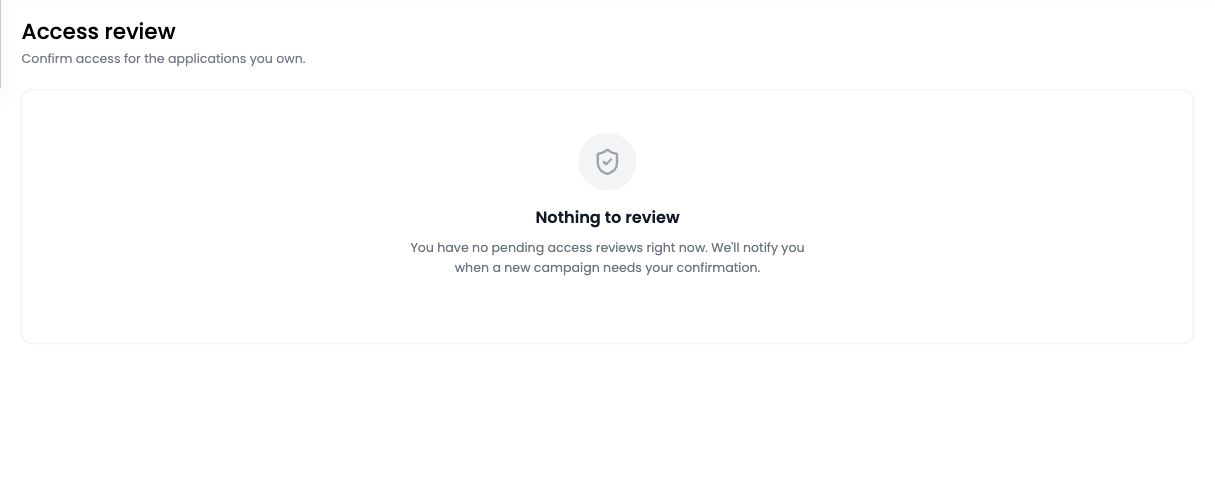
If **My reviews** says **Nothing to review**, you have no pending items in the campaign currently shown. Check the campaign link in your invitation or ask an administrator whether you were assigned.
{% endhint %}
***
## Deadlines and Reminders
An administrator chooses how long a campaign remains open. If your review is still pending after the configured delay, Boza may send one reminder for that campaign.
At the deadline, the campaign closes automatically. Pending items become **Incomplete** and can no longer be submitted.
***
## Troubleshooting
### My reviews is empty
Make sure you signed in with the assigned account and followed the link from the latest invitation. You may have no items in the current campaign, or the administrator may not have assigned you as an Access Reviewer.
### The invitation opens the wrong workspace
Sign out, then sign in with the account and organization named in the invitation. Contact your workspace administrator if the assignment belongs to someone else.
### The campaign is no longer open
It was closed at its deadline or cancelled by an administrator. You can view the result in your history, but only the administrator can decide whether to run a replacement campaign.
### An application should not be assigned to me
Do not ignore the item. Contact the campaign administrator so they can correct the app's ownership before the next campaign, and use the comment to record the issue if you are able to confirm the current review.
### I already submitted the item
Completed reviews are read-only. Ask the campaign administrator how to document a correction if your confirmation or comment was incorrect.
***
## Best Practices
* Complete reviews soon after the invitation arrives.
* Check the application and your responsibility before confirming.
* Use concise comments for exceptions, ownership changes, or remediation follow-up.
* Never forward an invitation or share access to your Boza account.
* Tell an administrator when an app has the wrong reviewer, even if you can complete the current campaign.
For the administrative workflow, see [Configure and Manage Access Review Campaigns](/docs/user-management/access-reviews/configure-campaigns.md). Return to the [Access Reviews overview](/docs/user-management/access-reviews.md).
---
# Agent Instructions
This documentation is published with GitBook. GitBook is the documentation platform designed so that both humans and AI agents can read, navigate, and reason over technical content effectively. Learn more at gitbook.com.
## Querying This Documentation
If you need additional information that is not directly available in this page, you can query the documentation by asking a question.
Perform an HTTP GET request on the following URL with the `ask` and `goal` query parameters:
```
GET https://boza.gitbook.io/docs/user-management/access-reviews/complete-a-review.md?ask=&goal=
```
`ask` is the immediate question: it should be specific, self-contained, and written in natural language.
`goal` is what the user is ultimately trying to achieve, the reason they need the answer. Sharing it helps GitBook give you a better, more relevant answer. A goal is most helpful when it describes the outcome the user wants rather than restating the question. For example, with `ask=how do I create an API token`, a goal like `automate deployments from our CI pipeline` lets GitBook tailor the answer to that use case.
The response will contain a direct answer to the question and relevant excerpts and sources from the documentation.
Use this mechanism when the answer is not explicitly present in the current page, you need clarification or additional context, or you want to retrieve related documentation sections.