> For the complete documentation index, see [llms.txt](https://boza.gitbook.io/docs/llms.txt). Markdown versions of documentation pages are available by appending `.md` to page URLs; this page is available as [Markdown](https://boza.gitbook.io/docs/user-management/organization.md).
# Organization
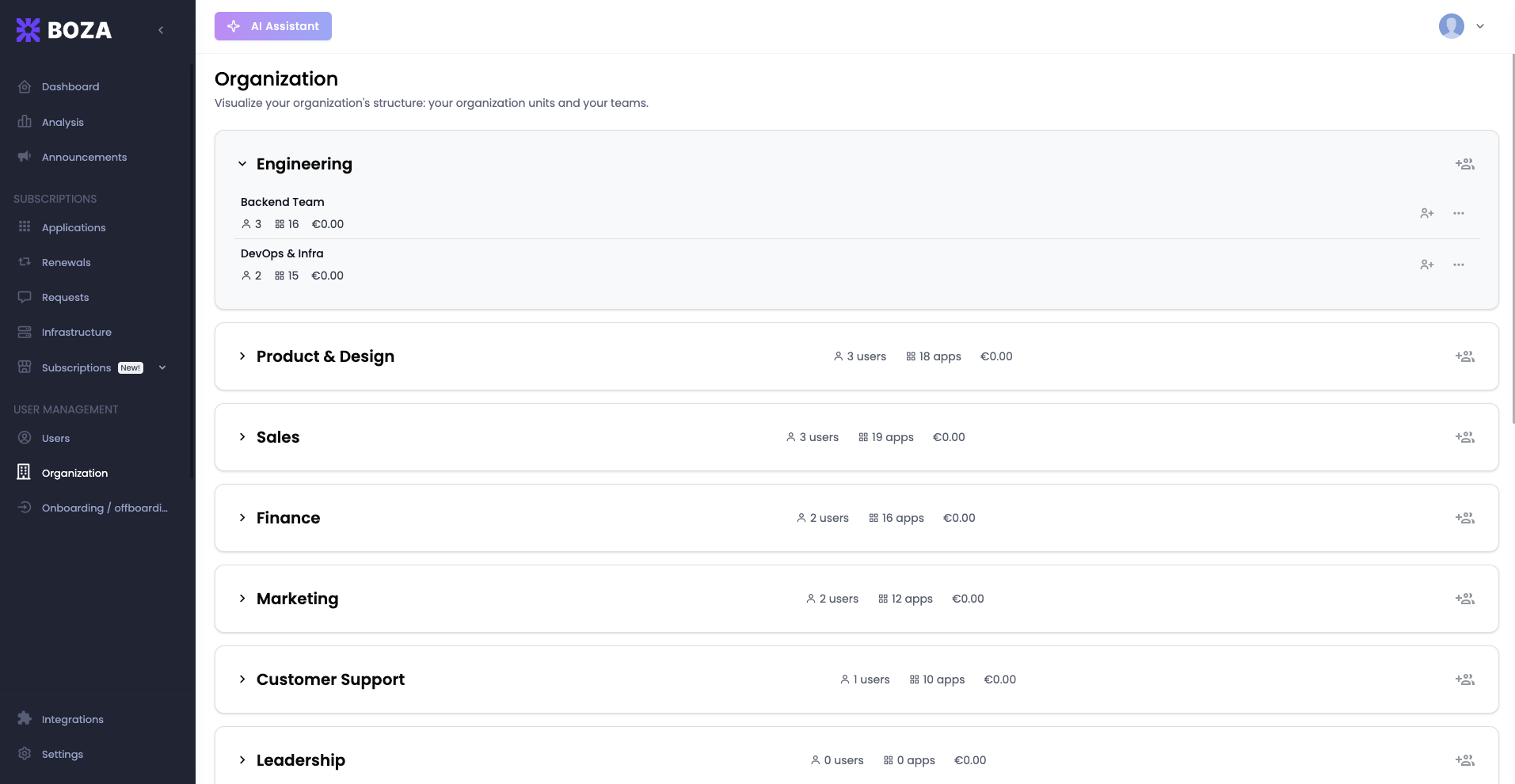
The Organization page provides a structural view of your company — its organizational units, teams, and how people are grouped. Use it to understand how your SaaS applications and costs are distributed across the business and to manage team-level access policies. The current main navigation exposes this administrative page to workspace Admins.
The page title displays **Organization** with the subtitle "Visualize your organization's structure: your organization units and your teams."
{% hint style="warning" %}
Managing teams — creating, editing, adding members, or deleting — requires a connected identity provider. Until **Google Workspace** or **Microsoft Entra ID** is connected and authorized under [Integrations](/docs/integrations/integrations.md), these controls are disabled. Use the **Sync** button on the page to connect.
{% endhint %}
***
## Org Units
Organizational units are the top-level groupings on this page. Each one represents a division, department, or logical grouping within your company (e.g., "Engineering", "Business Team", "Workspace Guests"). Org units are **imported from your identity provider** — they are not created manually in Boza.
Every org unit card displays three summary metrics:
| Metric | What it shows |
| ------------------ | ----------------------------------------------------------------------------------------------------------------------------------------- |
| **Users** | The number of people assigned to this org unit. |
| **Apps** | The total number of SaaS applications used by members of this org unit. |
| **Full year cost** | The active recurring subscriptions assigned to this org unit's members, priced for twelve months. One-time subscriptions are not counted. |
Click an org unit to expand it and reveal the teams nested inside. If no teams have been created yet, you will see an empty state: "No teams created yet. This organization doesn't have any teams. Create teams to organize your users and manage their application access."
{% hint style="info" %}
Org units typically mirror your identity provider's structure (e.g., Entra ID groups or Google Workspace organizational units). If an org unit looks incomplete, verify that the corresponding integration is syncing correctly under **Integrations**.
{% endhint %}
***
## Teams
Teams are sub-groups within an org unit. They let you organize users at a more granular level — for example, "Frontend" and "Backend" teams within an "Engineering" org unit.
Each team inherits the same summary metrics as its parent org unit (user count, app count, cost), scoped to its own members.
### Creating a Team
Click **Create new team** to open a two-step wizard:
1. **Team details** — give the team a name and choose a **team manager** (the Team Lead), searched by name.
2. **Members** — add the users who belong to the team.
Once created, the team appears inside the expanded org unit view. The **add-members** icon on a team card is a shortcut that opens this wizard directly at the members step.
### Team Details
Click a team to open its side panel, which shows the **Team Lead**, three metric cards (Members, Apps, and **Full year cost**), and **Users**, **Apps**, and **Groups** tabs. Each member on the **Users** tab carries their own Full year cost, so the rows add up to the total in the header. From the team's menu you can **Edit** the team — reopen the wizard to rename it, change the manager, or adjust members — or **Delete** it.
{% hint style="info" %}
A team's Full year cost is the cost of the subscriptions assigned to its members. If two people share one subscription, it counts twice — each person occupies a seat. See [Metrics and Data Freshness](/docs/resources/metrics-and-data-freshness.md#cost-allocation).
{% endhint %}
{% hint style="info" %}
Keep team membership up to date as people change roles. Stale team assignments lead to inaccurate cost attribution and can mask compliance gaps when applications are approved at the team level.
{% endhint %}
***
## How Organization Structure Affects App Access
The way you organize units and teams has practical implications beyond reporting:
* **Approval scope.** Application approvals can be tied to specific teams or org units. A tool approved for the Engineering org unit is not automatically approved for Marketing, helping you maintain least-privilege access.
* **Visibility.** Workspace Admins can inspect the applications and costs associated with each team. Being assigned as a Team Lead or manager does not, by itself, grant Boza platform access or expose a separate non-admin Organization view.
* **Onboarding and offboarding.** When a new hire joins a team, their expected application stack is immediately visible. When someone leaves, you can quickly identify which licenses to reclaim.
***
## Cost Allocation by Structure
The **Full year cost** on each org unit and team card makes it straightforward to understand where your SaaS budget goes at an organizational level. Because every level uses the same figure, an org unit, its teams, and their members can be compared directly.
* **Compare units.** If two org units of similar size have significantly different costs, investigate whether one is using premium tiers that could be standardized.
* **Track growth.** As teams grow, their app and cost numbers should scale proportionally. A cost increase without a corresponding headcount increase may indicate redundant subscriptions or pricing changes.
* **Budget planning.** Use the per-unit cost figures to set departmental SaaS budgets and monitor adherence throughout the year.
{% hint style="info" %}
Cross-reference the Organization page with the Dashboard's **Apps per Team** pie chart. The Dashboard gives you a quick visual ratio; the Organization page lets you drill into the exact users and applications behind those numbers.
{% endhint %}
***
## Best Practices
* **Sync with your identity provider.** Let your Entra ID or Google Workspace integration handle org unit creation automatically. Manual structures drift over time.
* **Review quarterly.** Check that org units and teams still reflect reality — departments rename, teams merge, and new groups form.
* **Use teams for granular control.** Even if your identity provider only syncs top-level groups, you can create teams within Boza to get finer-grained cost and access reporting.
* **Address empty units.** If an org unit shows zero users or zero apps, it may be a leftover from a reorganization. Clean up unused units to keep the page actionable.
---
# Agent Instructions
This documentation is published with GitBook. GitBook is the documentation platform designed so that both humans and AI agents can read, navigate, and reason over technical content effectively. Learn more at gitbook.com.
## Querying This Documentation
If you need additional information that is not directly available in this page, you can query the documentation by asking a question.
Perform an HTTP GET request on the following URL with the `ask` and `goal` query parameters:
```
GET https://boza.gitbook.io/docs/user-management/organization.md?ask=&goal=
```
`ask` is the immediate question: it should be specific, self-contained, and written in natural language.
`goal` is what the user is ultimately trying to achieve, the reason they need the answer. Sharing it helps GitBook give you a better, more relevant answer. A goal is most helpful when it describes the outcome the user wants rather than restating the question. For example, with `ask=how do I create an API token`, a goal like `automate deployments from our CI pipeline` lets GitBook tailor the answer to that use case.
The response will contain a direct answer to the question and relevant excerpts and sources from the documentation.
Use this mechanism when the answer is not explicitly present in the current page, you need clarification or additional context, or you want to retrieve related documentation sections.