> For the complete documentation index, see [llms.txt](https://boza.gitbook.io/docs/llms.txt). Markdown versions of documentation pages are available by appending `.md` to page URLs; this page is available as [Markdown](https://boza.gitbook.io/docs/user-management/requests.md).
# Access Requests
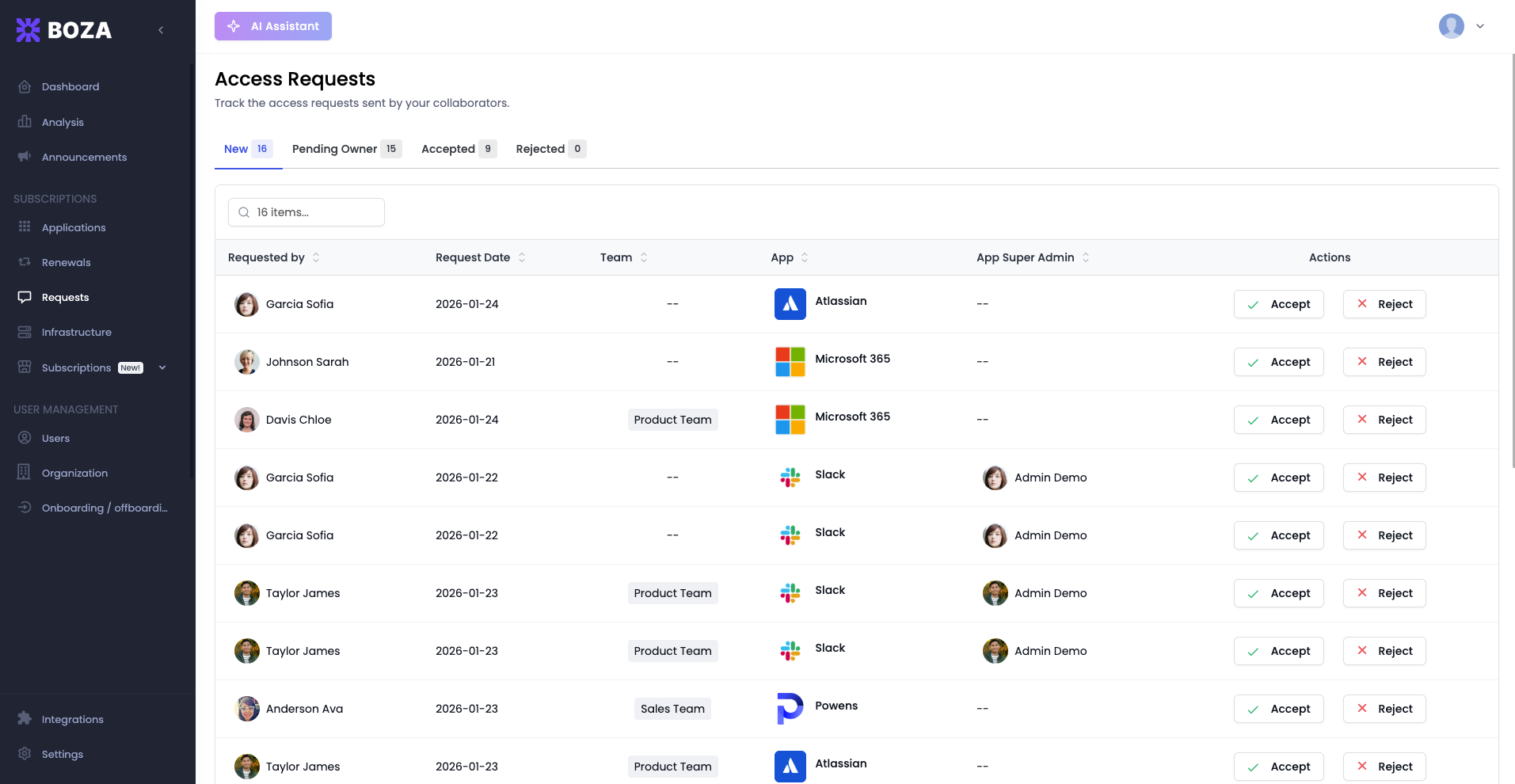
The Access Requests page is the central hub for managing SaaS access requests submitted by your collaborators. It gives IT administrators full visibility into who is asking for access, which applications they need, and the current status of every request — all in one place.
The page subtitle reads *"Track the access requests sent by your collaborators."*
***
## How Access Requests Work
The request workflow has three participants:
1. **Employee** — submits a request for access to a SaaS application, typically through the Boza browser extension.
2. **IT Administrator** — reviews incoming requests on this page and decides to accept or reject each one.
3. **App Super Admin** — the designated owner of the application, shown in the table for context so the reviewer knows who manages the tool.
When an employee encounters an application they do not have access to, the browser extension presents a **Request Access** option. Once submitted, the request appears on this page for review.
***
## Tabs
Four tabs organize requests by status. Each tab displays a count badge showing the number of requests in that state:
| Tab | Description |
| ----------------- | ----------------------------------------------------------------------------------------------------------------------------------------------------- |
| **New** | Freshly submitted requests that have not yet been reviewed. Start here during each review session. |
| **Pending Owner** | Requests that IT has accepted and passed to the application's Super Admin to grant access. These are awaiting action from the app owner, not from IT. |
| **Accepted** | Requests that have been approved. Kept for audit purposes and historical reference. |
| **Rejected** | Requests that were denied. The rejection is recorded so employees and auditors can see the outcome. |
***
## Search
A search bar at the top of the table lets you filter requests by keyword. Search matches against requester name, application name, and team name, making it fast to locate a specific request in a long list.
***
## Table Columns
Each request row contains the following information:
| Column | What it shows |
| ------------------- | ---------------------------------------------------------------------------------------------------------------------------------------------- |
| **Requested by** | The employee's avatar and full name. |
| **Request Date** | The date the request was submitted. |
| **Team** | The organizational team the requester belongs to. |
| **App** | The requested application, displayed with its icon for quick visual identification. |
| **App Super Admin** | The person designated as the super admin for that application. Useful for knowing who to consult if the request needs context. |
| **Actions** | **Accept** and **Reject** buttons for requests in the New tab. The Accepted and Rejected tabs show the final status and decision date instead. |
***
## Accepting or Rejecting a Request
To act on a request:
1. Open the **New** tab to see unreviewed requests.
2. Review the requester, their team, and the application they need.
3. Click **Accept** or **Reject**. You can include an optional **message** that travels with your decision.
Access is granted in **two stages**:
1. **IT accepts the request.** This does not grant access directly — Boza creates a task for the application's **Super Admin**, and the request moves to the **Pending Owner** tab.
2. **The Super Admin grants access** by completing that task, either from the application or directly from Slack or Microsoft Teams. The request then moves to **Accepted**.
Rejected requests move to the **Rejected** tab. The employee is notified of the outcome.
{% hint style="info" %}
If you are unsure whether a request should be approved, check the **App Super Admin** column. Reaching out to the application owner for their input is a common pattern before making a final decision. Accepting a request automatically passes it to that Super Admin — it then appears in the **Pending Owner** tab until they grant access.
{% endhint %}
***
## Integration with the Browser Extension
Access requests originate from the Boza browser extension. When an employee visits a SaaS application that is tracked in your catalog but not assigned to them, the extension offers a one-click **Request Access** flow. This means:
* Employees do not need to send emails or fill out external forms to request software access.
* Every request is captured with structured data (requester, team, date, application) rather than free-text descriptions.
* IT administrators have a single queue to review, regardless of which browser or device the request came from.
{% hint style="info" %}
If your organization has not yet deployed the browser extension, employees will not be able to submit access requests through Boza. See the [Browser Extension](/docs/browser-extension/browser-extension.md) documentation for deployment instructions.
{% endhint %}
***
## Best Practices
* **Review the New tab daily.** Prompt responses build trust with employees and reduce the temptation to find workarounds like signing up with personal accounts.
* **Use the Pending Owner tab to track handoffs.** After you accept a request, the Pending Owner tab follows it until the app's Super Admin grants access.
* **Audit the Accepted tab periodically.** Look for patterns — if a particular app is receiving many requests, it may be worth expanding its license pool proactively.
* **Communicate rejections clearly.** When rejecting a request, consider following up with the employee to explain the reason and suggest an approved alternative if one exists.
---
# Agent Instructions
This documentation is published with GitBook. GitBook is the documentation platform designed so that both humans and AI agents can read, navigate, and reason over technical content effectively. Learn more at gitbook.com.
## Querying This Documentation
If you need additional information that is not directly available in this page, you can query the documentation by asking a question.
Perform an HTTP GET request on the following URL with the `ask` and `goal` query parameters:
```
GET https://boza.gitbook.io/docs/user-management/requests.md?ask=&goal=
```
`ask` is the immediate question: it should be specific, self-contained, and written in natural language.
`goal` is what the user is ultimately trying to achieve, the reason they need the answer. Sharing it helps GitBook give you a better, more relevant answer. A goal is most helpful when it describes the outcome the user wants rather than restating the question. For example, with `ask=how do I create an API token`, a goal like `automate deployments from our CI pipeline` lets GitBook tailor the answer to that use case.
The response will contain a direct answer to the question and relevant excerpts and sources from the documentation.
Use this mechanism when the answer is not explicitly present in the current page, you need clarification or additional context, or you want to retrieve related documentation sections.