> For the complete documentation index, see [llms.txt](https://boza.gitbook.io/docs/llms.txt). Markdown versions of documentation pages are available by appending `.md` to page URLs; this page is available as [Markdown](https://boza.gitbook.io/docs/user-management/users.md).
# Users
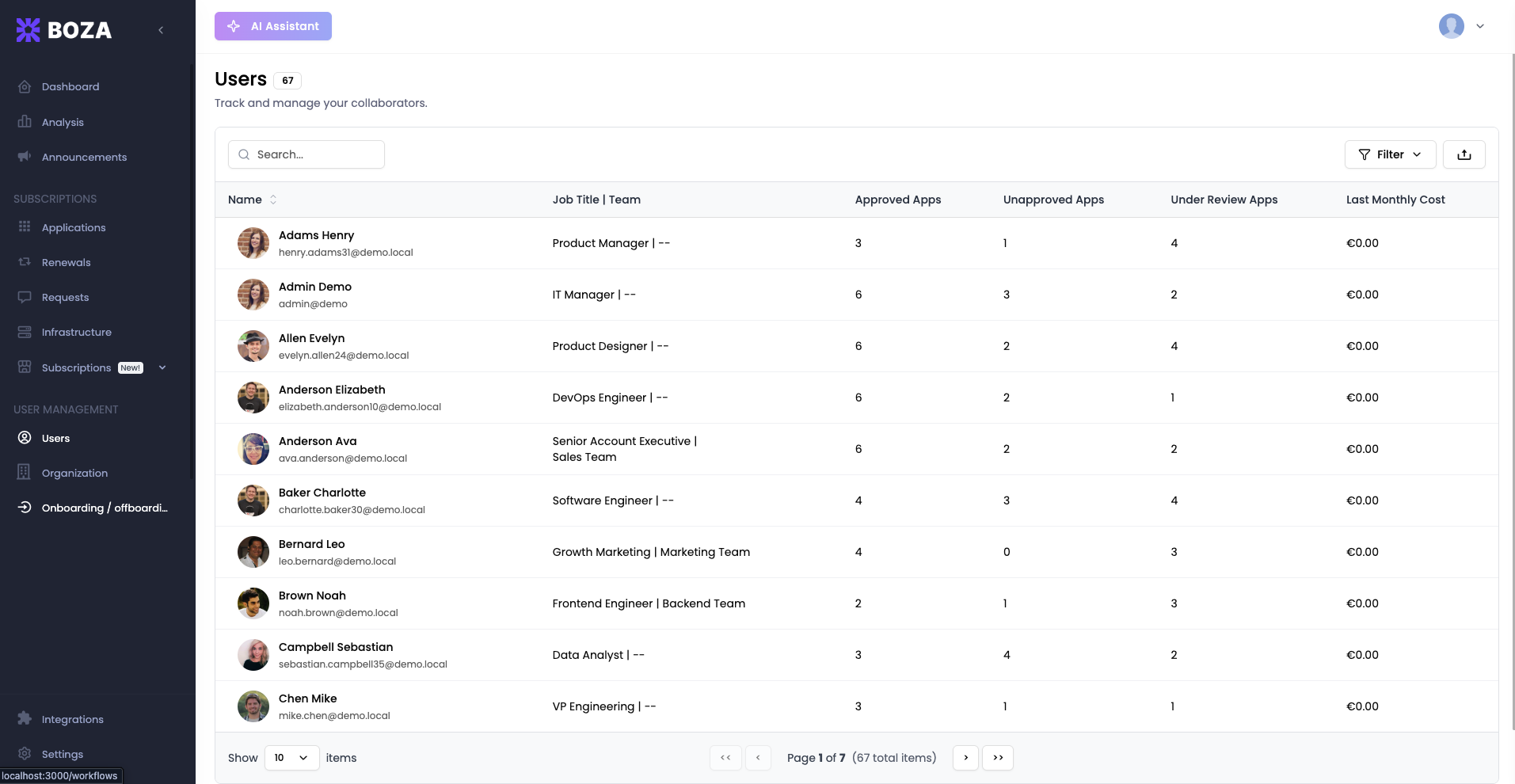
The **Users** page gives administrators a directory-level view of collaborators and their relationship with the organization's applications. Use it to inspect individual access, find unapproved tools, attribute costs, and start an offboarding workflow.
The count beside the page title is the workspace total, whatever the tab or filters; on Microsoft Entra ID workspaces it includes unlicensed users.
***
## User Table
The main table lists every user with the following columns:
* **Name** — full name, avatar, and email address.
* **Job Title | Team** — the user's role and team membership.
* **Approved Apps** — number of applications this user accesses that have been approved by IT.
* **Unapproved Apps** — number of applications this user accesses that have not been approved.
* **Under Review Apps** — applications currently awaiting an approval decision.
* **Full year cost** — the active recurring subscriptions assigned to this person, priced for twelve months. One-time subscriptions are not counted, and the apps in the user's side panel add up to this figure.
Rows are sortable and paginated. Use the controls at the bottom to change the page size or move between pages.
{% hint style="info" %}
The **Unapproved Apps** column is one of the fastest ways to detect shadow IT. Sort or filter by this column to surface users who may be introducing unvetted tools into your environment.
{% endhint %}
{% hint style="info" %}
**Microsoft Entra ID tenants** see **Users w/ licenses** and **Users w/o licenses** tabs. The tabs separate people with a Microsoft license from those without one.
{% endhint %}
***
## Search and Filters
### Search
The search bar at the top of the page lets you find users by name or email address. Results update as you type, so you can quickly locate a specific person.
### Filters
Click **Filter** to open the filter panel, find a filter by name on the left, and choose its values on the right:
* **Team** — show only users belonging to a specific team.
* **Organization** — filter by the organizational unit that contains the user's team.
* **Group** — filter by a group synchronized from Google Workspace or Microsoft Entra ID.
* **Status** — show only activated or deactivated users.
* **Domains** — filter by email domain.
Combine filters with search to build a precise view — for example, activated users in a specific Organization and Team. For Microsoft tenants, the selected license tab is part of that view.
### Export
Click **Export** to download the current user result set as CSV. Boza applies the active search, Team, Organization, Group, Status, and Domain filters. For a Microsoft tenant, it also applies the selected **Users w/ licenses** or **Users w/o licenses** tab.
{% hint style="info" %}
Clear search and filters first when you need a complete directory export. For a governed, auditable review of application ownership, confirmation status, and reviewer comments, use an [Access Review campaign](/docs/user-management/access-reviews.md) instead of relying on a spreadsheet alone.
{% endhint %}
***
## User Detail Panel
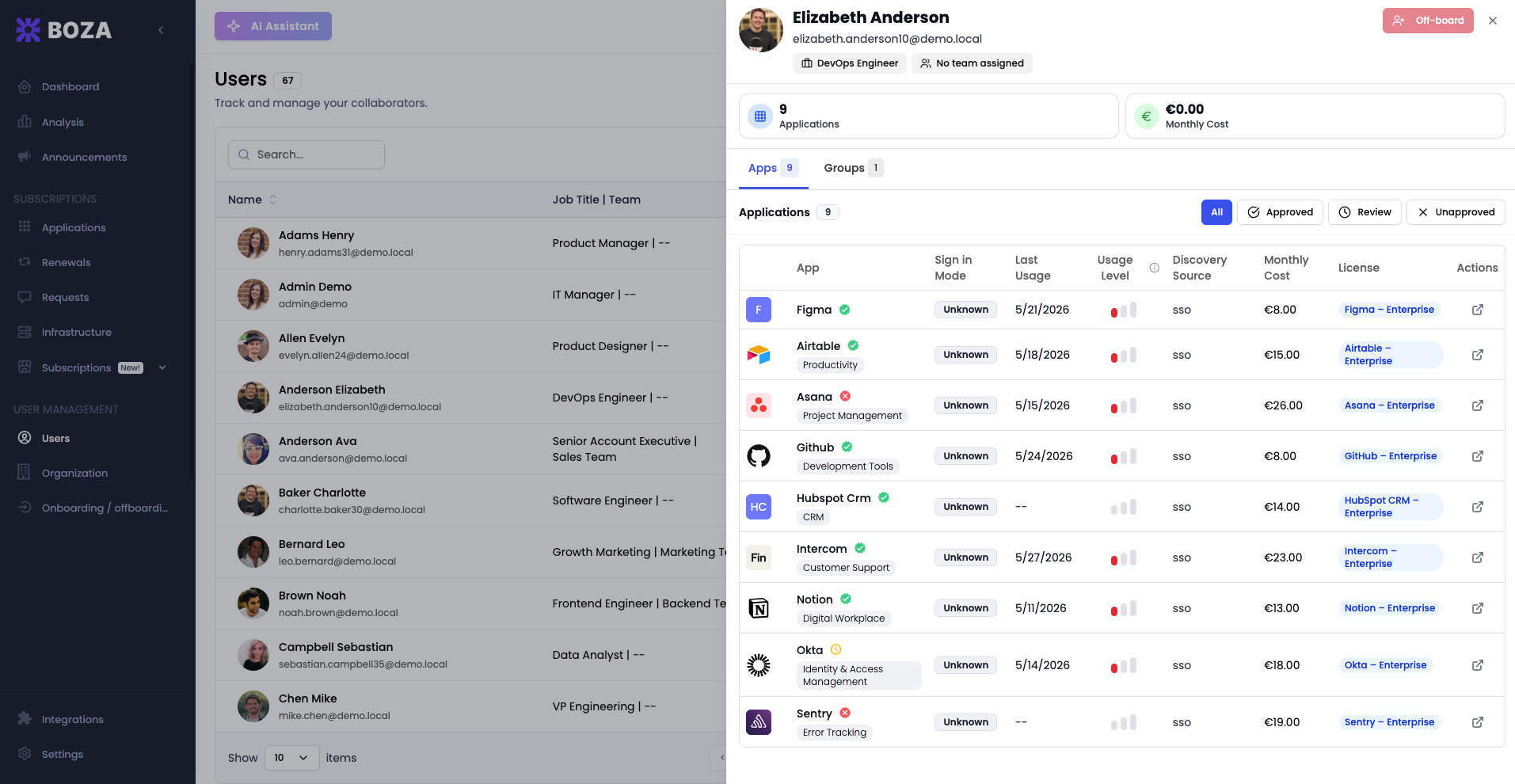
Click any row to open that user's side panel. The header shows their identity and organization information and provides an **Off-board** action. Summary cards show the application count and the user's **Full year cost**. The panel contains:
* **Apps** — the applications associated with the user, including usage, cost, assigned licenses, and discovery source where available. The rows add up to the Full year cost above them. Filter the list and open an application for more detail.
* **Groups** — the identity-provider groups the user belongs to.
Use **Off-board** to start the guided offboarding flow. Choose the date, review application access, transfer ownership where needed, and confirm the workflow. Google Workspace organizations can also configure supported data-transfer steps. See [Onboarding & Offboarding](/docs/user-management/onboarding-offboarding.md).
{% hint style="info" %}
The **Apps** tab is ideal for budget and access reviews: a user holding costly licenses they rarely use is an immediate candidate for downgrading or reclaiming a seat.
{% endhint %}
***
## Using User Data for Cost Optimization and Compliance
The Users page is not just a directory — it is an operational tool for controlling SaaS spend and maintaining security posture.
* **Identify unused licenses.** Compare the Approved Apps count against actual usage signals. A user with many approved apps but low activity may hold licenses that can be reclaimed.
* **Enforce approval policies.** Monitor the Unapproved Apps column across your organization. A rising count signals that new tools are entering your stack without review.
* **Attribute costs accurately.** The Full year cost column lets you tie spend to individuals, making it straightforward to charge back costs to the correct department or project.
* **Prepare a focused data set.** Apply the Organization, Team, Group, Status, and Domain filters before export so the CSV matches the population being reviewed.
* **Run formal access reviews.** Use [Access Reviews](/docs/user-management/access-reviews.md) when application reviewers must confirm access and leave an auditable comment.
{% hint style="info" %}
Pair the Users page with [Analysis](/docs/platform/analysis.md) for a top-down and bottom-up view of costs and application usage. Analysis shows portfolio trends; the user panel shows the people and licenses behind them.
{% endhint %}
---
# Agent Instructions
This documentation is published with GitBook. GitBook is the documentation platform designed so that both humans and AI agents can read, navigate, and reason over technical content effectively. Learn more at gitbook.com.
## Querying This Documentation
If you need additional information that is not directly available in this page, you can query the documentation by asking a question.
Perform an HTTP GET request on the following URL with the `ask` and `goal` query parameters:
```
GET https://boza.gitbook.io/docs/user-management/users.md?ask=&goal=
```
`ask` is the immediate question: it should be specific, self-contained, and written in natural language.
`goal` is what the user is ultimately trying to achieve, the reason they need the answer. Sharing it helps GitBook give you a better, more relevant answer. A goal is most helpful when it describes the outcome the user wants rather than restating the question. For example, with `ask=how do I create an API token`, a goal like `automate deployments from our CI pipeline` lets GitBook tailor the answer to that use case.
The response will contain a direct answer to the question and relevant excerpts and sources from the documentation.
Use this mechanism when the answer is not explicitly present in the current page, you need clarification or additional context, or you want to retrieve related documentation sections.